Managing external tables
External tables permit the reference to HighQ iSheets, SQL and MySQL tables, SharePoint lists, Salesforce, and OData sources in templates. They can also reference existing Datasheets.
Creating external tables
- Go toAdmin>External tables.
- ClickAdd external tablebutton.
- Configure the external table’s parameters. These parameters depend on theData provideryou select (see below).
- ClickTest connectionto test the connection with the configured external table.
- ClickSave.
HighQ iSheets
note
You must first configure a connection to HighQ instance in
.Admin
> Connection settings
before it can be used in an external table. For more information on how to configure a connection to HighQ, see Configuring data connectionsParameters for HighQ iSheets as external tables:
- External table name- a unique identifier, which Contract Express will use when referencing a table for data lookups from mark-up expressions in a template.
- Data Provider- selectHighQ iSheet.
- Row Limit- the number of rows the system will consider. Enter 0, if you do not wish to set a limit.
- Connection- select a HighQ connection. This dropdown is populated by the HighQ connections set in Connection Settings.
- Dynamic site- check the box to look up the local iSheet in the HighQ site from which the questionnaire is launched.
- HighQ site- search for the relevant site and select it from the dropdown list.
- iSheet- select the iSheet from the dropdown list.
- View- select the iSheet view from the dropdown list.
note
If the dynamic site checkbox is not ticked, the HighQ site, iSheet and view are stored by their ID number and the External table access will not be affected by the change in the name of the site or iSheet. If the dynamic checkbox is ticked, the current HighQ site from which the questionnaire is launched will be used and the iSheet and View will be looked up by their name.
This external table uses the Administrator’s access to retrieve data from this external table for all users who are authorised to access this external table and launch relevant templates. Select
Test Connection
to authorise. This will populate the Administrator’s field.SQL and MySQL data provider
Parameters for a SQL or MySQL data provider:
- External table name- a unique identifier, which Contract Express will use when referencing a table for data lookups from mark-up expressions in a template.
- Data Provider- select SQL or MySQL.
- Row Limit- the number of rows the system will consider. Enter 0, if you do not wish to set a limit.
- Server- ADO.Net connection string, for example (configurable elements in italics, the string details will be hidden once the external table is saved).Data Source=ServerName; Initial Catalog=DatabaseName; User ID=UserName; Password=Password; Trusted_Connection=False; Encrypt=True; Connection Timeout=30; MultipleActiveResultSets=TruenoteWe do not recommend the use of integrated security in SQL connection strings as this would allow for the access control lists on securable objects in the Contract Express database to be subverted by anyone allowed to create external tables.
- Target- the name of a table or view, possibly qualified.
SharePoint (on premise) data provider
Parameters for a SharePoint on-premise data provider:
- External table name- a unique identifier, which Contract Express will use when referencing a table for data lookups from mark-up expressions in a template.
- Data Provider- select SharePoint.
- Row Limit- the number of rows the system will consider. Enter 0, if you do not wish to set a limit.
- Server- URL of the SharePoint site.
- Target- the name of a List.
SharePoint Online data provider
note
You must first configure a connection to HighQ instance in
.Admin
> Connection settings
before it can be used in an external table. For more information on how to configure a connection to HighQ, see Configuring data connectionsParameters for a SharePoint Online data provider:
- External table name- a unique identifier, which Contract Express will use when referencing a table for data lookups from mark-up expressions in a template.
- Data Provider- select SharePoint Online.
- Row Limit- the number of rows the system will consider. Enter 0, if you do not wish to set a limit.
- Connection- select a SharePoint Online connection.
- Server- URL of the SharePoint Online site.
- Target- the name of a List.
- Use internal column names- check the box if only internal column names will be used in the Select statements. This may improve the performance of the external data requests.
This external table uses the Administrator’s access to retrieve data from this external table for all users who are authorised to access this external table and launch relevant templates. Select
Test Connection
to authorise. This will populate the Administrator’s field. Ensure that your SharePoint Online list has been indexed. This allows the columns in SharePoint to "speak to each other", so that when a choice is made in the Text Selection variable, the relevant data from other columns is pulled through into the computations that need this information.
To index a SharePoint Online list:
- Navigate to the relevant list in SharePoint Online.
- Click the cogwheel at the top right.
- Click on List Settings.
- Scroll down and click on 'Indexed Columns'.
- Click 'Create new index'.
- Choose the column that will be used as the index.
Salesforce data provider
note
You must first configure a connection to HighQ instance in
. Admin
> Connection settings
before it can be used in an external table. For more information on how to configure a connection to HighQ, see Configuring data connectionsParameters for a Salesforce data provider:
- External table name- a unique identifier, which Contract Express will use when referencing a table for data lookups from mark-up expressions in a template.
- Data Provider- selectSalesforce.
- Row Limit- the number of rows the system will consider. Enter 0, if you do not wish to set a limit.
- Connection- select a Salesforce connection. This dropdown is populated by the Salesforce connections set in Connection Settings.
- Target- the name of an object, e.g. Account, Opportunity, etc.
This external table uses the Administrator’s access to retrieve data from this external table for all users who are authorised to access this external table and launch relevant templates. Select
Test Connection
to authorise. This will populate the Administrator’s field. OData data provider with static API key
Parameters for an OData data provider:
- External table name- a unique identifier, which Contract Express will use when referencing a table for data lookups from mark-up expressions in a template.
- Data Provider- select OData.
- Row Limit- the number of rows the system will consider. Enter 0, if you do not wish to set a limit.
- Server- URL of the OData service, for example:http://services.odata.org/V4/Northwind/Northwind.svc/Also, for OData, you may optionally specify one or more custom headers using theheaderoption: https://MyService/ --header "Authorization: Basic AAABBBCCCDDDEEEFFF"
- Target- the name of a resource managed by the service.
OData data provider using OData connection
note
You must first configure a connection to HighQ instance in
.Admin
> Connection settings
before it can be used in an external table. For more information on how to configure a connection to HighQ, see Configuring data connectionsParameters for an OData data provider:
- External table name- a unique identifier, which Contract Express will use when referencing a table for data lookups from mark-up expressions in a template.
- Data Provider- selectOData.
- Row Limit- the number of rows the system will consider. Enter 0, if you do not wish to set a limit.
- CheckUse connection.
- Connection- select an OData connection. This dropdown is populated by the OData connections set in Connection Settings.
- Target- the name of a resource managed by the service.
This external table requires authorization by the Contract Express admin to access the requested data whenever the template referencing the table is launched. Select
Test Connection
to authorise.Datasheet data provider
Parameters for a Datasheet data provider:
- External table name- a unique identifier, which Contract Express will use when referencing a table for data lookups from mark-up expressions in a template.
- Data Provider- select Datasheet.
- Row Limit- the number of rows the system will consider. Enter 0, if you do not wish to set a limit.
- Target- the name of a datasheet that the external table will point to.
Template data provider
A template with a static lookup table can be used as an external data source for another template. This setup offers several additional advantages compared to traditional local lookup tables:
- The data of external tables is never loaded into browser in full. This provides a more secure option in cases where the template is used by guest users outside of your organisation.
- This setup supports the searchable list presentation for single-select variables which is a convenient presentation option for larger lists. The search term will be used to filter results, returning entries that contain the term with matching case sensitivity.
- This setup can simulate the external table functionality during early template drafting stages or when troubleshooting a template without access to the relevant external data source. The external table using a lookup from a template can be easily replaced with an external table using a source outside of Contract Express and vice versa.
Parameters for a Template data provider:
- External table name- a unique identifier, which Contract Express will use when referencing a table for data lookups from mark-up expressions in a template.
- Data Provider- select Template.
- Row Limit- the number of rows the system will consider. Enter 0, if you do not wish to set a limit.
- Templates- select the template which contains the relevant lookup table. The most recent version of the template will be used whether it is published or not.
- Lookup table name- the name of the lookup table in the selected template.
Both the template and the external table will need to be shared with the users who will access the data. The template does not need to be published.
Data will only be returned for static lookup tables. This functionality cannot be used with dynamic lookup tables.
Copy an external table
You may copy an external table from one Contract Express environment to another.
To download an external table:
- Go toAdmin>External tables.
- Choose your desired external table.
- Open it and click download external table.
- Choose your save location.
To upload an external table:
- Go toAdmin>External tables.
- ClickUpload external table.
- Choose your external table.
- ClickUpload.
Editing external tables
- Go toAdmin>External tables.
- Select required external table.
- Make the changes. You can edit any parameters exceptExternal table name.
- ClickSave.
Deleting external tables
You can delete external tables either by:
- Checking the external table in the list, clickingDeleteand confirming deletion.
- Opening the external table, clickingDeleteand confirming deletion.
note
Any template referencing deleted table will cease to function correctly, so remove or edit references in advance accordingly.
Managing permissions for external tables
Contract Express allows granting permissions to the external tables’ data.
To manage the permissions for an external table:
- Go toAdmin>External tables.
- Click the button in theSharingcolumn for the required external table.
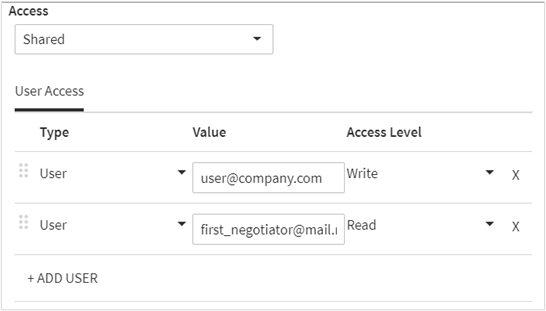
- In the opened panel setAccessas Shared and define the access for users, groups or roles.
- ClickAdd userbutton to add new permission.
- Select user, group or role in theTypesdropdown. Fill out the name and defineAccess level.
- access is required, if a user needs to retrieve data from the external table during the evaluation of mark-up either in a questionnaire or a generated document.Read
- access is needed to modify an external table definition and full access will allow that user to change access permission for others.Write