
Include Document Field
A document can be uploaded from the questionnaire and the contents included in the generated document using a field of the general form:
{
Include Document
variablename }where the
VariableName
is a question variable whose datatype is File Upload.The document will be added in place of the Include field in the generated document.
Note that the file will need to be accessible to the questionnaire user (i.e. either on a local or shared drive).
Examples
{Include Document ClientWordingClause}
{Include Document PartnerCV}
where
ClientWordingClause
and PartnerCV
are variables which have been defined as File Upload data types and asked on the questionnaire.Include PDFs in the Document
As of Nov 2026, you can now include
PDF documents
in generated documents. PDF files are added to the generated output as full-page images
, allowing you to send complete document packages. PDFs are inserted without margins. This means that if the output is for print, you need to select the appropriate print options to fit the paper so that the included content is not cut off.
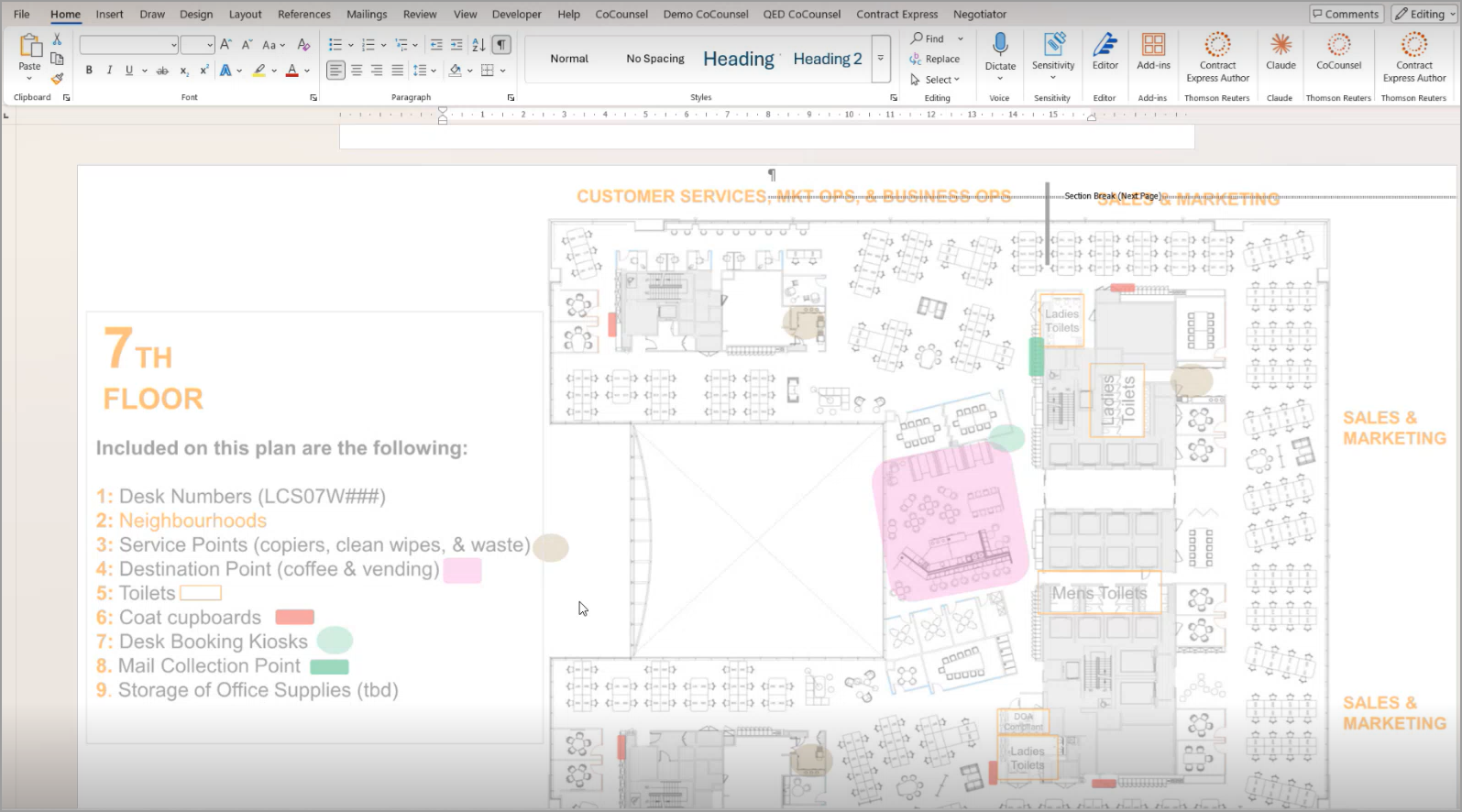
If you want the included PDF to appear in a separate section of the Table of Contents, make sure the “Update Word fields” option is checked and set to “Yes” for the profile you are using. For more information, see Content and output.

If a PDF is corrupt, or is password protected, the failure is detected during generation. The generated document will be incomplete, and its status will be shown as “Incomplete”. A warning will also appear in the UI indicating that the PDF file could not be processed. Users should review the affected PDF files, remove any restrictions if necessary, reattach the files, and regenerate the document in such cases.
Related Content
-
Attach Document Field
Format: Article
-
Include Textfile Field
Format:
Article