
Additional configuration for a template
Enabling discussions for a template
Contract Express allows adding comments on the document details page. To enable users to add comments for documents, you should enable discussions for the corresponding template.
To enable discussions for a template:
- Select the template on theTemplatestab.
- Go toTemplate details.
- CheckUse discussionscheckbox.
- ClickSave.
Enabling document upload for a template
Contract Express allows uploading supplementary documents on the document details page. To enable users to upload supplementary documents, you should enable document upload for the corresponding template.
To enable document upload for a template:
- Select the template on theTemplatestab.
- Go toTemplate details.
- CheckEnable document uploadcheckbox.
- ClickSave.
Allowing a template to be used as a subtemplate
Contract Express provides the ability to allow or restrict the usage of a template as a sub template.
To allow a template to be used as a sub template:
- Select the template on theTemplatestab.
- Go toTemplate details.
- CheckAllow as subtemplatecheckbox.
- ClickSave.
Configuring eSignature for a template
To be able to configure eSignature for a template it must be enabled (see Enabling eSignature).
To configure eSignature at the template level:
- Select the template on theTemplatestab.
- Go to theeSignaturesection.
- When using DocuSign, checkUse DocuSign. When using Adobe Sign, checkUse Adobe Sign.
- ClickSave.
note
Defining a template with anchor tags automatically populates the signatory as the recipient within your chosen eSignature provider. Please see Configure signatories within the template for guidance on how to configure anchor tags in a template.
If you enable DocuSign for a template, all documents created from this template will have DocuSign enabled when the status is set to Ready.
eSignature for guests
If your license allows guests, you can enable eSignature for guest users at the template level. Note you should make the template Public first (see Making templates public ).
To enable eSignature for guests:
- Select the template on theTemplatestab.
- Go to theeSignaturesection.
- When using DocuSign, checkEnable DocuSign for Guests. When using Adobe Sign, checkEnable Adobe Sign for Guests.
- ClickSave.
Configuring Watermark for a template
A watermark is a faded background image that displays behind the text in a document. You can use them to indicate a document's state draft.
To be able to configure a watermark:
- Select the profile on the Admins tab.
- Go to Document section.
- Tick Apply draft watermark to documents in progress.
- Choose the way a watermark needs to be removed (do not apply by default).
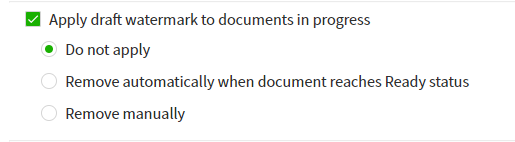
- ClickSave.
- Apply the profile to the template.
Customise a watermark
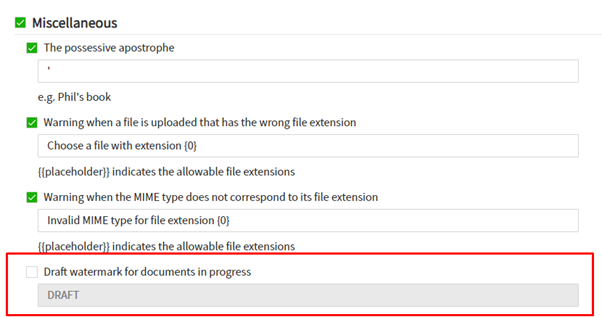
- SelectLocaleson theAdmintab.
- Go toMiscellaneoussection.
- Tick Draft watermark text for document in progress.
- Customise a watermark.
Removing watermark manually
To remove watermark manually:
- Go to the Document details page.
- Reach document statue Ready
- Remove watermark manually via button

Archiving templates
There are two ways of archiving a template:
- On theTemplatestab, check the template or multiple templates and clickArchive
- Archive all template versions (seeArchiving template versionsbelow)
Archiving a template will archive all versions of the template and the template will be removed from the list of templates on the
Templates
tab. You can display the archived template by checking the Include Archived
checkbox.Restoring archived templates
To restore the archived templates:
- Go toTemplatesand check theInclude Archivedcheckbox.
- Select the required template.
- Within the Template details page selectRestore Latest.
Archiving template versions
To archive a template version:
- Select the required template on theTemplatestab.
- Go toTemplate versions.
- Check the version you need to archive and clickArchive.
You can restore the template version by navigating to the template version details page and selecting
Restore
.Deleting templates
You can delete templates or template versions permanently if they are not associated with any live documents. You require Full access on the template to be offered this option.
To permanently delete a template and all its template versions:
- Go toTemplatesand select the template to be deleted.
- Click on the three ellipses

- Select theDeleteoption.
- Confirm you want to delete this template.
note
It is not possible to restore permanently deleted templates.
Deleting template versions
To permanently delete a template version:
- Within a Template details, selectTemplate versionsfrom the template menu.
- Tick the versions of the template that are to be permanently deleted.
- Select theDeleteoption.
- Confirm you want to permanently delete these versions.
Viewing template history
Template history contains the information about template changes - adding the template, new versions, deleting the template, approval changes, negotiation changes, sharing permission changes.
To view the template history:
- Select the required template on theTemplatestab.
- Go toHistory.