
Configuring negotiation for a template
Enabling negotiation for a template
Administrators can enable or disable negotiations in
Admin
> Features
(for more information see Enabling negotiation and configuring its status names).Turning on Negotiations in Admin section will enable the setting across the entire license space and apply to all templates but it is also possible to enable Negotiation per template.
To configure this per template, navigate to the template on the
Templates
page. On the Negotiation tab check/uncheck the checkbox Use negotiation
.If you enable the Use negotiation option, created by this template will allow negotiations to be requested when the status of the Document is Incomplete, Requires Approval or Ready.
Voiding negotiation
If you are trying to disable Negotiation while there are active negotiation tasks, Contract Express will ask whether you want to:
- Allow all active negotiations to be completed or;
- Void all active negotiation tasks.
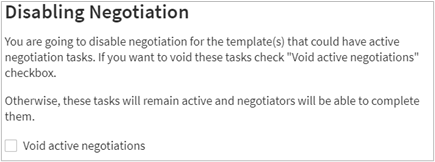
Check
Void active negotiations
checkbox, if you want to void negotiation tasks. As a result, Contract Express will remove all active negotiation tasks and return corresponding Documents to their previous statuses from which negotiation had been requested.If you leave
Void active negotiation
unchecked, users will no longer be able to request negotiations for any Documents, but all pending negotiations will continue until they are either completed or revoked.Changes to Contract Express when negotiation is disabled
If you disable negotiation for the template, the following changes will occur in the Contract Express:
- Users will not be able to request negotiation for the Documents created from this template;
- The Negotiation Turnaround Time metric is not available on the Template details tab for a template.
Setting up negotiation for a template
If negotiation is enabled, a negotiation step is preconfigured by default for every imported template.
note
Only one negotiation step can be configured for a given template.
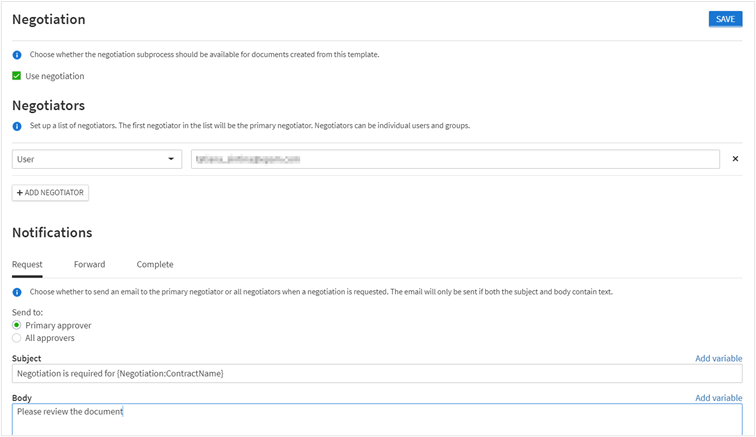
To configure negotiation for a template:
- Go to theTemplatesand select the required template.
- SelectNegotiation.
- Set upNegotiators.
- Select type of the negotiator - user or group. Define negotiator’s name.
- Add another negotiator using theAdd negotiatorbutton. If there is more than one negotiator listed in a negotiation step, the first negotiator in the list will be the primary negotiator, with subsequent negotiators added to the negotiation step listed as alternate negotiators.
- Set upNotifications.
- Request: is the notification that will be sent to the specified negotiator(s) at the point the negotiation process is commenced. You can configure whether this will be sent to the primary negotiator or to all negotiators.
- Forward: is the notification that will be sent to the new negotiator if a negotiation task is forwarded from one negotiator to another.
- Complete: is the notification that will be sent to the requestor of the negotiation when the negotiation has been completed.noteNotification emails will only be sent if both the Subject and Body contain text or fields.
- ClickSave.
Using fields within notifications
Within the Subject and Body of the notification emails, it is possible to use data drawn from Contract Express and the template to relay more information to the recipient. You can add individual variable from the template along with information that will be captured for each document (e.g. the name of the document).
To add variables in Subject or Body:
- ClickAdd variablelink.
- Select variable from the dropdown.
Apart from plain text and template variables, you can use the following data in Subject and Body:
- Negotiation:Title- This field corresponds with the name of the negotiation step.
- Negotiation:ContractName- This field will insert the name of the Document.
- Negotiation:NegotiatorName- This field will pull in the name of the primary negotiator.
- Negotiation:Comments- There is a “comments” box that appears at various stages of a negotiation task if the negotiator/requestor wishes to add comments. This field can be added to the body of any of the notification emails and will pull in the comments at that specific point in the negotiation process.
Editing negotiation settings for a template
To edit negotiation settings for a template:
- Go to theTemplatestab and select the required template.
- SelectNegotiation.
- Make the changes.
- ClickSave.
Negotiation process
For Users
Requesting a Negotiation
To request negotiation, click the
Request
button in the Negotiation section document details page. Note that this option is only available when the document is in the following statuses:- Incomplete;
- Requires Approval and;
- Ready.
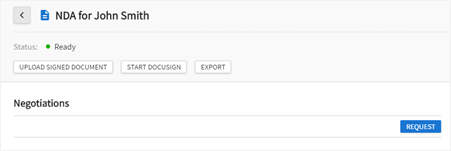
After click
Request
, you can enter any comments they wish to direct to the negotiator.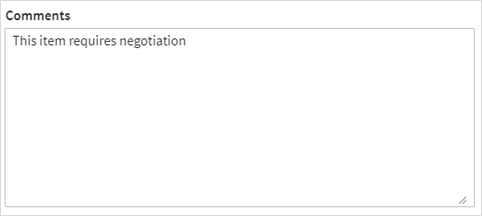
Once you started the negotiation process, Contract Express changes the status of the document to Negotiating and becomes non-editable for all users except negotiators configured for that template and administrators.
Negotiation Overview
User can view the current state of the negotiation process in the
Negotiations
section of the document details page. 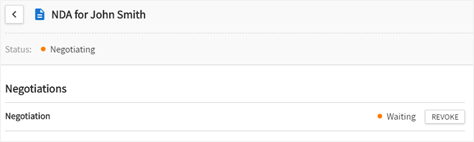
If a user has read or write access to the Document, they can revoke the negotiation by clicking
Revoke
in the Negotiation section of the document details page. The user can only revoke negotiation when it is in the Waiting status (a negotiator hasn't started working on it yet). If a negotiation is revoked, the negotiation section will no longer be displayed, and the document will revert to the status it was in when the negotiation was requested.Post-Negotiation
Once the negotiation has been completed, the document will move into one of the following statuses:
- Ready- if the document does not require approvals, or all necessary approvals have been granted previously and the negotiator has not restarted them, during the negotiation.
- Requires Approval- if the document requires approvals.
When the negotiation has been completed, the requestor will get an email notification, if it has been configured for the negotiation.
When the negotiation is completed, the user can view details of the negotiation process in the
History
of the document.For Negotiators
Negotiators can view all live documents awaiting negotiation under the
Negotiations
tab in the Tasks
page.
Alternatively, if the notifications have been set up at the point of Request, the negotiator can follow the link in the email notification sent to them for a direct link to the document awaiting negotiation. The negotiator will then have the option to
Grab
, Forward
or Revoke
the item. Negotiators will also have access to the generated document and have permission to edit the questionnaire.Negotiators can perform the following actions with the negotiation task:
- Grab- the negotiator takes responsibility of the negotiation and becomes the primary negotiator (if they were not so already). The negotiation status will change to Internal Review.
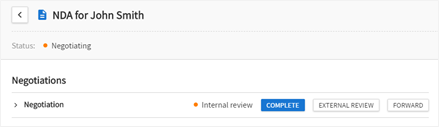
- External Review- the negotiator points out the fact that the Document has been sent to an external party for external review. The negotiation status will change to External Review.
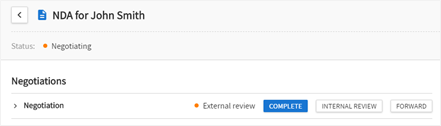
- Internal Review- the negotiator points out the fact that they are working on the Document. The negotiation task will change to Internal Review.
- Complete- the negotiator has completed the negotiation. The negotiation status changes to Completed and is no longer available on theTaskstab or the document details page.
- Forward- the negotiator redirects the negotiation task to the other user, who then becomes the primary negotiator for this document. If the notification for the forward action has been set up, this person also receives an email notification. A negotiation task can be forwarded to any user when the task is in any status except Completed. When the negotiation is forwarded, the status will not change.
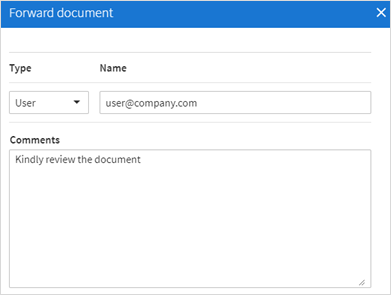
Administrators can view the average duration of the negotiation between its request and completion by building the ‘Average Negotiation Cycle Time by Template’ report (see Distribution reports). Statistics on the negotiation tasks by a specific date, broken down by the negotiation status is available in the ‘Total Negotiations by Status’ report (see Point in time reports).