
Enabling alerts and Configuring SLA metrics for a template
Enabling alerts for a template
If you enabled any alerts for a template, you can view them in
Alerts
section.To enable alert for a template:
- Select the required template on theTemplatestab.
- Go toAlerts.
- ClickAdd alerts.
- Select the alerts from the list and clickAdd.
note
The selected alerts will be automatically enabled for new documents, created from this template.
To activate an alert for existing documents, you need to go to the document details page of the corresponding document and subscribe to the alert (see Subscribing to alerts).
To disable alerts for a template, select the required alert(s) and click
Delete
. Note that the alert will be disabled for all Documents, created from this template.Configuring SLA metrics for a template
Service Level Agreement metrics (SLA metrics) are configured per template and used for the system-wide KPI calculations. For more information about KPIs, see KPIs widget.
If any SLA metric for a document is breached, this document will be marked as an overdue document and shown on the Overdue Items widget on the Admin dashboard (see Overdue items widget about the Overdue Items widget).
SLA metrics are configured in the
Metrics
section within a template.The following default SLA metrics are preconfigured for every template:
- Approval Turnaround Time- how long a document stays in the Awaiting Approval status (the default value is 2 days). If a document is in the Awaiting Approval status for longer than 2 days, the document will be classed as an overdue item until it leaves the Awaiting Approval status.
- Negotiation Turnaround Time- how long a document stays in the Negotiating status (the default value is 3 days). If a document is in the Negotiating status for longer than 3 days, the document will be classed as an overdue item until it leaves the Negotiating status.noteThis metric is not available if negotiation is disabled inAdmin > Features(see Enabling negotiation and configuring its status names) or it is turned off for the template.
- Signature Turnaround Time- how long a document stays in the Sent for Signature status (the default value is 1 day). If a document is in the Sent for Signature status for longer than 1 day, the document will be classed as an overdue item until it leaves the Sent for Signature status.
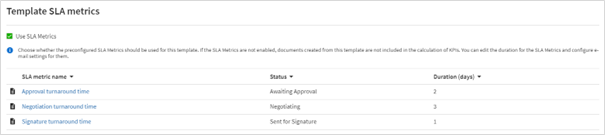
Enabling SLA metrics for a template
By default, SLA metrics are enabled for all templates. It means that for all documents created from these templates, SLA metrics will be tracked. These documents are considered when KPIs are calculated.
Uncheck
Use SLA Metrics
checkbox to stop using them for documents, created from this template.
Editing SLA Metrics
To edit an SLA metric for a template, click its name. You can set up the following parameters for the chosen SLA metric:
- Duration- define the threshold value for the SLA metric. The duration can be set up in days or weeks.
- Notification settings- define the recipients and contents of the email notification that will be sent out when an SLA has been breached.
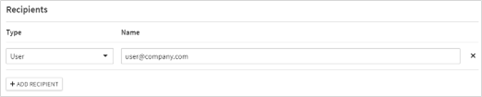
- Recipients: Users and groups can be configured as the recipients of the notification. You can set up multiple recipients by clicking theAdd recipientsbutton.
- Subject: Subject of the email notification.
- Body: Body of the email notification.

Within the Subject and Body of the notification emails, it is possible to use data drawn from Contract Express and the template to relay more information to the recipient. By clicking
Insert field
you can select an individual variable from the template or information that is captured for each document (e.g. the name of the document).