
Practical Law templates
Working with Practical Law templates
Practical Law automates a collection of templates kept up to date by Thomson Reuters expert in-house team. To access these templates your site must have a license file enabling this feature. If you should be able to access this feature but are unable to, please contact contractexpress-support@thomsonreuters.com.
Starting from version 7.3, Contract Express allows users to use several Practical Law repositories (for example, Practical Law UK and Practical Law US). Ability to use several repositories is also defined by the license.
By default, Contract Express will check for updates to the Practical Law templates every hour. To change this frequency, please see the
Contract Express Enterprise Installation Manual
.Browsing Practical Law templates
To view Practical Law templates:
- Go to theTemplatestab.
- Select thePractical Lawtab. Click on a category to view its contents.

- Click on the name of a template to view its details.
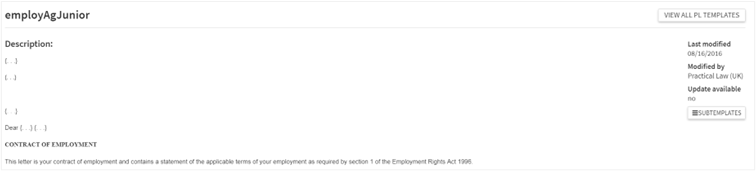
On the template details page within the Practical Law repository you can view:
- A description of the template.
- A preview of the template.
- When the template was last modified.
- If there is an available update for the template. See Updating Practical Law templates below for more details.
- A list of sub templates that are used by the current template.
Using Practical Law templates
Importing Practical Law templates
To use Practical Law template within a license space, you need to import it, so that it sits within the regular templates list on the
Templates
tab. You can import both templates and categories from the Practical Law repository. To import a template/ category:
- Go toTemplates>Practical Law.
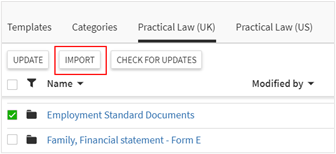
- Select required templates/ categories and clickImport.
- In the opened panel, you can view the list of templates you are going to import. Note if the selected templates have sub templates, they also will be in the list for importing.
- CheckAutomatically import updated templates, if you want Contract Express to update the templates automatically, if they are any updates available. See Updating Practical Law templates below for more details on checking for updates.You can change this setting from the template details page of the imported template.
- CheckAutomatically set updated templates to published, if you want Contract Express to make imported templates automatically published. By default, all imported templates are inUnpublished status.You can change this setting from the template details page of the imported template
noteIf Categories are disabled for your Contract Express site, you will see the following message in the import screen: “Templates will be imported without categories, as Categories are not enabled in the License Details”. See Enabling categories for templates for more details about enabling categories. - ClickImport.If you imported some of these templates before, they will not be imported again. If you have already imported a previous version of any template from the list, it will be updated during import.
- Go to theCategoriestab to view the folder with imported templates. Templates are available on theTemplatestab.Please note that imported templates have reference names on the Templates tab, so your template’s name may differ from the one you see on thePractical Lawtab.
Editing Practical Law templates
Once you have imported a template into your license space, you can use it as a regular template. Managing templates has more details on setting up templates. You can download the template, edit it in Contract Express Author, upload back into Contract Express and share it with other users.
Sharing Practical Law templates
See # for details about sharing templates with other users.
Updating Practical Law templates
Contract Express automatically checks Practical Law repository for updates every hour. Your system administrator can configure the frequency of these checks. In addition, you can check for updates manually by clicking Check for Updates on Templates tab or Practical Law tab.
If Contract Express finds updates for your imported template within Practical Law template repository, this will be reflected in several locations:
- Practical lawtab:
- Template with updates will have theImport statusof Updates available in the list of Practical Law templates
- Update availableis set to Yes on the template details page
- Templatestab:
- Template with updates will have theUpdate availableset to Yes in the list of Practical Law templates
- Update available from Practical Lawis set to Yes on the template details page
To update a template, select it from the grid on Templates tab or Practical Law tab and click
Update
.