
Configuring workflows
Working with matters
Matters offer the ability to create a collection of documents that relate to the same real-world matter. A user can create multiple documents which share the same data without having to complete multiple questionnaires in one go. Users can start a matter, create a document and will see recommended steps of what documents to create next after each stage.
Creating a matter is done from the
Matters
tab. This is a repository of all the Matters generated by and shared with the user. They can be organised in various ways such as alphabetically or by status, by clicking on the appropriate column heading. Users can create folders to file their Matters and are able to invite other users to their Matter.Configuring workflow steps
Workflow steps are the recommendations that a user will see during a Matter. These recommendations can be links, which jump straight into a new question session and create a new Document within a Matter.
General information about Matter template
The Matter template is crucial for matters and is the top most template of any matter. When a user starts a new matter, this is the template that will be launched. If your license space has the Matters feature enabled (see Enabling matters) this template will be auto-provisioned. The contents of this template can be edited by downloading the template, modifying and uploading it back into the site. To ensure that the modified template is used for matters,
the Template name must not be changed
.An approval cannot be applied to an entire matter, but it is still possible to add approval steps to the Matter template. If an approval step is added to the matter template, the approval will be evaluated for standalone documents created using the matter template.
Creating workflow steps
Workflow steps are used to drive the next steps during a Matter. To define the workflow steps, you should:
- Select Matter template on theTemplatestab.
- SelectWorkflow steps (Matters)section.
- ClickAdd workflow step.
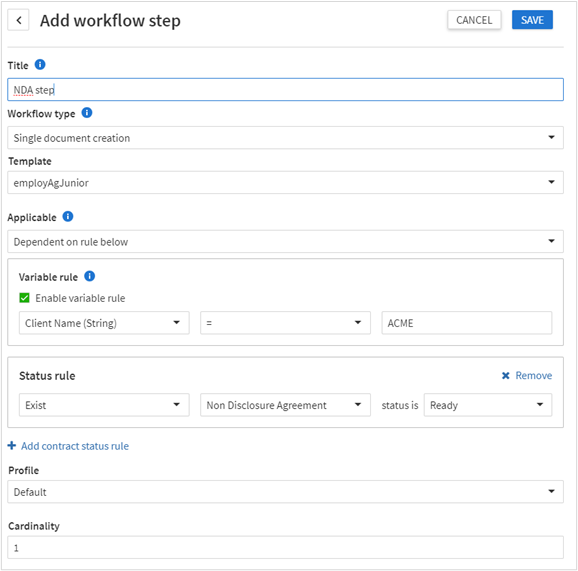
- Define parameters of the workflow step:
- Title- unique name of the workflow step.
- Workflow type- select, whether this workflow step should create a single document when launched or create multiple documents from repeated data when launched.
- Template- select the template that will be launched when the user clicks on the workflow step when working with a matter. Default value Any means that user will select the template on the spot. The template selected by the user will use the site default profile or if using Categories, the profile that was configured.
- Applicable- define, when to display the workflow step as a recommendation.By default, this is set to Always but can be changed to be dependent on a condition by setting it to Dependent on rules below. The condition is fulfilled if all the rules specified are met. There are two different types of rules that can be configured:
- Variable rule- based on the value of a single variable within the template.
- Status rule- states whether the matter contains a Document created using a specific Template. The rule can also specify the Document status. This rule can also be negative and state whether a Matter does not contain a Document created using a specified Template. In the screenshot below the rule states ‘A Document created using the Non- Disclosure Agreement exists in the Matter and the status is Ready’. Multiple status rules can be added to the condition.
- Profile- if you selected the template, you can specify a profile that will be used for the workflow step.A profile allows many aspects of a template's questionnaire or generated document behaviour to be modified. See Managing profiles for more details on Profiles.
- Cardinality- enter a number value to specify how many times this workflow step will be displayed during the lifetime of the Matter.If cardinality is set to 1, the workflow step will only ever be recommended once. Once a document has been created using this workflow step it will not be displayed again throughout the lifetime of the Matter. Setting the value to 0 will allow the workflow step to be displayed an unlimited number of times.
- ClickSave.
Creating multi-document workflow steps
During a matter, it is possible for repeated data in one document to be separated into multiple documents. For example, if we have a contract within a matter that captures all the employees within a department and from that contract we want to generate individual contracts for each of these employees which contains data captured in the initial contract and will be used to capture additional information, we would have the following:
- A template which captures the number of employees within that department in a repeat “EmployeeCount” and each employee will be added as a new repeat -Template A.
- A template that will be used for individual employees that has the same variables used within the repeat in Template A - Template B.
We will have the workflow step with the following parameters:
- Workflow type - Multiple document creation.
- Template - select the template that the employee information from Template A will be written to for each template. Select Template B. It is possible for you to set this to <Any> which allows the user to choose the template. The multiple document creation will only occur if the template selected by the user contains the variables outlined in the next step.
- Repeat variable - the repeat variable that controls the number of documents that should be created. In our example this is “EmployeeCount”.
- Applicable - Always.
- Profile - default.
- Cardinality - 0.
Resulting matter will create the “EmployeeCount” number of documents from the Template B.
Editing workflow steps
To edit the workflow steps:
- Select Matters template on theTemplatestab.
- SelectWorkflow steps (Matters)section.
- Select the required workflow step and make the changes.
- Save the workflow step.
Managing workflow step order
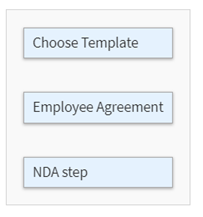
You can control the order in which the workflow steps are displayed during a matter. To do that:
- Select Matters template on theTemplatestab.
- SelectWorkflow steps (Matters)section.
- ClickManage orderbutton.
- Change the order by drag and drop.
- Save the changes.
Deleting workflow steps
To delete a workflow step:
- Select Matters template on theTemplatestab.
- SelectWorkflow steps (Matters)section.
- Check the required workflow step and clickDelete.