
User settings
Contract Express allows managing user settings with the
My account
option.
Editing display name
To edit your display name:
- Go toMy account.
- EditDisplay name.
- Save the changes.
Editing user name
Only Windows authenticated users can update their email address.
To edit your email:
- Go toMy account.
- EditEmail.
- Save the changes.
note
This field cannot be edited by users who use their email address and password to enter the site.
Choosing language
Contract Express is available in English, German, French Canadian, Japanese, Korean, and Simplified Chinese.
You can change the language of Contract Express interface from two places: the login screen and account settings.
To change the language on the login screen, select your preferred language from the
Language
dropdown.To change your language in account settings:
- Go toMy account.
- Choose yourLanguage.
- Saveyour changes.
Choosing date and currency format for questionnaire preview
Contract Express supports dates and currencies in English (UK and US), French (France and Canada), German (Germany), Dutch (Netherlands), Danish (Denmark), Spanish (Spain), Japanese (Japan), Korean (Korea), and Chinese (China).
To choose how Contract Express displays date and currency format in the questionnaire preview:
- Go toMy account.
- EditDate format.
- Savethe changes.
note
This will affect the language displayed for Preview in the questionnaire, however it will
not
affect the output documents. The locale for generated documents can be changed with a document locale parameter in Profiles (see Managing profiles) or the locale spans in the template itself. See Span Locale for further details on template locale spans.Prompting for document rename
You can set up Contract Express to prompt you to rename the Document every time the questionnaire is updated. To do that:
- Go toMy account.
- CheckPrompt to rename document.
- Save the changes.
note
If this setting is unchecked, you still will be able to rename documents from the document details page (see Renaming documents).
Showing the welcome screen
You can set up Contract Express to show the welcome screen every time you log into the system. To do that:
- Go toMy account.
- CheckShow welcome screen.
- Save the changes.
Revoking integration tokens
If you need to re-enter your credentials for eSignature and/ or DMS, you can revoke your tokens. To do that:
- Go toMy account.
- ClickRevoke tokenfor the corresponding system.
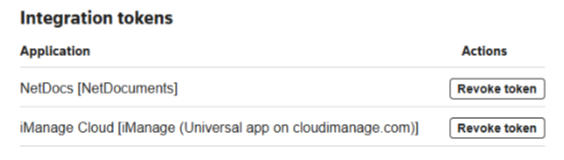
After revoking the eSignature token, Contract Express will prompt you to re-enter your eSignature credentials the next time you interact with your chosen eSignature platform.
After revoking the DMS token, Contract Express will prompt you to re-enter your credentials the next time you export documents to the document management system.
Applicable only for license spaces where the eSignature and/or DMS export features have been enabled in
Admin
> Features
, see Enabling eSignature for more details.Changing passwords
You can change your Contract Express passwords using one of the following ways:
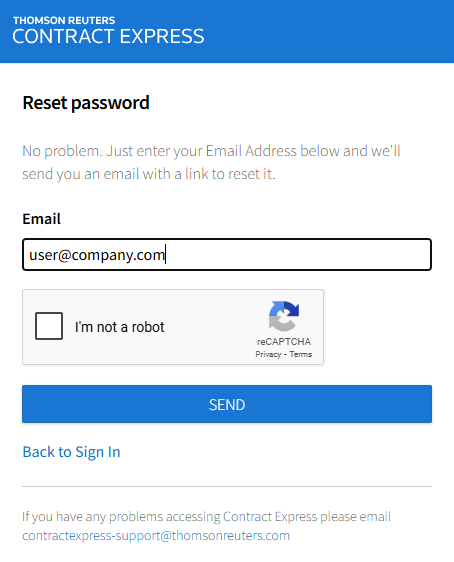
- By selectingForgot your Password?link on the login page.Enter your email and click Submit. Contract Express will send you an email with a link to reset your password.
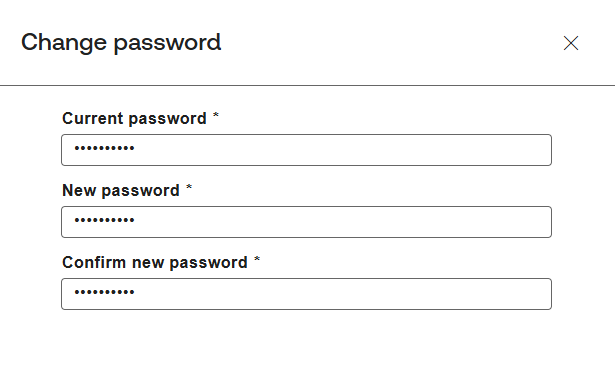
- By clickingChange passwordbutton inMy accountsettings.You would need to enter your current password to set up a new password.
Alert Subscriptions
You can manage your subscriptions to document alerts by clicking
My alerts
button in My account
. You will see a list of alerts for all Documents, to which you have at least Write access. If there are no alerts enabled for any templates, the list of alerts will be empty.To subscribe to a document’s alert(s):
- ClickMy alertsbutton inMy account
- Search for a required Document by clicking the
 icon in the table.
 - Check the alert(s).
- ClickSubscribe.
Users can also subscribe to alert(s) from the document details page of the corresponding Document (see Subscribing to alerts).