
Configure Access to Practical Law Automated Documents
You can configure Practical Law Automated Documents access in Drafting Assistant by following the Build Document set up link to sign in and connect your Practical Law subscription.
If your organization acquires a subscription to Practical Law that includes access to Automated Documents powered by Contract Express, the link to those Automated Documents must be configured for access in Drafting Assistant.
To configure the link to access Practical Law Automated Documents, complete the following:
- Open Microsoft Word, access Drafting Assistant, and select theDAbutton on the Drafting Assistant toolbar.
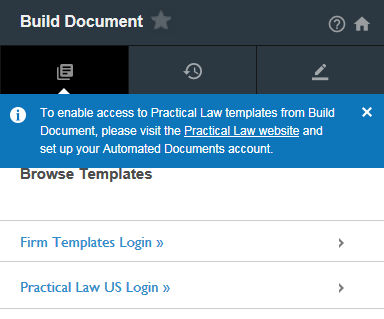
- SelectBuild Document.
- In the left pane, a blue message banner is displayed, reminding you to set up access to Automated Document. Select the link in the banner, and you will be taken to the Practical Law website.
- In the browser window, enter your credentials to log into Westlaw and Practical Law.
- On the Practical Law homepage, select theAccess My Automated Documentslink.
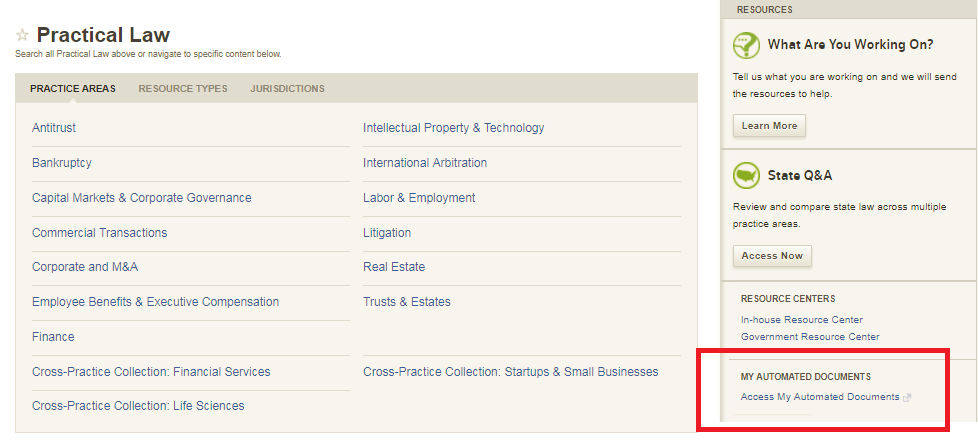
Once the Contract Express website and its Welcome page appears, access to Practical Law Automated Documents has been configured and the templates will be available.
Related Content
-
About Build Document
Format: Article

