
Configure Contract Express integration
You can link Drafting Assistant to Contract Express (hosted or on-prem) via Word System Preferences. The initial setup is org‑wide, and only Build Document Administrators can later change it.
To access your organization’s Contract Express templates from within Drafting Assistant, a link between the two applications must first be established. When configuring this link for the first time, any user in the organization can perform the configuration. Once the link has been established for one user, it is established for all users in the organization. If changes need to be made to the link after it has been established, only a user that has been designated as the Build Document Administrator can make those changes.
If your Contract Express server is hosted and maintained by Thomson Reuters, complete the steps under
Link Configuration for Hosted Contract Express
. If your Contract Express server is managed by your organization, complete the steps under Link Configuration for On-Premise Contract Express
.Link configuration for hosted contract express
If your Contract Express server is hosted and maintained by Thomson Reuters, complete the following:
- Open Microsoft Word, access Drafting Assistant, and select theDAbutton on the Drafting Assistant toolbar.
- Select your profile name at the bottom of the left navigation pane and then selectSystem Preferences.
- Under Configure Link to Your Contract Express Subscription, enter the Contract Express Server Location in theContract Express Server Locationtext field. The Server URL is the same as the URL that you use to access Contract Express on your browser (for example,https://xxx.contractexpress.com/app).
- SelectOK.
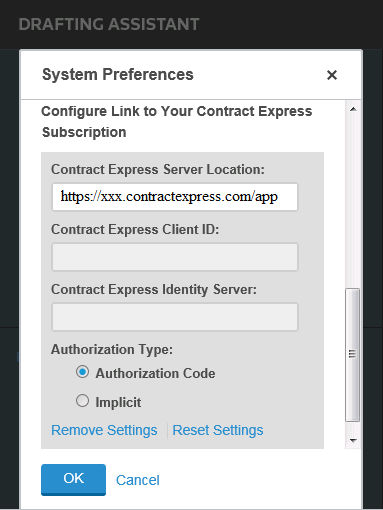
You are now ready to use Contract Express with Drafting Assistant. To access your templates, select
Build Document
.Link configuration for on-premise Contract Express
If your Contract Express server is managed by your organization, complete the following:
- Before you begin, contact your Contract Express Administrator for the following information:
- Contract Express Server URL
- Contract Express Identity Server URL
- Contract Express Client ID for Drafting Assistant
- Authorization TypenoteIf the Authorization Type includes an Authorization Code, ensure your administrator also provides this code.
- Open Microsoft Word, access Drafting Assistant, and select theDAbutton on the Drafting Assistant toolbar.
- Select your profile name at the bottom of the left navigation pane, and then selectSystem Preferences.
- Under Configure Link to Your Contract Express Subscription, enter the Contract Express Server Location in theContract Express Server Locationtext field. The Server URL is same as the URL that you use to access Contract Express on your browser (for example,https://ceserver.mycompany.com).
- Before entering the remaining information, selectOKto validate the server path.
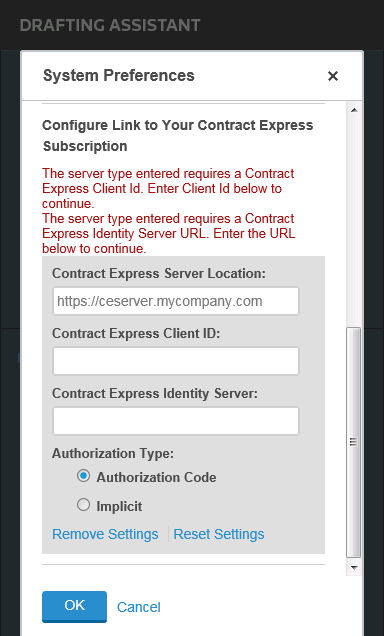
- Enter your Contract Express Client ID for Drafting Assistant in theContract Express Client IDfield. If your Administrator provided you with an Authorization Code instead of a Client ID, enter that in the field instead.
- Enter your Contract Express Identity Server URL in theContract Express Identity Serverfield (for example,https://ceserver.mycompany.com/IdServ/core/connect).
- Select theAuthorization Typethat matches the authorization type your Contract Express servers uses.
- SelectOK.
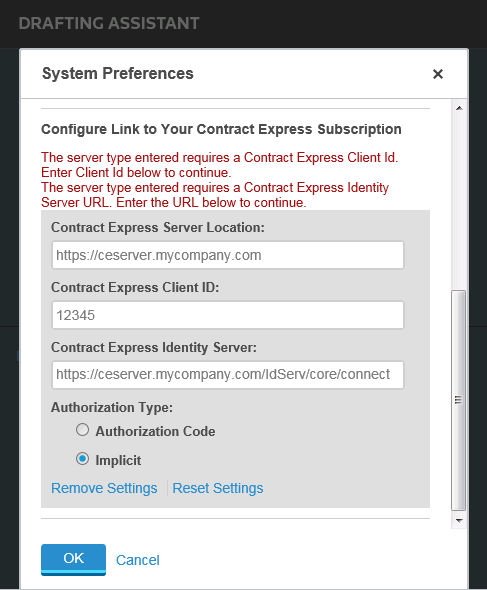
You are now ready to use Contract Express with Drafting Assistant. To access your templates, select
Build Document
. Related Content
-
About Build Document
Format: Article
-
Access Drafting Assistant Tools from Your Word Processor
Format:
Article

