
Use Build Document
Build Document lets you search and select a template, complete a questionnaire (save/resume if needed), then generates a Word document ready for all Drafting Assistant tools.
Use the Build Document tool to assemble documents from templates. Once the document is built from the template, all Drafting Assistant tools and functions can be used with the document.
Create a new document
To create a new document using the Build Document tool, complete the following:
- SelectBuild Document.
- Do one of the following:
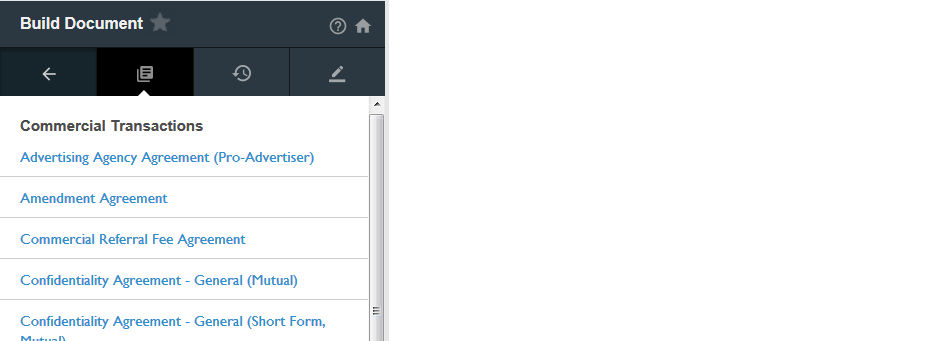
- On theBrowsetab, enter a search term in theSearch templates...field. When searching from this tag, results will be pulled from all sources to which you subscribe. From the results, select the template you want to build. A window may appear asking for your Contract Express credentials (email and password). Enter your credentials, and selectLog In.
- SelectFirm TemplatesorPractical Lawto access the list of templates from that source. From the list, select the template you want to build.
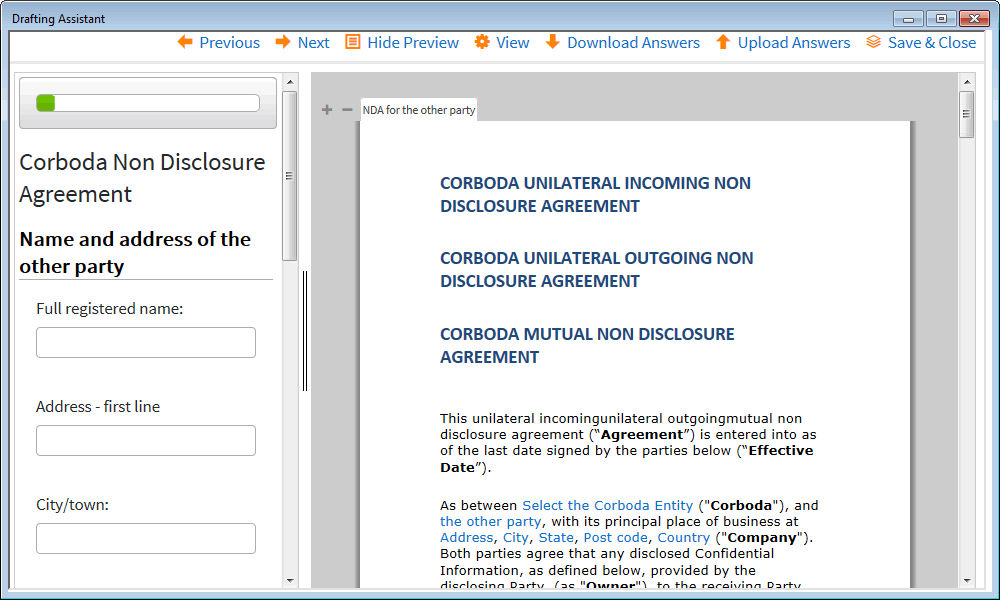
- A separate window will open with a questionnaire. Enter all necessary information in the questionnaire, using thePreviousandNextbuttons. SelectPreviewto view the document in the questionnaire window as it is dynamically created.
- You can also download entries using theDownload Answersbutton or upload previously created entries using theUpload Answersbutton (Contract Express templates only).
- At any time, selectSave & Closeto end the questionnaire. All answers will be saved, and it is possible to continue building the document later. Additionally, an entry in theMy Projectstab is created with an Incomplete status.
Once the questionnaire has been completed, a new instance of Microsoft Word opens with the completed document. Additionally, an entry in the
My Projects
tab is created with a Ready status.All tools and features in Drafting Assistant can now be applied to this document.
Access an InComplete a Document
To complete an unfinished document that has been saved or has saved answers, complete the following:
- Open Microsoft Word, access Drafting Assistant, select theDAtoolbar button, and selectBuild Documentin the left pane.
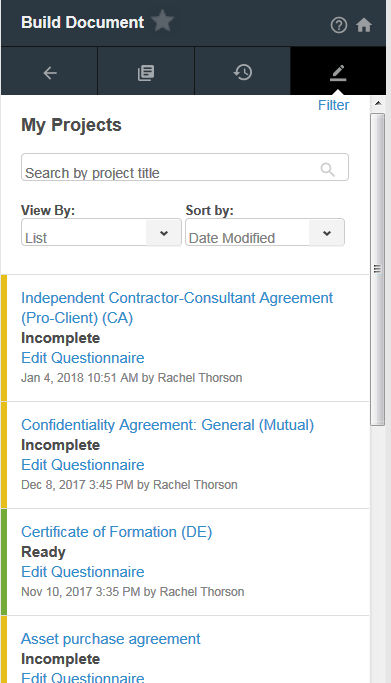
- On theMy Projectstab, find and select the document you want to complete. It will have a status of Incomplete. You can useSearch,Sort By, orFilterto help you find a previous project. SelectEdit Questionnaire, and the questionnaire will open in a new window with any previous answers populated.
- Complete the questionnaire as necessary. Use thePreviousandNextbuttons. SelectPreviewto view the document in the questionnaire window as it is dynamically created.
- SelectSave & Close.
- A new instance of Microsoft Word opens with the completed document. Additionally, the entry for this project in the My Projects tab will change from Incomplete to Ready.
All tools and features in Drafting Assistant can now be applied to this document.
Related Content
-
About Build Document
Format: Article

