
Finalize an engagement
When you finalize an engagement, you make its contents read-only and delete information not needed for the final engagement, such as history, notes, and workpapers. All workpapers in a finalized engagement are archived in GoFileRoom.
note
Engagement Manager clears the trial balance history. It clears workpaper properties specific to Engagement Manager, such as notes added, user assignments changed, signoffs added, and exports. However, the GoFileRoom history will remain, including when the document was added, edited, or archived. The history in engagement properties remains intact by design. Engagement Manager doesn't clear the document history that is stored in GoFileRoom. The engagement properties remain intentionally uncleared.
Follow these steps to finalize an engagement.
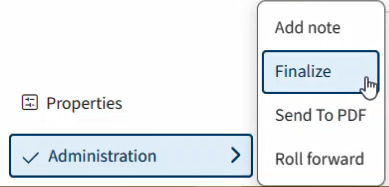
- In Engagement Manager, open the engagement you want to finalize, selectAdministration, thenFinalize.
- Mark the checkboxes for the sections you want to include in theFinalize Diagnosticsreport, then selectCreate.The Finalize Diagnostics report sections include:
- Unavailable workpapers: Lists the workpapers that are in Engagement Manager but not in GoFileRoom (for example, a GoFileRoom document that you add as an Engagement Manager workpaper then delete from GoFileRoom).noteThe workpapers will be retained as a workpaper once you finalize the engagement. The reports will be retained if you setDelete during finalizetoRetainwhen you create the report.
- Workpapers in the recycle bin. Lists workpapers in the Engagement Manager recycle bin.
- Checked-out workpapers: Lists workpapers with aChecked Outstatus.
- Workpaper warnings: Lists the workpapers with outstanding warnings.
- Proposed journal entries: Lists journal entries assigned asProposedtype. You can't update proposed journal entries after you finalize the related engagement.
- Open notes: Lists notes that are flagged as open.
- Unsigned workpapers: Lists workpapers that don't have the proper signoff.
- Workpapers to delete: Lists the workpapers with theDelete during finalizecheckbox marked in Workpaper.
- TheFinalize Diagnosticsreport will open in a new window. You can:
- Print the report.
- Save it to your engagement as a report, an Excel file, or a PDF.
- Export the report.
- Go back to theFinalizeEngagement screen, then selectNext.
- Apply signoffs to unsigned workpapers or mark the checkbox toContinue with unsigned workpapers, then selectNext.
- Mark theRetain Historycheckbox if you want to prevent the engagement event history from being deleted.
- SelectDoneto finish finalizing the engagement.
The finalized engagement will display with a  in the Engagement Manager navigation pane.
in the Engagement Manager navigation pane.Related Content
-
Save an engagement as a PDF
Format: Article
-
Lock and unlock sections of an engagement
Format:
Article
-
Roll forward an engagement
Format:
Article

