
Billed-to entity validation
This functionality applies to matters where a billed-to entity (BTE) has been selected and a complete address for this entity has been provided.
When invoices are posted in Legal Tracker on a matter with a BTE, they automatically inherit the matter's BTE. However, during the invoice approval process, the matter BTE may change, or the BTE information may be updated. As a result, the invoice BTE no longer matches the matter BTE. The goal of this feature is to detect changes in the BTE information and prevent invoices from being processed and sent to AP if this occurs.
Audit settings
The BTE audit can be enabled on the
LEDES invoice audits
page. The option is visible to all.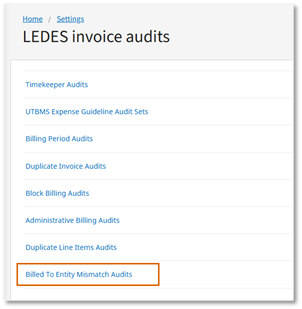
The audit isn't enabled by default. If you want to use this functionality, you will need to select the
Red flag/warning
option.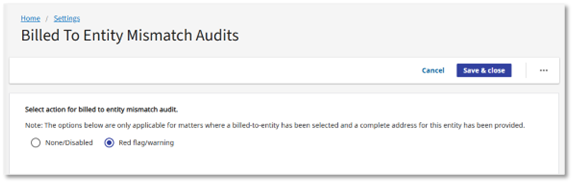
If enabled, there are no immediate changes to the pending invoices. However, the BTE validation of the pending invoices will be triggered if the BTE settings are updated.
What triggers the BTE validation
When the BTE information is changed in the areas listed in this section, all pending invoices will be checked for BTE mismatch.
Billed-to entity matching criteria
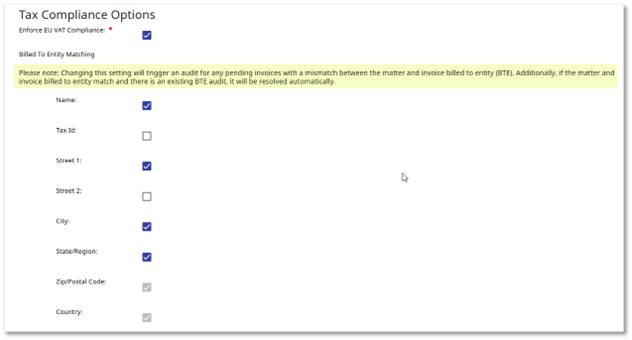
The BTE matching criteria can be selected in
Settings
, Firm/Vendor Settings
,Miscellaneous Firm/Vendor Setup options
, then Billed to entity matching
section.If any of the field checkboxes are checked/unchecked, a message appears at the top of the section specifying that the changes will trigger the BTE validation of the pending invoices.
In this case, the following 2 scenarios may occur:
- For pending invoices where the matter’s BTE information doesn’t match the invoice’s BTE info, a BTE mismatch audit will be triggered.
- For pending invoices where the matter’s BTE info matches the invoice’s BTE info, any existing BTE mismatch audit will be resolved due to the updated BTE matching criteria.
Billed-to entity information
The BTE name and address details can be updated in
Settings
, Matter fields & help files
, Invoice processing information
section, Billed to entity
field, Edit values
option, then Billed to entity
edit page.Changing the billed-to entity address here will trigger the verification of the pending invoices. As a result:
- BTE mismatch red flags may be triggered for pending invoices where the matter’s BTE address doesn’t match the invoice’s BTE address.
- Existing BTE mismatch red flags will be resolved due to the updated address.
Matter type templates and configuration
Including the BTE field in the invoice processing section of a matter type template doesn't trigger the validation of the pending invoices posted on matters of that specific type.
Removing the BTE field from a matter type template will resolve any active BTE audits on invoices already posted to matters of that type.
Change of the matter billed-to entity
Selecting or changing the BTE on a matter will trigger the validation of the pending invoices associated with that matter. Any discrepancies will result in BTE mismatch red flag audits.
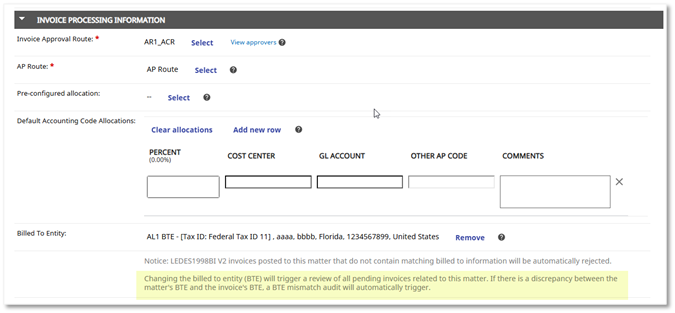
Removing the BTE will resolve any active BTE audits.

An invoice is moved to a different matter
When an invoice is transferred to a different matter, the system automatically validates the BTE alignment between the invoice and its new matter.
If the system detects a mismatch between the invoice BTE and the matter BTE, a BTE mismatch audit is automatically triggered. Conversely, if the invoice BTE perfectly aligns with the matter BTE, and there was previously an active BTE mismatch audit, the system will automatically resolve this audit as the discrepancy no longer exists.
Additionally, when an invoice with an active BTE mismatch audit is moved to a matter that is not configured for BTE tracking, the system will automatically resolve the existing BTE audit since BTE alignment is no longer applicable.
Scenarios not covered in this release
Re-validation of the invoice versus the matter BTE doesn’t occur in the following scenarios, which will be covered in future releases:
- After undo approval/undo rejection
- Reposting a previously rejected invoice
- Editing of an invoice by uploading a new LEDES file or editing a LEDES invoice
Pending invoices
The pending invoices can be filtered by Audit type:
Billed to entity mismatch
.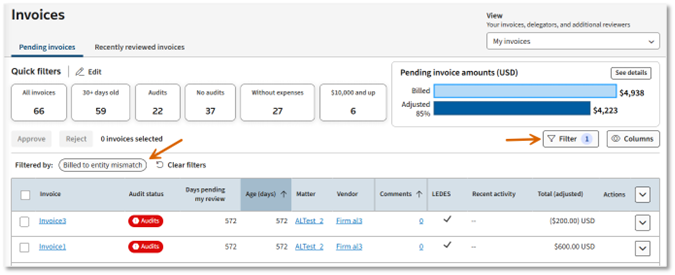
These invoices, like any other invoices with active audits, don’t qualify for 1-select approval.
Invoice details
The BTE red flag audit is included in the invoice audits summary section at the top of the invoice page.
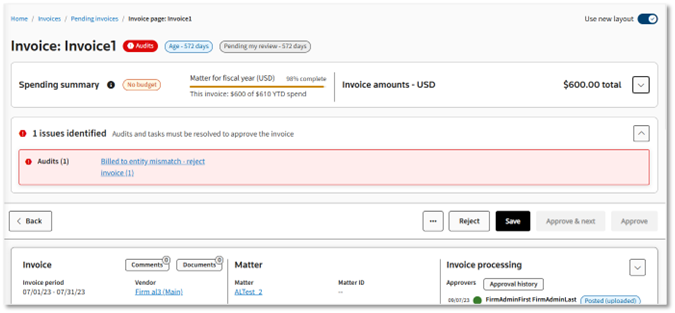
Selecting the audit link takes the invoice reviewer to the Audits section, where the BTE mismatch audit subsection is expanded.
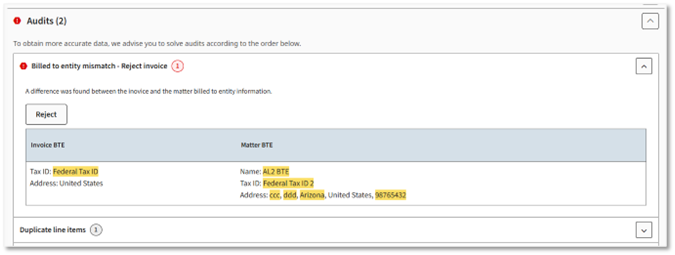
The discrepancies between the invoice BTE and the matter BTE are highlighted in yellow.
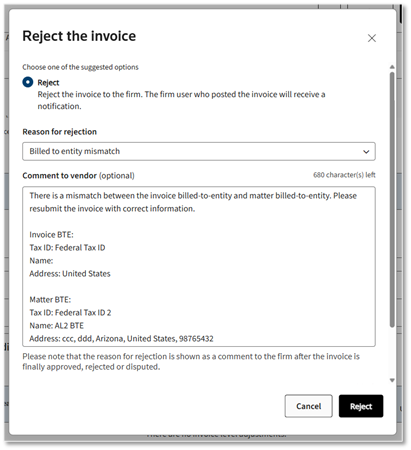
The only available option is to reject the invoice to the previous approver or directly to the firm, depending on the user’s permissions. To reject, the reviewer can use the Reject button conveniently provided in the audit section or the invoice reject option.
The reason for rejection is automatically set to
Billed to entity mismatch
. The comment to the vendor is populated with the invoice BTE and matter BTE information, so the firm can easily spot the missing/incorrect information.
Related Content
-
Invoice Audits
Format: Article
-
Requiring Billed To Entity Information
Format:
Article