
Request Management Security (Permissions)
Access to Request Management is determined by Group Permissions. Group Permissions are setup inside the User Settings maintenance table but can be managed on the
Security
screen in the Request Management
menu.
It can also be opened by clicking the
Security
button on the Request Management
screen.
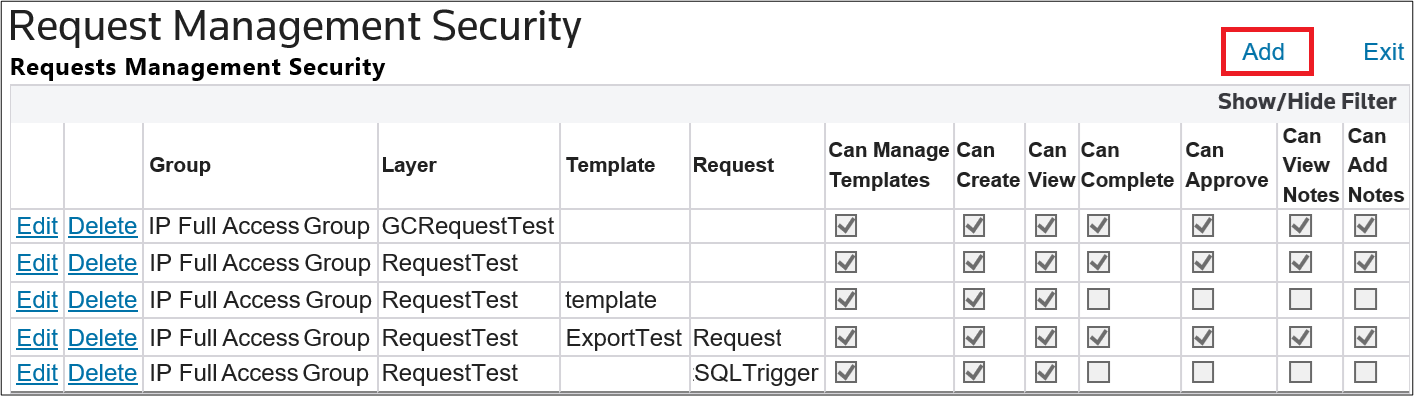
The screen will look similar to the screenshot shown below:

ADDING A NEW SECURITY GROUP
To add a new security group, click
Add
.
Clicking
Add
will open the New Security
pop-up. Fields with a red asterisk (*) are mandatory and cannot be omitted.Fields | Description |
|---|---|
Can Manage Templates | If enabled, users within this security group will be able to manage templates. |
Can Create | If enabled, users within this security group will be able to create new requests. |
Can View | If enabled, users within this security group will be able to view requests. |
Can Complete | If enabled, users within this security group will be able to complete requests. |
Can Approve | If enabled, users within this security group will be able to approve requests. |
Can View Notes | If enabled, users within this security group will be able to view notes attached to requests. |
Can Add Notes | If enabled, users within this security group will be able to add notes to a request. |

Make any necessary changes and then click
Save
.
MODIFYING AN EXISTING SECURITY GROUP
To make changes to an existing security group, choose a group from the grid and click its corresponding
Edit
button.
A row of checkboxes will appear, showing which permissions can be enabled or disabled. Make any necessary changes and then click
Update
.
DELETING AN EXISTING SECURITY GROUP
To remove an existing security group, choose a group from the grid and click its corresponding
Delete
button.
Clicking
Delete
will open the Delete
pop-up. Click OK
to proceed.Related Content
-
Request Management
Format: Article