
Review Request Response
To review a response to an existing request, choose a request from the
Existing Requests
grid and click its corresponding Review Request Response
button on the far right.
Clicking this button will open the “Request Response” pop-up. More information about a record can be viewed by clicking the expansion arrow on the far left.


Updating Request Responses – Manual Entry
To manually update a request response, enter data into the empty fields and upload any necessary documents.
To upload a document, click on one of the
Upload Document
links.
The
Upload Document
pop-up will appear on the screen. Click the Browse
button and select a document to upload. Once a document has been selected, click the Upload
button.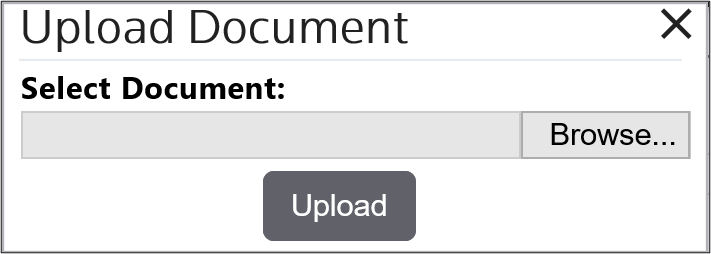
Make any other necessary changes and then click
Validate and Submit Response
.
If any mandatory fields have been left empty, a validation message will appear on the screen and the empty fields will be highlighted in red, as shown below. Resolve these issues and try again.


Updating Request Responses – Item Spreadsheet
It is also possible to mass-update a response via an Item Spreadsheet. This can be done by clicking on the
Extract to Spreadsheet
button.
All records related to the response will then appear in a Microsoft Excel spreadsheet, which can be updated and modified. Make and save any necessary changes to the spreadsheet, return to the system, and click on the
Upload Item Spreadsheet
button.
Related Content
-
Request Management
Format: Article