
DPS Notes: Reviewing and Filtering Entity-Specific Records
The
DPS Notes
screen allows you to view all of the notes posted to each entity at the same time. You can access this screen by choosing Notes
from the DPS menu.Reviewing DPS Notes
To review DPS notes:
- Use theNamedrop-down menu to browse through all saved search names. This drop-down menu has auto-complete capabilities.

- Begin entering a company or individual name and a list of possible matches will display.
- Select a name from the drop-down menu to view all of the notes posted for the entity you selected.


Sorting and Filtering DPS Notes
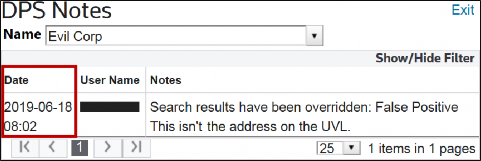
Column Filter
- Click a column to sort results by (for example,User Name).
- Click the column header.
- To sort data in descending order, click the column header once.
- To sort data in ascending order, click the column header twice.
- To return the column to its original order, click the column header a third time.
Advanced Filter
To use the advanced filter options:
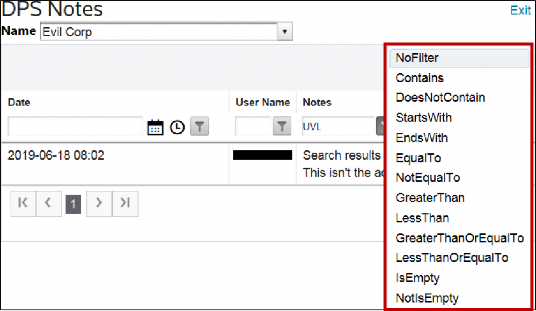
- ClickShow/Hide Filter. A field appears in the bar below each column header.

- Click a column to filter.
- Click the column’s corresponding field in the bar.
- Type what is to be filtered in the field.
- Click the filter icon.
- Click a filter option. Filter options may vary slightly depending on column type. A more detailed search can be performed by filtering multiple columns at the same time.
Exiting DPS Notes
To exit the
DPS Notes
screen, select Exit
.
Related Content
-
DPS Quick Screening: Managing Notes and Files for Entities
Format: Article