
DPS Excluded Words: Customizing Search Parameters
Excluded Words
is used to maintain a client-specific list of common words that can be ignored from the Search Name
field when screening an entity in Quick Screening
.You can access this screen by selecting
Excluded Words
from the DPS menu.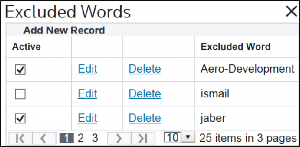
Active VS. Inactive Excluded Words
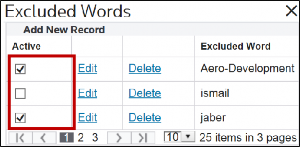
You can change an excluded word’s activity status by selecting or clearing the checkbox in the
Active
column.- Active excluded words have theirActivecheckbox selected
- Inactive excluded words have theirActivebox cleared
Active excluded words will be used in a screening, while inactive excluded words will be ignored.
Adding an Excluded Word
To add an excluded word:
- ClickAdd New Recordto open theExcluded Wordtext box.

- Use this text box to enter the new excluded word.
- To save the excluded word, clickInsert.
- To disregard the excluded word and drop all changes, clickCancel.

If
Insert
is selected, the new excluded word will appear in the list.Multiple Words
Excluded words can only be one word. If you attempt to enter multiple words, the following error message will inform you that excluded words can only be one word.

Existing Excluded Words
Editing an Existing Excluded Word
To edit an existing excluded word:
- ClickEdit.
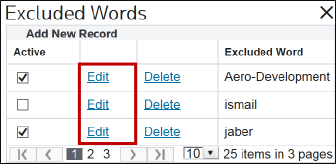
- Make any necessary changes in theExcluded Wordtext box.
- To save the updated excluded word, clickUpdate.
- To disregard the excluded word and drop all changes, clickCancel.
If you selected
Update
, the updated excluded word appears in the list.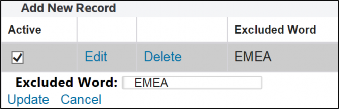
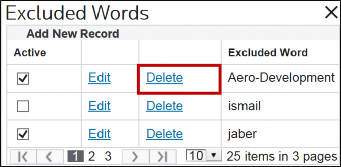
Removing an Existing Excluded Word
To remove an existing excluded word:
- ClickDelete. The excluded word will no longer appear in the list.
Related Content
-
DPS Quick Screening: Performing Manual Searches
Format: Article
-
DPS Appendix 1 – Stop Prefixes for Search Optimization: Any Entity Type
Format:
Article
-
DPS Appendix 2 - Stop Prefixes for Search Optimization: Person Entity Type (ARA)
Format:
Article
-
DPS Appendix 3 - Stop Prefixes for Search Optimization: Person Entity Type (ELL)
Format:
Article
-
DPS Appendix 5 - Stop Patterns for Search Optimization: Any Entity Type
Format:
Article
-
DPS Appendix 6 - Stop Patterns for Search Optimization: Organization Entity Type
Format:
Article
-
DPS Appendix 7 - Stop Patterns for Search Optimization: Person Entity Type (ENG/HUN)
Format:
Article
-
DPS Appendix 8 - Stop Patterns for Search Optimization: Person Entity Type (JPN/KOR)
Format:
Article
-
DPS Appendix 9 - Stop Patterns for Search Optimization: Person Entity Type (THA)
Format:
Article