
DPS Quick Screening: Performing Manual Searches
The
Quick Screening
screen is used for the manual screening and review of company records. You can perform a search by company partner in the database or ad hoc (name only, address only or name and address). This screen can be opened by choosing Quick Screening
from the DPS
menu.
Conducting a Search
To use the
Quick Screening
functionally, you first must search for an individual or company name. Follow the instructions described below to perform a search.- Choose anEntity Typeby clicking the dropdown, and select,OrganizationIndividualorUnspecified. This is not a mandatory step.
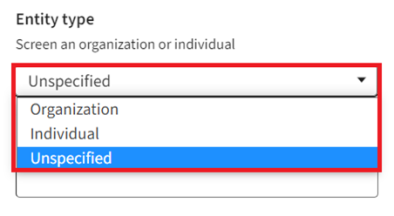 importantThis functionality is intended to enhance the accuracy of the results. Selecting oneEntity Typeover another applies different parameter weightings and “stopwords.” Consequently, this feature does not function as a traditional filter. TheEntity namevalue displayed on the result, is according to as saved in Company Partners Database. If the value has not been specified for chosen company record, the systems will display asUnspecified.
 - Insert the entity (individual or company) name in theEntity namefield.importantSince this drop-down has type-ahead capabilities, it is possible to begin entering a company or individual name. TheEntity namedrop-down can store up to 200 characters.
- Choose a name from the drop-down to open the entity’s address information.
 importantYou can view each company status next to the entity name in theEntity namedropdown.
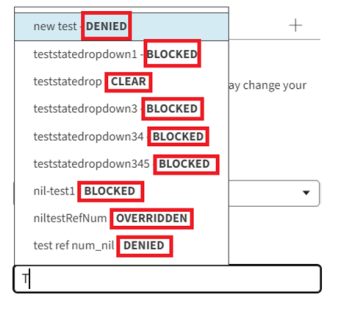
The status within
Quick Screening
are described in the table below.Status |
Definition |
|---|---|
Blocked |
Screened parties with associated hits. |
Clear |
Screened parties with no associated hits. |
Denied |
Screened parties with associated hits. You reviewed and confirmed the hit is valid. The company should not conduct business with this party. |
Manual Block |
Screened parties with no associated hits, but manually blocked by you. |
Not Screened |
Parties that have never gone through the screening process or when the user updates the screening profile in the “DPS Settings” page. |
Overridden |
Screened parties with associated hits that you identified as false positives. These hits were manually overridden by you. |
After an entity is selected, some of the other search criteria fields (e.g., Address, Country) will auto-populate with stored information from the system.
If an entity has multiple associated addresses and/or contacts, the
Select associated entity
or address
drop-down will appear. You can choose an address or contact from the drop-down to auto-populate the address textboxes.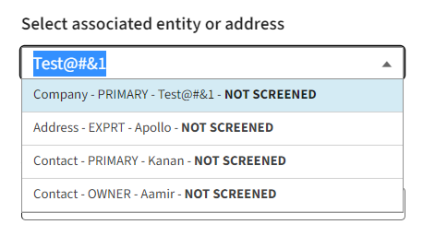
Use Excluded Words
Quick Screening
checks if any excluded words are applied to the profile associated with the entity being screened.To know more about using excluded words, refer to the DPS Excluded Words: Customizing Search Parameters chapter of this guide.
Create screening reference number
The
Create screening reference
number is an additional, supplementary identifier that can be entered along with any search at your discretion. This identifier is not unique to any one search.The same reference number can be entered on multiple searches for various purposes. This is especially helpful when screening all parties associated with a shipment or conducting screenings on behalf of a particular business unit within the organization.

The search reference number can also be seen from the
DPS Management
screen and will be associated with every screening it was entered for.You can click
Reset
on the bottom of the page to conduct a new search or Screen
to display the screening results.Ad Hoc and Company Search
There are search types within the
Quick Screening
functionality: ad hoc and company search.- Ad hoc is when company names, personal names, and/or addresses are directly entered into the search fields for a one-time search. You can also apply this information in the provided tabs. If you perform an ad hoc search and attempt to perform an action (like an override or manual block), the system will remember the action. As a result, no ad-hoc warning messages will appear on any action pop-up for ad-hoc searches.
- Company search is when you screen a company partner record, which the details have been previously loaded by selecting them from drop-down list.
Adding a New Company Partner from Quick Screening
The
Quick Screening
screen includes an Add Company
button, allowing you to create a new Company Partner record without leaving the screen.Clicking
Add Company
opens the same pop-up available in Company Maintenance
, where you can fill in the company information and save the new record. Once saved, the record is immediately available for screening in Quick Screening
.Screening an Entity
Clicking
Screen
after performing a search, one of the following two messages appear at the top of the Quick Screening
screen.important
Your search will be more accurate if more information is provided. Less information increases the risk of false positive hits.
- No matches found.

- One or more matches found.

If one or more parties matched the search criteria, the top-level results information will be displayed in cards.

For more information about returned hits, refer to the Results section of this User Guide.
To start a new search or screen a different party, click
Reset
on the bottom left of the screen.Search Information
After clicking
Screen
, the entity information header displays the following information:Information displayed |
Description |
|---|---|
Status |
The current standing of the screened company/address/person. |
Reference number |
The reference number is an additional identifier. |
Last Screened Date |
Date & time stamp of when a party was previously screened. |
Override Date |
The last date the party was screened prior to being overridden. |
The buttons
Notes and Files
and Actions
will also appear on the right of the screen.
Settings
By clicking the + icon next to the
Settings
option you can set the screening results according to the following information.
Screening options |
Description |
|---|---|
Screening Profile |
This drop-down allows you to quickly change screening settings for a given group of parties. Screening profile details can be viewed on the DPS Settings screen. Adjusted settings will not update theScreening Profile drop-down. |
Match percentage |
Increase/decrease screening sensitivity based on the desired accuracy of result sets. A higher match percentage decreases the number of overall hits but increases the risk of missing a potential match. A lower match percentage returns more results but will include more false positives. Returned results will meet or exceed the percentage match threshold. Example: Setting Match percentage at 90% will return exact (100%) and near (90% and above) matches. |
Name and address match |
|
Results
After clicking
Screen
, the page displays basic information about the denied party entity in cards. Click the card title to view all system data for that denied party in a single-page layout.
In case of data in foreign language, the system allows you to translate it to your preferred language, by clicking the “Translate” toggle button.
By clicking the card title, you are taken to the result details page.
Result Details
The result details page displays detailed information about the clicked entity on a single-page layout.
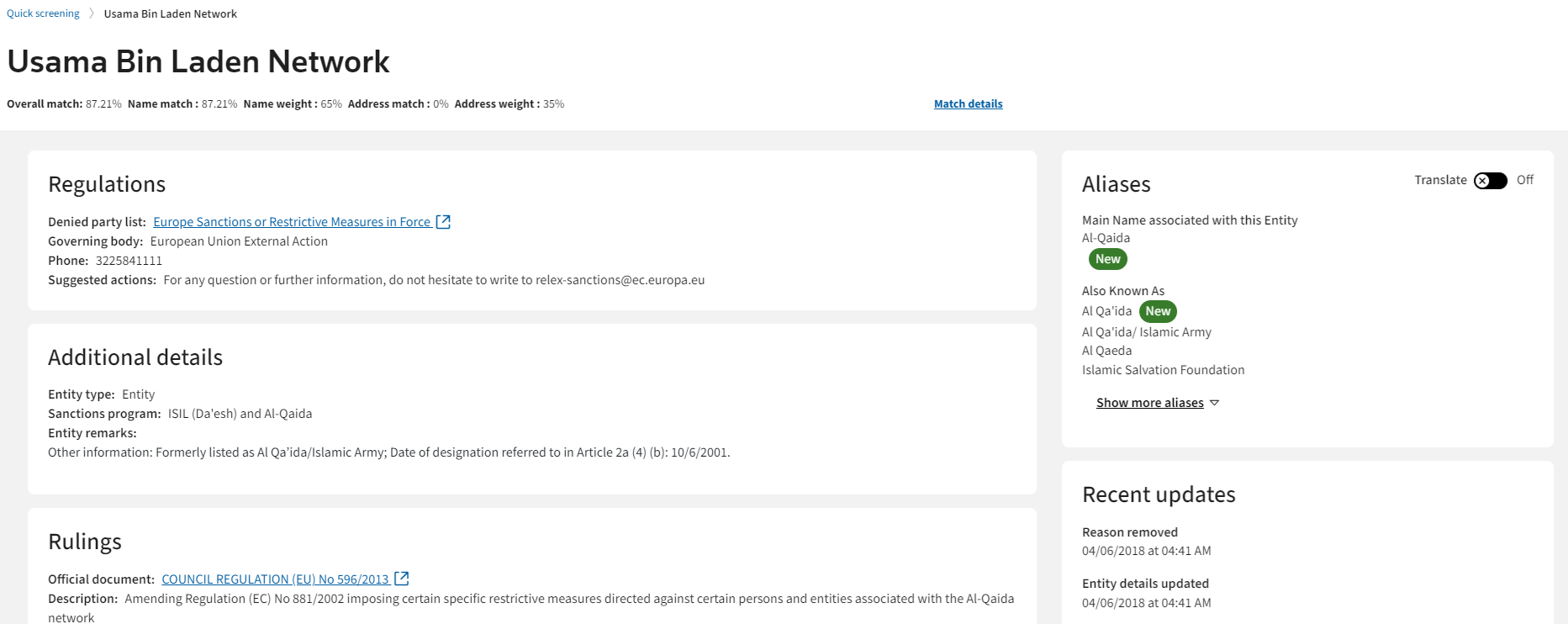
- Items are grouped in blocks of five, in case there are more than five items, theShow more… button is visible for you to click and view the other items.
- The header displays the search score for matched entities only.
- TheNewgreen icon next to an item indicates this has been updated since the last screening.
- Items are not displayed when there is no data available.
Section |
Definition |
Items |
|---|---|---|
Regulations |
This section contains regulation details associated to the matched entity. |
|
Additional Details |
This section contains miscellaneous information associated to the matched entity. |
|
Rulings |
This section identifies why an entity was placed on a denied party list. |
|
Exceptions
important
This is only displayed for matched sanctions. |
This section contains information about any potential exceptions for the entity. |
|
Country or Region
important
This is only displayed for matched sanctions. |
This section contains the name of the country or region of the matched sanction. In case of names in foreign language, you can translate data to your preferred language, by clicking the Translate toggle button, to better comprehend the names. |
N/A |
Aliases |
This section contains a list of names associated to the matched entity. Examples:
Translate toggle button, to better comprehend alias name. |
N/A |
Entity Addresses
important
This is only displayed for matched denied entities. |
This section contains all parts of an entity’s verified address.
|
N/A |
Recent Updates |
This section provides a list of recent changes made to an entity. You will see the change type name and the change date and time in the format MM/DD/YYYY at HH:MM AM/PM. This section is limited to display the 500 most recent results. |
N/A |
Search Score
The ONESOURCE Denied Party Screening system allows you to search and review the match score of each hit above the Overall Search Percentage threshold. Having a score helps display which hits had the strongest match according to the search engine. Further information on score configuration can be found in the DPS Settings section of this User Guide.
important
Sanction entity hits do not display search scores. Search scores are only available for denied entity hits.
Once a search is executed, you can see the matching scores in the cards under each entity name. By clicking
Match details
on the right, you can learn about how the score was calculated.
The
Match details
pop-up displays more information abut the search logic behind the score.Search Logic |
Description |
|---|---|
Provided Name Only |
Name Search. The overall score is the score of the name. The matched entity address is the first one from their list of associated addresses, if any. |
Provided Name and Address |
|
Provided Address Only |
Address search. The overall score is the score of the address. The name is the main name associated with the matched entity. |
¹ An “incomplete address” includes 2 parts, or fields, of the provided address, that is address + country.
² A “complete enough address” includes 3 parts, or fields, of the provided address, that is, address + country + (City, Postal or State).
Related Content
-
DPS Settings: General Configurations and Search Options
Format: Article
-
DPS Gray List Management: Adding and Managing Gray List Entities
Format:
Article
-
DPS Excluded Words: Customizing Search Parameters
Format:
Article
-
DPS: Normalization - Ensuring Accuracy in Matching
Format:
Article