
DPS Settings: Advanced List Management - Activating and Deactivating Lists
The
Advanced List Management
tab shows all organizational lists that can be used in a screening.Moving the cursor over the Help Icon ( ) will display further details about the column headers.
) will display further details about the column headers.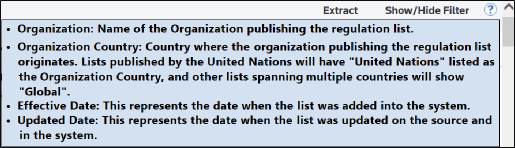
Clicking a
List Name
opens a second browser tab and redirect you to the organization's website.A list is active if the checkbox to the left of its name is selected.
By default, all lists within your subscription are active, but any list can be deactivated or reactivated by selecting or clearing the checkbox.
You can click
Total Entities
, Total Aliases
or Total Addresses
in the far right of the grid to view its size.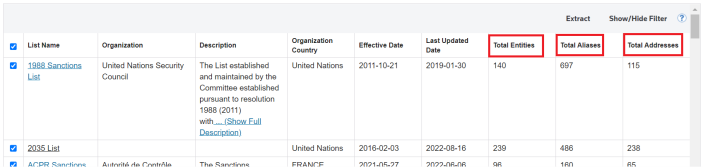
Deactivated lists can be reactivated at any time.
Deactivating an Active List
To deactivate an active list:
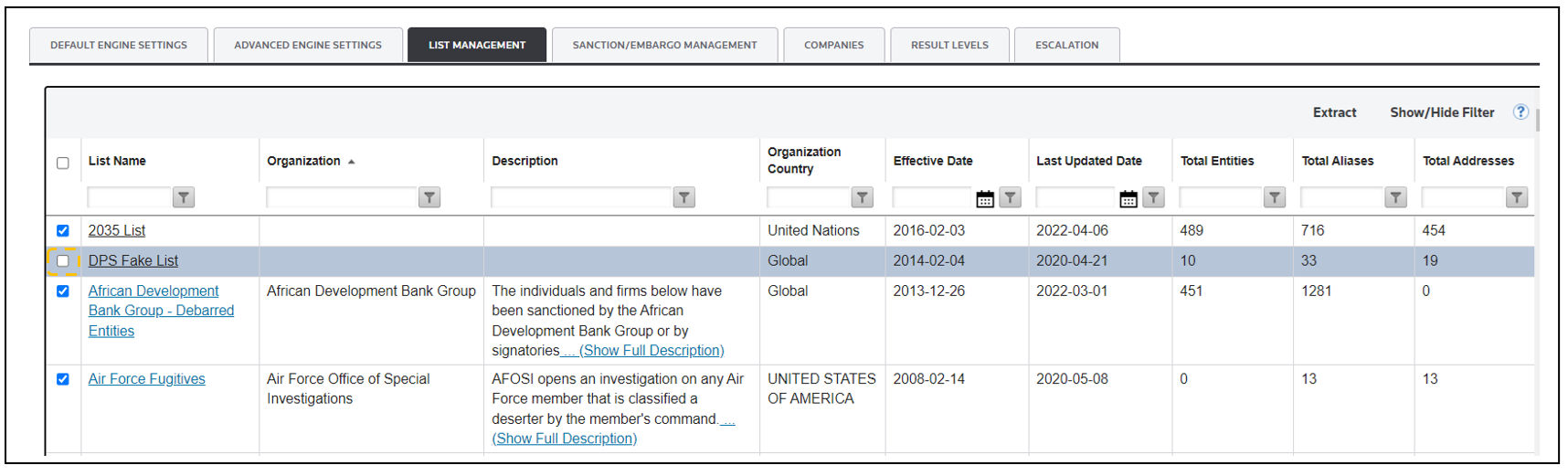
- Click the list in the grid.
- Clear its corresponding checkbox on the left of the list name. You can clear more than one checkbox at a time.
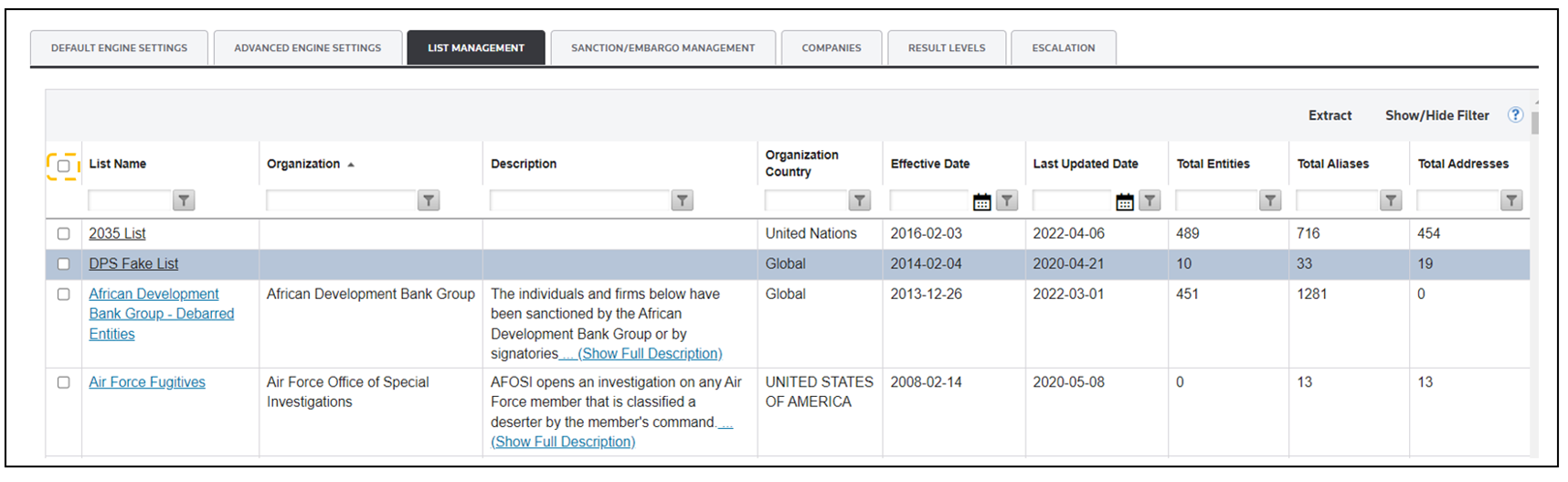
- To deactivate all lists, clear theSelect Allcheckbox at the top of the grid.
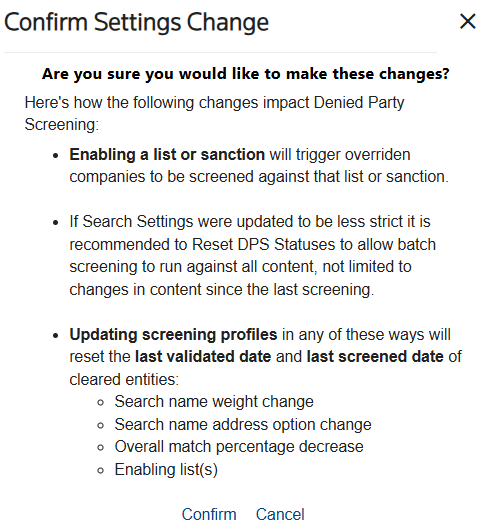
- After you have selected the checkboxes for all lists you want to deactivate, clickConfirm Changesto open theConfirm Settings Changewindow. This confirmation window provides information regarding the automatic system modifications that could potentially occur due to the setting change.

- ClickConfirmto confirm changes. To remove the changes, selectCancelorX.
Your changes are applied after you select
Confirm
, and a message displays that the search settings were successfully updated.
Reactivating an Inactive List
To reactivate an inactive list:
- Click the checkbox of the list on the left of the list name.
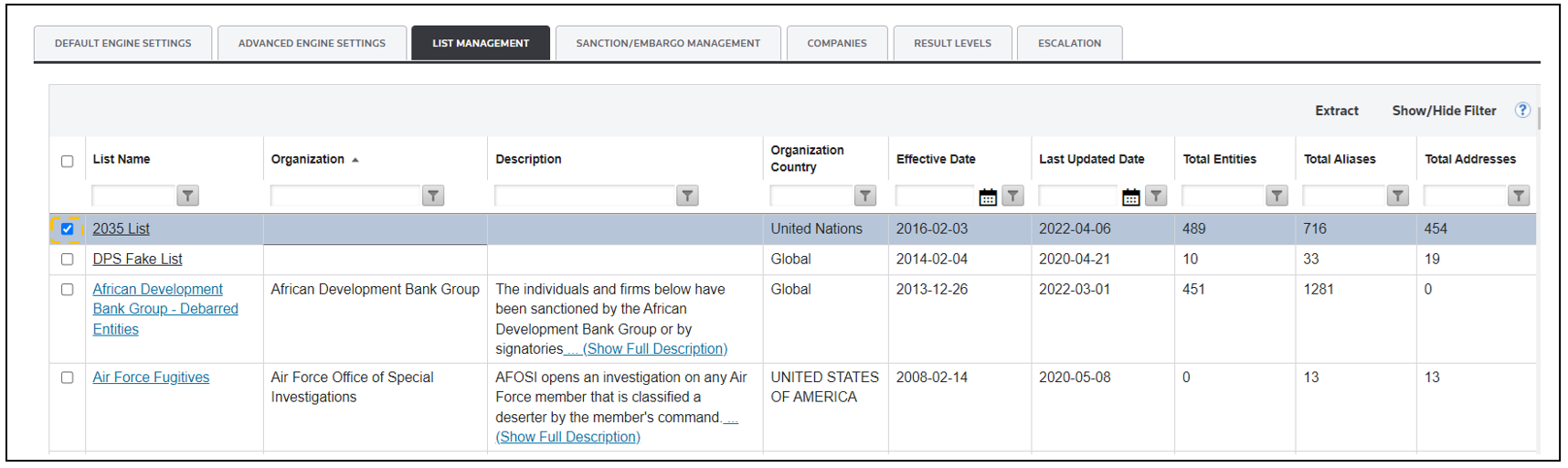
- After you select all lists you want to reactivate, clickConfirm Changes.

- ClickConfirmin theConfirm Settings Changepop-up.
- After you clickConfirm, the changes are applied and a message displays that the search settings were successfully updated.

To reactivate all inactive lists:
- Click theSelect Allcheckbox on the top left of the grid.
- ClickConfirm Changes.
- Click Confirm in theConfirm Settings Changepop-up.
When a previously deactivated list is reactivated, all companies with a status of
Overridden
or Clear
that are a part of nightly batch screenings will be re-screened against the reactivated list(s).Depending on your permissions, attempting to override past results on the
DPS Management
screen might not appear as an unavailable option, or a warning message might display.Extracting a List
You can extract all list information for active (selected) lists to a Microsoft Excel file. To perform this task, click
Extract
above the grid.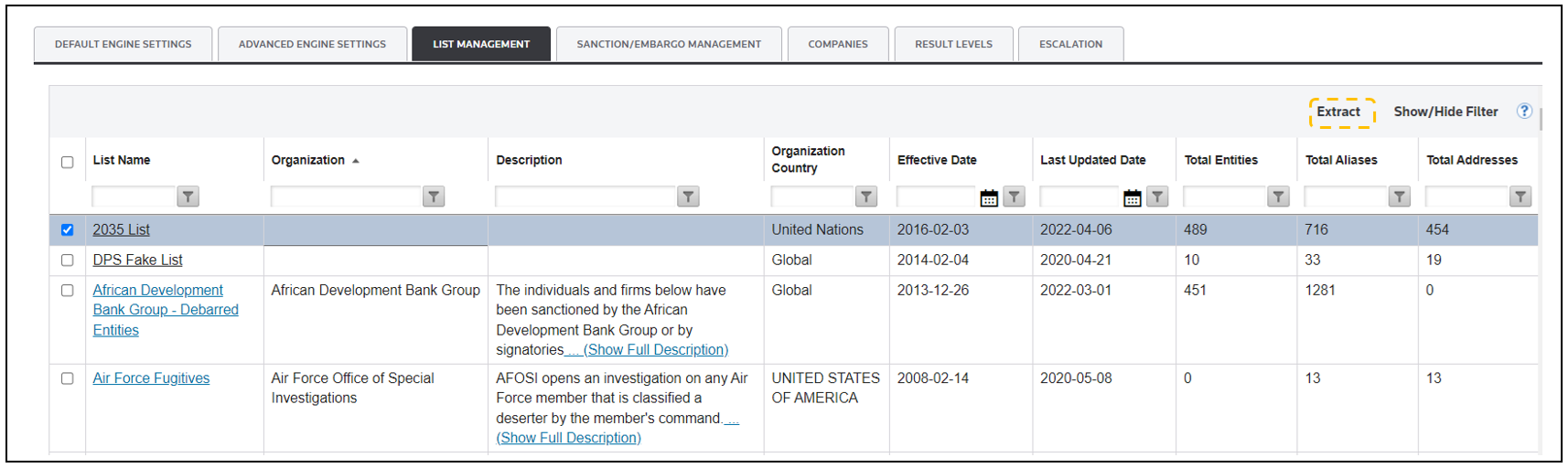
If you do not confirm changes prior to extraction, you will receive the following message:

To resolve the error, confirm changes.
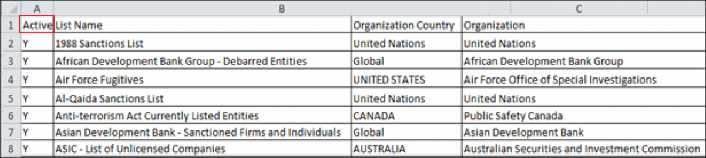
The extracted file will display all columns from the
Advanced List Management
tab. The Active
column shows whether a list is active ( Y
) or inactive ( N
).
Related Content
-
DPS Regulation List Updates: Monitoring List Activity
Format: Article