
FTA: Core Materials - Supercore BOM Parts
The
SuperCore BOM Parts
tab is used for the following processes:- Create the Supercore BOM
- Analyze the Supercore BOM
- Extract the Supercore BOM

Create the Supercore BOM
To build the Supercore BOM, click on the “Create the Supercore BOM” button. This will pull all BOM with core parts that are included. Create Supecore BOM allow the user to select the option of how to Create the Supercore BOM.

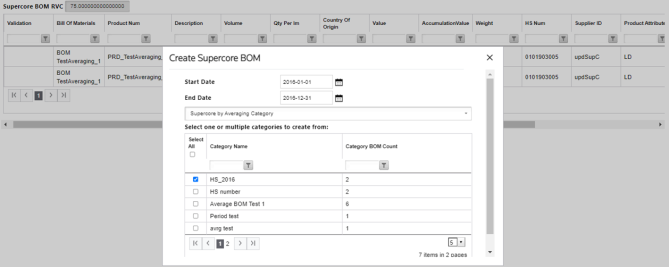
Supercore by Averaging Category
You will select the Start Date and End Date and one or multiple categories. Click
Save
.
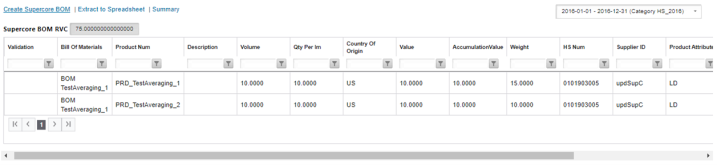
After created a new Supercore by averaging category, the same can be viewed as expected:
Supercore by Date Range
You will select the Start Date and End Date and click on
Save
.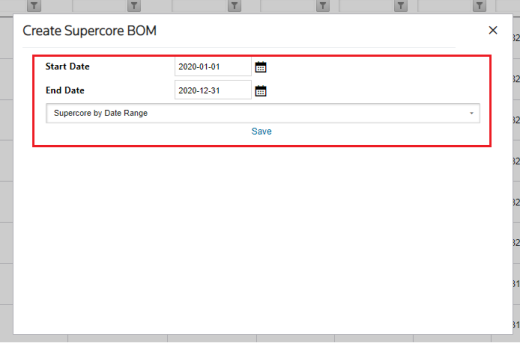
The page reloads and displays the SuperCore BOM Parts that matches the Date Range selected.
Supercore by BOM
You will select the Start Date and End Date and click on
Save
.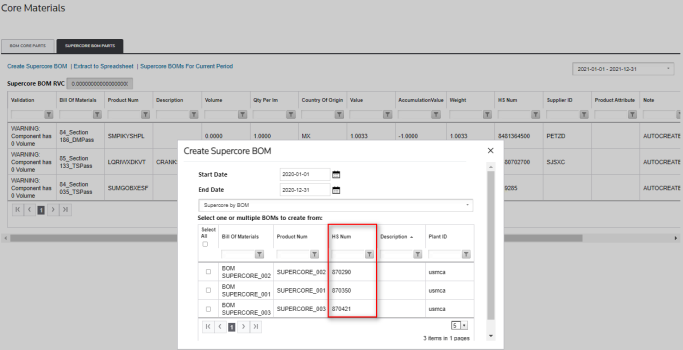
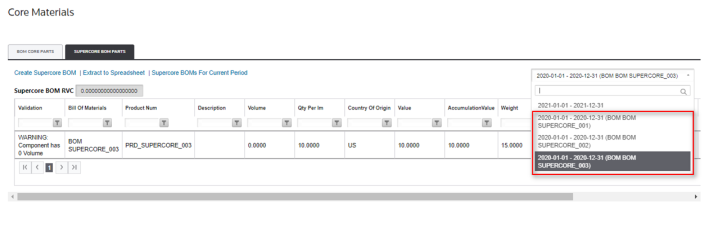
After selecting all BOMs in the previous modal, each BOM will be created separately, for its respective Supercore:
Analyze the Supercore BOM
To analyze the Supercore BOM, click on the
Supercore BOM Analysis
button.
This will calculate the Supercore BOM RVC and start the workflow. A validation message will appear on the screen, stating that the workflow is currently running. At any time, you can click
Refresh
in the upper right corner to update the screen.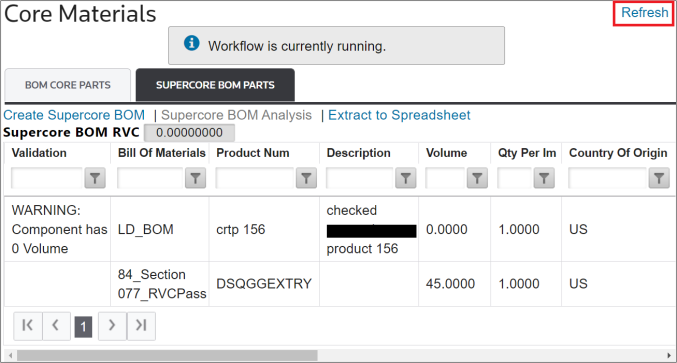
Extract the Supercore BOM
To extract the Supercore BOM, click on the
Extract to Spreadsheet
button. The Excel spreadsheet will then generate and become available for local download.
Summary modal
To open the modal which populates the Supercore BOM for the selected period, click on Summary.

There is a Refresh Selected Supercore BOM link which launches the workflow to recompute the RVC, if BOM Core Parts are added after the workflow executed previously.
Related Content
-
FTA: Core Materials
Format: Article