
FTA: Customer Request Management - Request Details
If a
Request Name
is clicked on the Request Summary
or Request Work Queue
tab, the Request Details
tab will provide the details for the request.Header
In the header section, the following information is provided:
Header information | Description |
|---|---|
Status | The status of the request. This can be New, In Progress, Canceled, Submitted, or Generated. |
Assigned To | The user who was assigned the request. |
Company | The name of the company on the request. |
Dates | The date parameters of the request. |
Completion | The percentage of the request that has been completed. |

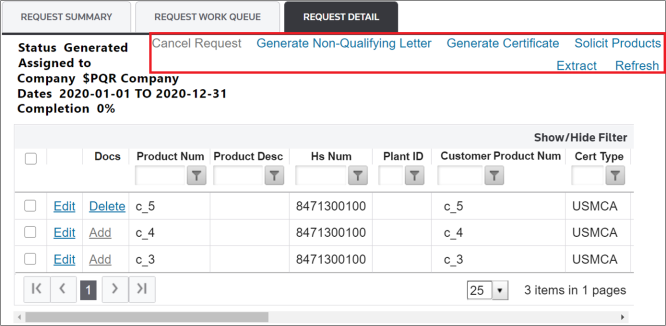
Command Buttons
The
Request Detail
tab contains the following command buttons:Buttons | Description |
|---|---|
Cancel Request | Clicking this button will cancel the request, changing the status to Canceled . |
Generate Non-Qualifying Letter | Clicking this button will open the FTA Certificates and Letters screen withNon-Qualifying Letter pre-selected and the request’s information populated into the fields, including all checked products. If no products are selected, then the system will generate a Qualifying Certificate for all products in the grid. For more information about this screen, refer to theFTA Certificates and Letters section of this help. |
Generate Certificate | Clicking this button will open the FTA Certificates and Letters screen withQualifying Certificate pre-selected and the request’s information populated into the fields, including all checked products. If no products are selected, then the system will generate a Qualifying Certificate for all products in the grid. For more information about this screen, refer to theFTA Certificates and Letters section of this help. |
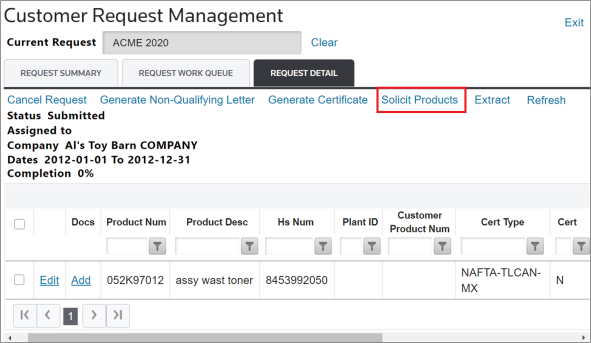
Solicit Products | Clicking this button will return you to the Solicitation Management screen, where the solicitation can be created or revised. For more information about this screen, refer to theSolicitation Management section of this help. |
Extract | Clicking this button will extract the contents of the request grid into a Microsoft Excel report file. |
Refresh | Clicking this button will refresh the screen. |
Request Detail Grid
To help you quickly locate specific information pertaining to a request(s), the
Request Detail
grid is enabled with advanced filtering capabilities.To use the filter, click
Show/Hide Filter
on the far right. The grid will display filters enabled for each column. Having this feature allows you to search for key information pertaining to a particular product/date/certificate type.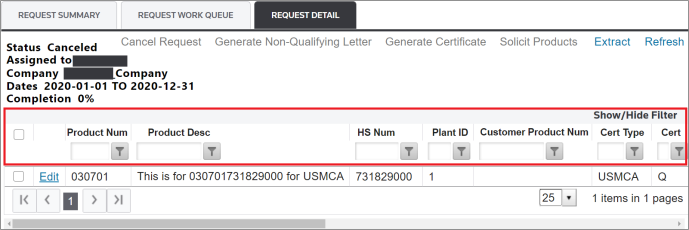
Add Documents to Request (Add Docs)
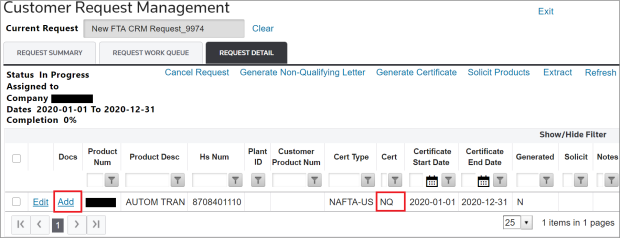
Documents can be added to Non-Qualifying Certificate requests. These requests will have a value of
N
or NQ
in the Cert
column, as shown below.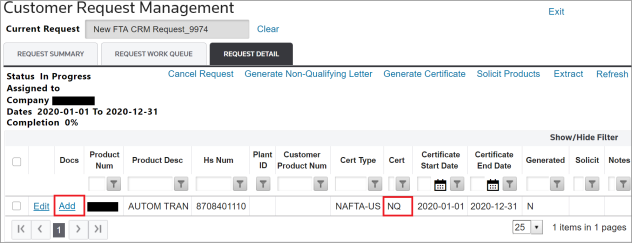
For a Qualifying Certificate request, the
Add
button will be disabled and appear as gray. These requests will have a value of Q
in the Cert
column.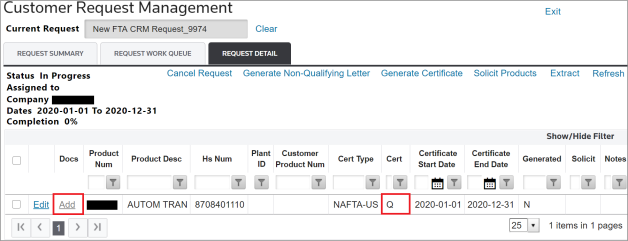
To add a document:
- Select a Non-Qualifying request from the grid.
- Click its correspondingAddbutton on the left to open theUpload Request Details Docpop-up.
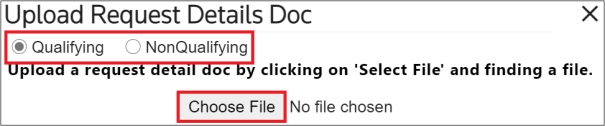
- Select whether the document is Qualifying or Non-Qualifying.
- Click on theChoose Filebutton.
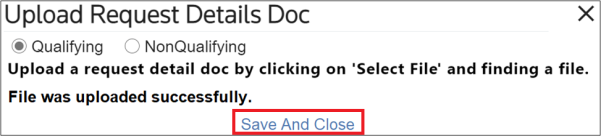
- Select a file from the local drive. After the file is successfully loaded, aFile was uploaded successfullymessage will appear on the pop-up.
- ClickSave and Close.
After clicking
Save And Close
, a confirmation pop-up will appear on the screen. To proceed with adding the document, click OK
.
After
OK
is clicked, the Generated
value for the selected product will change to Y
and the Add
button will change to a Delete Doc
button. This button can be clicked if the document needs to be removed.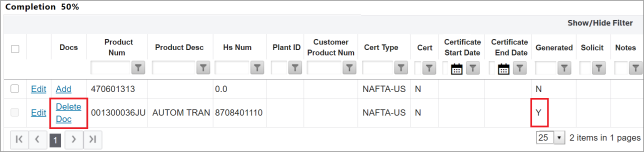
Clicking a
Delete Doc
button will cause a confirmation pop-up to appear on the screen.Click
OK
to proceed with the deletion.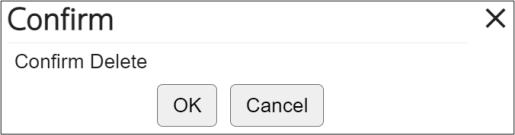
Soliciting Products That Have Not Been Solicited (Solicit Products)
To create a new solicitation for any products that have not been solicited, click
Solicit Products
.
The system will redirect to the
Solicitation Administration
page, where you can complete the Solicitation. For more information on how to enter data in the Solicitation Administration
screen, please refer to the Solicitation Administration
section of this help.The
Manage Solicitation
column will show whether or not a product exists on a solicitation. If a product has already been solicited, the Manage Solicitation
column will have a hyperlink.To open the solicitation, click the hyperlink.
Document Generation
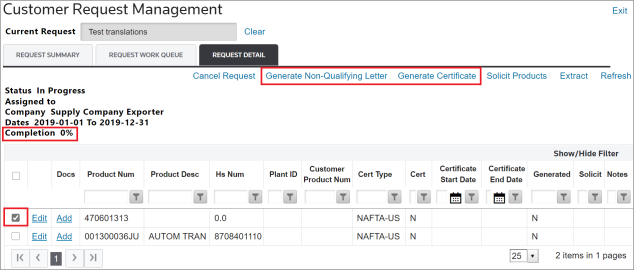
Certificates and Non-Qualifying Letters can also be generated for specific products in a request. When no documents have been generated, the
Completion
percentage will show as 0%.To generate an ad hoc certificate/letter or multidoc for a single FTA certificate document.
- Choose one or more products from the grid to generate documents for.
- Check their corresponding boxes on the far left.
- ClickGenerate Non-Qualifying LetterorGenerate Certificate.
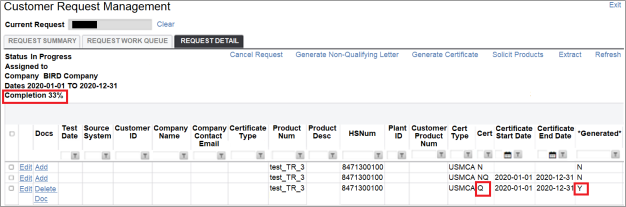
After one or more documents are generated, the completion percentage will change. The value in the
Cert
column will change to the applicable certificate type (NQ
for a Non-Qualifying Letter and Q
for a Qualifying Certificate) and the value in the Generated
column will change to Y
.
On the
Request Summary
tab, the request will show as In Progress
and not closed as there are other products in the request for which Qualifying Certificates and/or Non-Qualifying Letters have not been generated yet.
Related Content
-
FTA: Customer Request Management
Format: Article