
FTA: Supplier Dashboard - Attach Other Document
After the products have been attached to a document, click
Submit
to submit the completed documents. If the requestor asks for any documentation other than a Certificate of Origin (e.g. Manufacturer’s Affidavit, Non-FTA Letter, etc.), click Attach Other Document
to attach additional files to any or all selected items on the grid.
Clicking
Attach Other Document
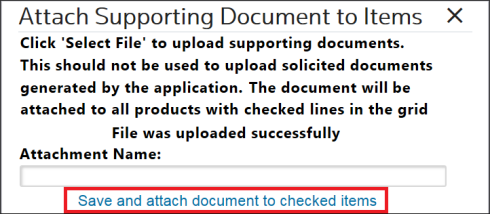
will open the Attach Supporting Document
to Items pop-up.To attach a file:
- Click theBrowse… button.
- Select a file from the local hard drive.
- Use theAttachment Namefield to enter a name for the document. Whatever is entered in this field will appear in theAttachmentstab.
After the file location is populated in the
Browse
… field, a message will appear on the screen: File was uploaded successfully
. If the Attachment Name
field is left blank, the link to the attachment will show as Link
.To upload the file and attach it to the selected item on the solicitation response, click
Save and attach document to checked items
.
After the document(s) are uploaded, but before the certificate has been submitted, the supplier can view or remove the document(s) by selecting the link under the
View
column on the Supplier Certificate
screen.After a certificate is submitted, the documents cannot be removed.
After the solicitation is submitted, these files will appear on the
Attachments
tab of the Solicitation Management
screen.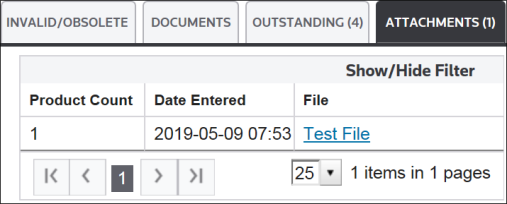
Related Content
-
FTA: Supplier Dashboard
Format: Article