
FTA: Supplier Dashboard
The
Supplier Dashboard
screen is used for managing and reviewing solicitations sent to suppliers. This dashboard provides additional information for each solicitation sent to the supplier. This screen can be opened by choosing
Supplier Dashboard
from the FTA
menu. 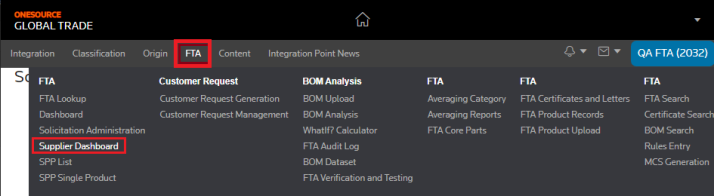
To view a supplier’s information:
- Click on theSelect a Supplierdrop-down.

- Choose and select a supplier from the list.

After a supplier is selected, the
Supplier Dashboard
screen will refresh to show content in two different tabs: Solicitations
and Open Product Requests
. Both tabs will be explained in more detail in the subsections below.important
If you have Supplier Portal Plus (SPP) configured, the
Open Product Requests
tab is not displayed.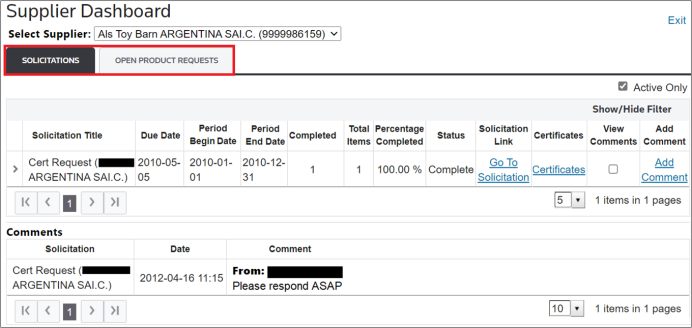
Solicitations
The
Solicitations
tab contains a history of all active, pending, and resolved solicitations assigned to the supplier as well as attached comments. You start using this page by selecting a supplier.

important
You can enter a product number in the search box to retrieve a list of all solicitations containing that product number. The product number is the client identifier for the product and it can be seen in the Supplier Certificate screen, under the "Product" and "Supplier Product Num" columns.
If you wish to narrow your search to active solicitations only, simply check the
Active Only
box.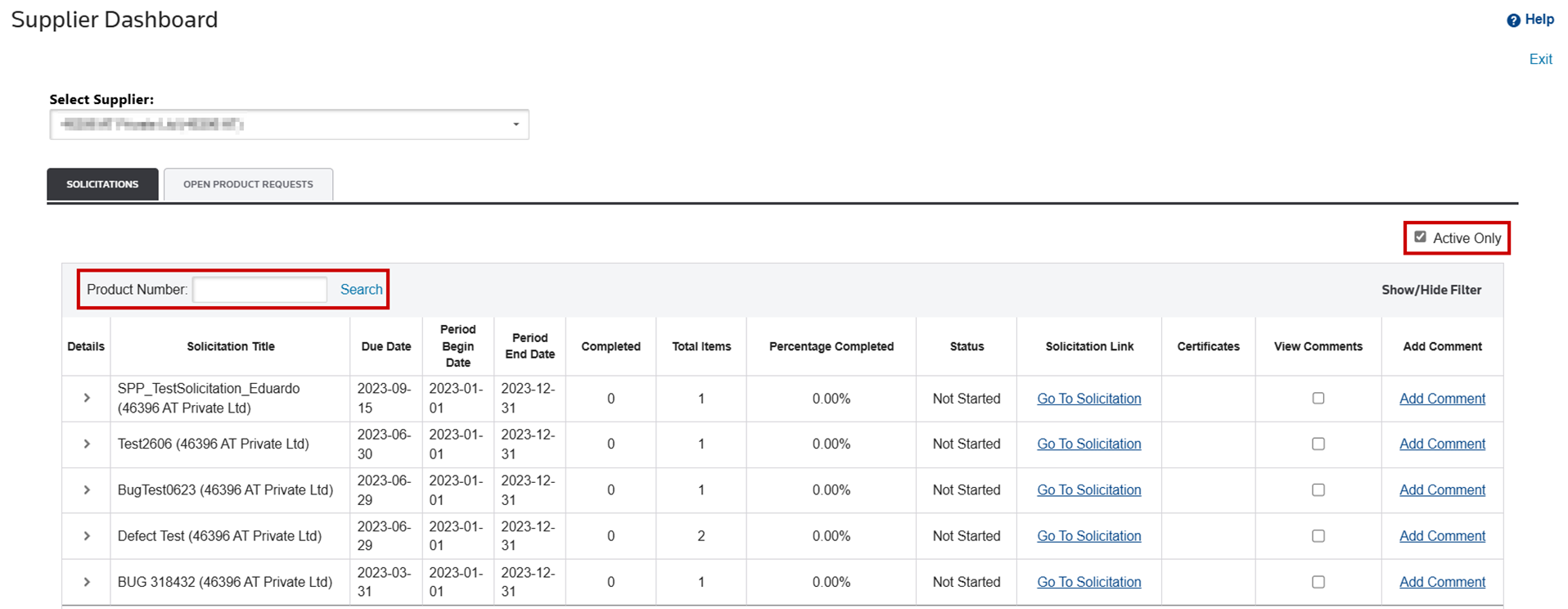
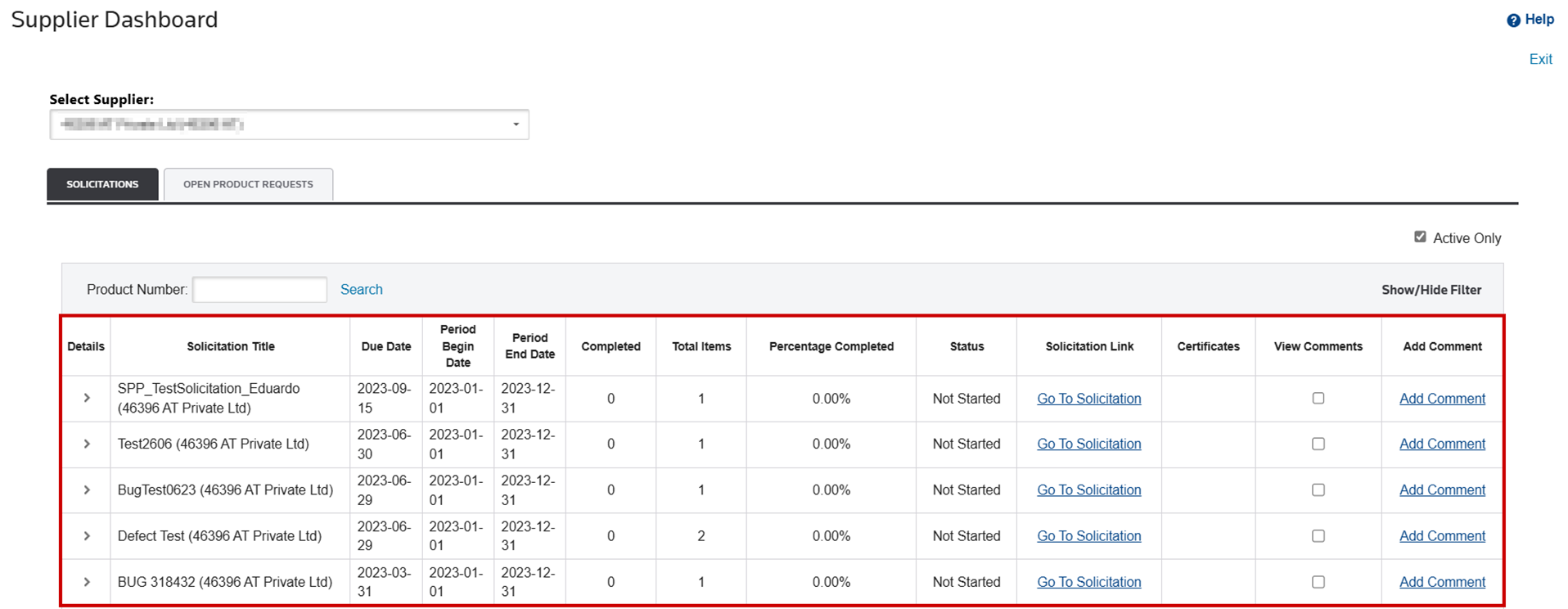
This action opens a grid with the following information:
Column | Information |
|---|---|
Solicitation Title | The name of the solicitation sent to the Supplier. |
Due Date | The due date of the solicitation. This was entered when solicitation was created. |
Period Begin Date | The beginning date of the period for which the solicitation was entered. |
Period End Date | The ending date of the period for which the solicitation was entered. |
Completed | The number of products on the request that have been completed by the Supplier. Completion can consist of attaching a product to a Preferential Certificate of Origin or marking the product as non-qualifying. |
Total Items | The total number of items included in the solicitation. |
Percentage Completed | The completion rate of the entire request. Having a completion percentage available provides the Requestor visibility into how far along a Supplier is in completing each request. |
Status | The status of the solicitation (Not Started, In Progress, or Completed). |
Go to Solicitation | Clicking this link will redirect to the “FTA Supplier Certificate” screen. The Requestor may need to access this screen to view the products included in the request or to complete the request on behalf of the Supplier. If the Supplier decided not to use the “FTA Supplier Certificate” screen and sent a hard copy of the Certificate of Origin to the Requestor, the Requestor must complete the solicitation in the system. This can be done by entering the requested data on the “FTA Supplier Certificate” screen and attaching a scanned copy of the provided Certificate of Origin. Further information about entering external data into the “FTA Supplier Certificate” screen can be found in the “How a Supplier Responds to a Request” section of this User Guide. important
If you are configured for Supplier Portal Plus (SPP), this column does not appear. |
Certificates | Select this link to go to a grid showing all certificates provided stored within ONESOURCE FTA Management. This is especially useful if you need to view one or more Certificates of Origin that have already been provided by a Supplier in response to a previous request. Select the “Certificate Name” link in this grid to open a pop-up containing the data on the saved certificate. |
View Comments | Check the box to see added comments after the grid. |
Add Comment | Select this link to open a pop-up where you can enter a comment. Select Add Comment to save. |
Adding a Comment to a Solicitation
To add a comment to a solicitation:
- Choose a solicitation from theSolicitationsgrid.
- ClickAdd Commenton the far right to open theAdd Commentpop-up.

- Enter the comment text.
- ClickAdd Comment.
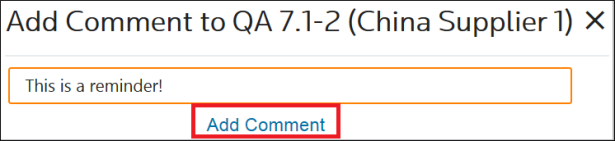
The comment will then appear in the
Comments
grid on the Supplier Dashboard.
Solicitation Detail Information (Child Grid)
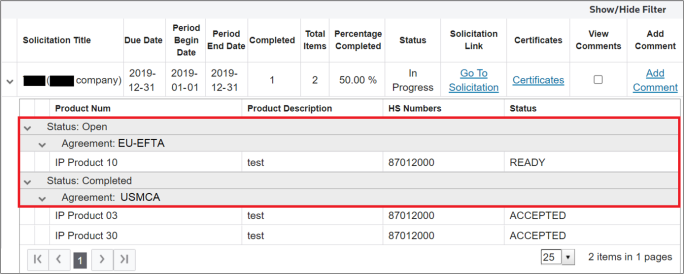
Further information regarding a solicitation can be viewed by clicking on the expansion arrow on the far left, as you can see in the screenshot example below.
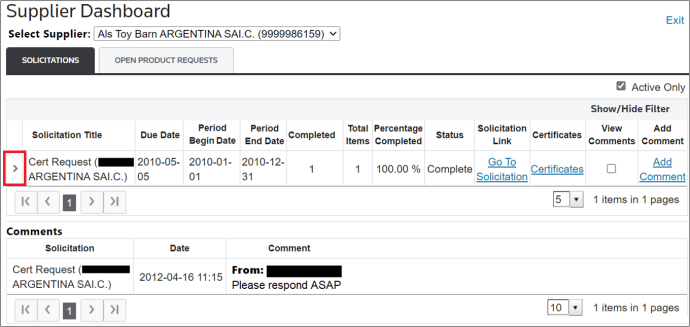
A child grid will then become visible. You can then expand/collapse the different drop-downs, which are organized by status (e.g. Completed) and by agreement (e.g. NAFTA-US).
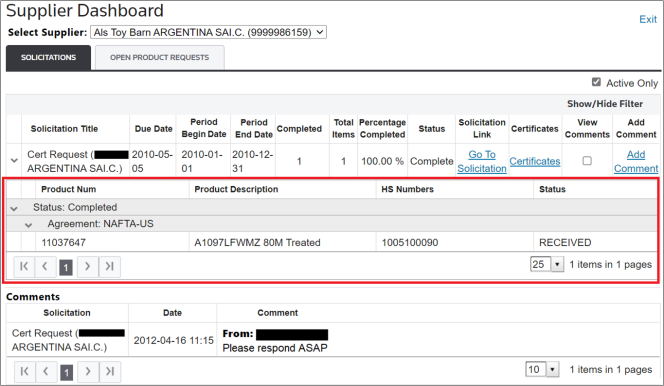
If the status in the child grid is
Ready
, then the solicitation requires action. To take action on the solicitation, click on the Go To Solicitation
link.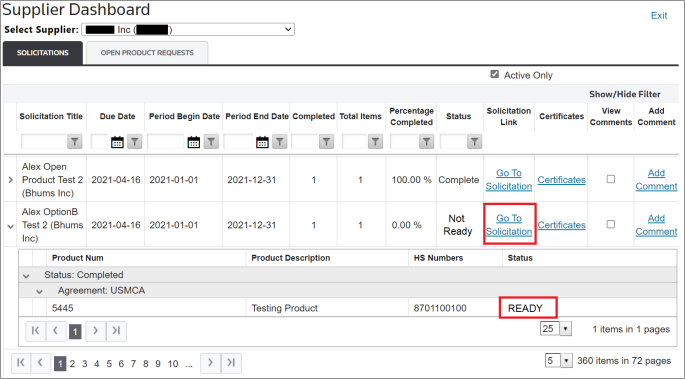
If the solicitation has multiple agreements, then the child grid will have different drop-down categories for each agreement. This is also true for Statuses (Open, Completed, etc.).
Open Product Requests
important
If you have Supplier Portal Plus (SPP) configured, the
Open Product Requests
tab is not displayed.The
Open Product Requests
tab contains all open product requests assigned to the supplier. Requests are organized by agreement and blanket period (start and end date) and contain a link to each solicitation in the rightmost column. Additionally, this grid can be filtered using the Show/Hide Filter
button on the top right of the grid.If there are open solicitations for the same agreement but multiple years, multiple rows for the same agreement (e.g. ASEAN-CHINA) will appear in the grid.
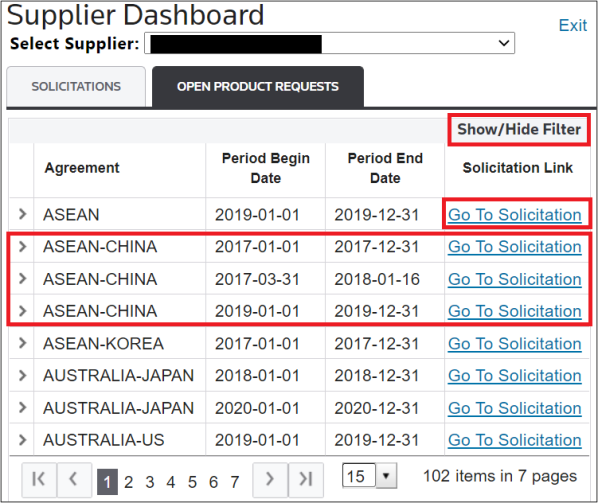
This grid can also be expanded to show additional information (Product Number, Description, HS Number, and Status) for a specific agreement.
To view this information:
- Choose one or more agreements from the grid.
- Click on their corresponding expansion arrow(s) on the far left.

The following statuses exist within the
Status
column:Statuses | Description |
|---|---|
Ready | Certificates have not yet been generated. |
Received | Certificates have been generated and submitted. |
Related Content
-
Free Trade Agreement (FTA) Management
Format: Article
-
FTA: Supplier Dashboard - Supplier Response to a Solicitation
Format:
Article
-
FTA: Supplier Dashboard - Opening a Solicitation
Format:
Article
-
FTA: Supplier Dashboard - Viewing Certificates
Format:
Article
-
FTA: Supplier Dashboard - Adding a Comment to a Solicitation
Format:
Article
-
FTA: Supplier Dashboard - Supplier Completion and Generation of a Preferential Certificate of Origin
Format:
Article
-
FTA: Supplier Dashboard - Individual and Mass Product Details Update
Format:
Article
-
FTA: Supplier Dashboard - Attach Other Document
Format:
Article
-
FTA: Supplier Dashboard - Parties
Format:
Article
-
FTA: Supplier Dashboard - Signatures
Format:
Article
-
FTA: Supplier Dashboard - Additional Fields
Format:
Article
-
FTA: Supplier Dashboard - Attach Other Document
Format:
Article
-
FTA: Supplier Submission of Government Certified Documents
Format:
Article
-
FTA: Supplier Submission of Non-Preferential Country of Origin Declarations
Format:
Article