
FTA: Supplier Dashboard - Products
All products selected by the requestor and included in the solicitation are pre-populated in a grid on the
Products
tab. The products listed in this tab are consistently listed by solicitation.- If a product has not yet been submitted, it will have a status ofNot Submittedand an activeEditlink on the far left of the grid.
- If a product has already been submitted, the status will show asSubmittedorAcceptedand theEditlink will no longer be visible for that line item on the grid.

Additionally, some supplemental fields (e.g. Accumulation Non-Originating Value or Labor Value Content) may also appear in the grid. This is entirely dependent on which agreement (e.g. USMCA) the certificate is for.
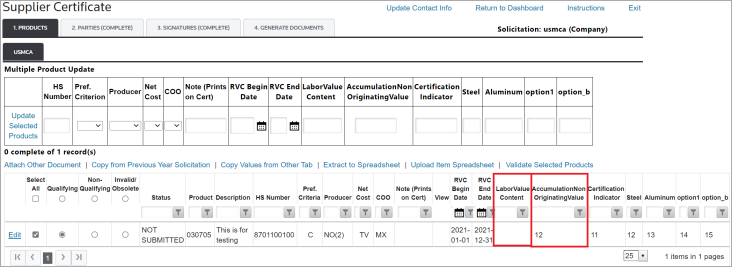
The following information must be completed within the product grid to complete the mandatory sections of the FTA solicitation and/or information requested by the requestor. The information requested on the product grid is specific to the FTA/document type request.
Examples of fields the grid may display include:
Fields | Description |
|---|---|
Qualifying | A product that qualifies under the rules of the solicited FTA. |
Non-Qualifying | A product that does not qualify under the rules of the solicited FTA. |
Invalid/Obsolete | An obsolete supplier product. |
Product Number | The internal product number. |
Description | A description of the product. |
HS Number | The related Harmonized Schedule (HS) number for the product. |
Preference Criteria | This field can be used to be consistent with FTA requirements and is configurable to your needs. This field has a length of up to three (3) characters. |
Producer | The producer of the product. |
Net Cost | The net cost of the product. |
Country of Origin | Member countries of the agreement will appear at the top of the Country of Origin drop-down. |
Traced Value | This optional field is added by the requestor. |
Supplier Product Number | This optional field is added by the requestor. |
Note (Prints on Cert) | Any note(s) the supplier wants to include on the printed certificate. |
View | View the certificate. |
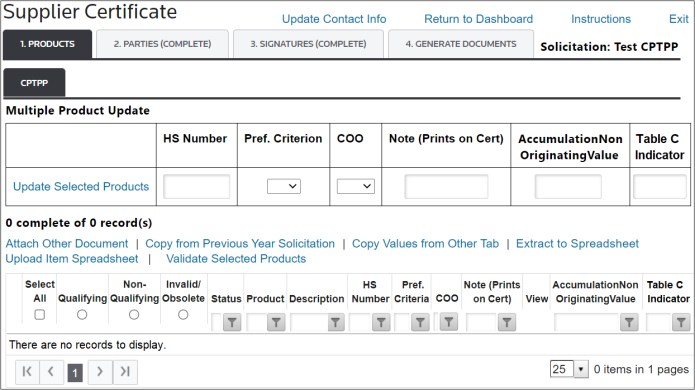
AccumulationNonOriginatingValue | A supplemental field that may appear in agreements that require accumulation (e.g. CPTPP). In order for this field to appear, it must be configured within your ONESOURCE FTA Management system. |
TableCIndicator | A supplemental field that may appear in agreements that require accumulation (e.g. CPTPP). In order for this field to appear, it must be configured within your ONESOURCE FTA Management system. For the TableCIndicator field, the supplier will need to indicate “Y” (Yes) or “N” (No). Any value other than “Y” (i.e. “N” or a blank field) will be treated as an “N”. |
To populate and complete the product details section, use one of the following two methods listed below.
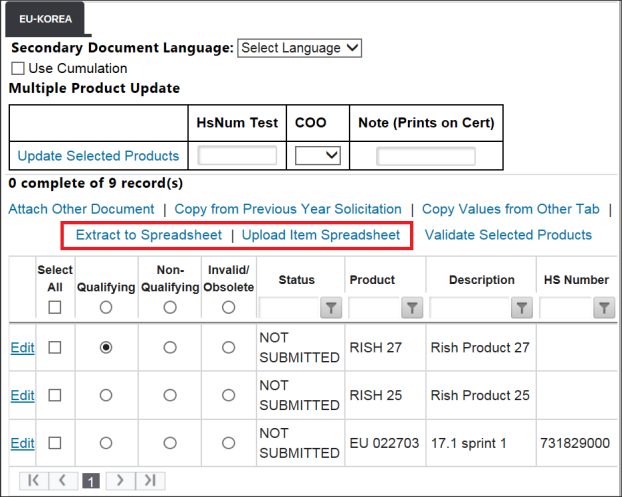
Extract to Spreadsheet
The
Extract to Spreadsheet
and Upload Item Spreadsheet
options are configurable, giving the requestor the ability to turn the feature on or off. If these features are disabled, neither Extract to Spreadsheet
nor Upload Item Spreadsheet
will appear on the Supplier Certificate
screen.If spreadsheet upload is disabled, the supplier must complete the product grid directly from the
Supplier Certificate
screen in FTA Management following the steps listed in Method 2.If spreadsheet upload is enabled, click
Extract to Spreadsheet
.
Clicking
Extract to Spreadsheet
will create a Microsoft Excel spreadsheet containing all listed products within the solicitation. After the spreadsheet is generated, the supplier can save the spreadsheet to the local hard drive and work outside of ONESOURCE FTA Management.Make any necessary changes to the rows in the spreadsheet. Rows can be sorted or deleted, but do not insert columns or rows. Do not change existing downloaded data in any cell.
For non-qualifying products, the supplier only needs to enter the HS Number (if not already populated) and Country of Origin. Preference criteria, producer, and net cost are only required for qualifying products.
There is no set rule for naming the spreadsheet.

After the spreadsheet has been updated and saved, return to the
Supplier Certificate
screen and click Upload Item Spreadsheet
.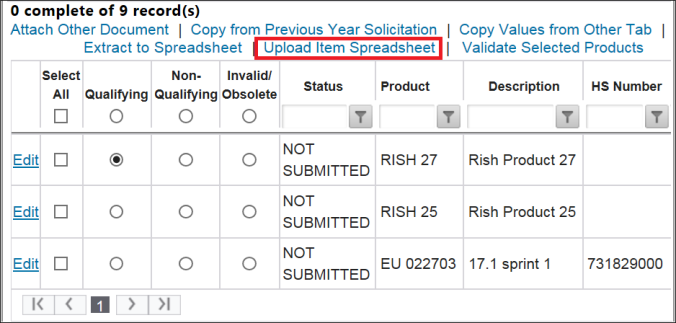
Clicking
Upload Item Spreadsheet
will open the Upload Item Data from Spreadsheet
pop-up. In the pop-up, click Browse
… and attach the spreadsheet.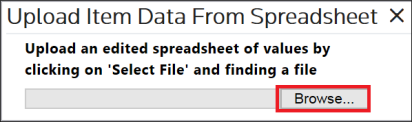
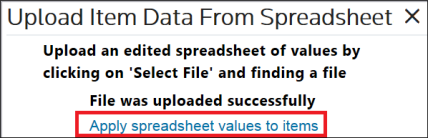
After the spreadsheet has successfully uploaded, click
Apply spreadsheet values to items
.
During the upload process, ONESOURCE FTA Management validates the spreadsheet data for the required elements in the selected FTAs.
If the file does not load successfully and validation errors appear on the screen, review the contents of the spreadsheet for accuracy. Make any necessary changes and try again.
If the spreadsheet continues to create validation errors, contact the requestor to troubleshoot any issues preventing the spreadsheet from being uploaded.
Manual Update via the Product Grid
To populate the product grid and complete the response:
- Go to the grid on theSupplier Certificatescreen.
- If a product qualifies, check the box on the far left and click theQualifyingbutton. If a product does not qualify, check the box on the far left and click theNon-Qualifyingbutton.
- If a product is invalid or obsolete, check the box on the far left.
- Click theInvalid/Obsoletebutton.
If all products fall under one of these categories, the
Select All
box can be checked instead.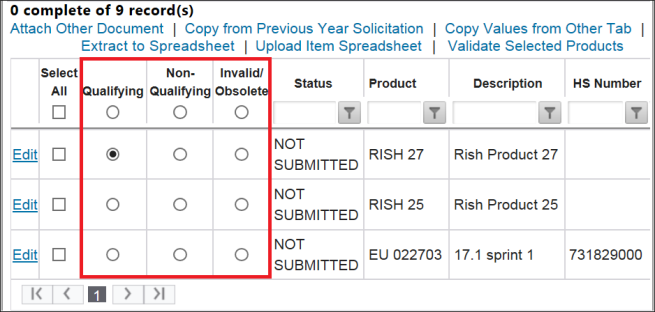
Next, the
Multiple Product Update
feature will be used. Enter any or all of the following to update the selected product(s):
- HS Number
- Preference Criterion
- Producer
- Net Cost
- Country of Origin
- Traced Value
- Supplier Product Number
- Notes (Prints on Cert)
To assist with entering the correct information, the drop-down fields provide additional details on how to complete the required items. Hovering the cursor over a drop-down will make the instructions visible.
After all necessary information has been provided; click
Update Selected Products
. This will update all selected products with the information filled in the Multiple Product Update
fields. This feature is especially useful when multiple products share the same eligibility information.
If the multiple product update was successful, a validation message will appear at the top of the screen.

 Article