
FTA: Supplier Dashboard - Individual and Mass Product Details Update
To edit an individual product record:
- Choose a product from theSupplier Certificategrid.
- ClickEditon the far left.
After “Edit” is clicked, the supplier can manually add or update information in each listed field.

See below for typical uses for the
Edit
button. More may exist, depending on how the fields were configured during implementation.- Marking product as Qualified, Non-Qualified, or Invalid/Obsolete
- Changing an incorrect HS Number
- Entering an HS Number in a blankHS Numberfield
- Changing Preference Criteria, Producer, Net Cost, and/or Country of Origin. Qualifying products will only display Countries of Origin from the listed FTA.
- Adding any trace value associated to the products (if applicable)
- Adding a note
- Adding a supplier product reference number (if requested)
Make any necessary changes. Click
Update
to save the changes or Cancel
to drop the changes.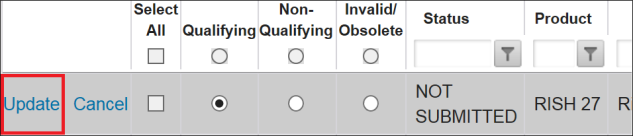
Mass Update (500+ Products)
If responses are required for more than 500 products, follow the steps listed below.
- Click on thePage sizedrop-down at the bottom of the grid.
- Expand the record count to 500 (or 1000, as applicable).

- Review the products in the grid and choose which products to include.
- For a product to be included, check its corresponding box on the left.
- Mark the product as Qualified, Non-Qualified, or Invalid/Obsolete.

Filtering the “Supplier Certificate” Screen
To further narrow down the products on the grid, the
Supplier Certificate
screen offers filtering capabilities. Any column with a filter field at the top of the grid can be filtered based on the parameters provided in the field.To apply a filter:
- Click on a column header and enter a value.
- Click the filter button and choose a filter to apply.
Filter options may vary depending on field type (date, time, numeric, alphanumeric, etc.).

After all products to be included are selected, click
Generate
. The product grid will then display the documents for the selected products, as well as the products no longer to be selected.To add additional products, repeat the steps listed above until all applicable products have been added to a document.
To validate any/all of the selected products prior to proceeding to the next step, click
Validate Selected Products
. If the supplier does not validate at this time, a subsequent validation will be performed by the system prior to the generation of documents.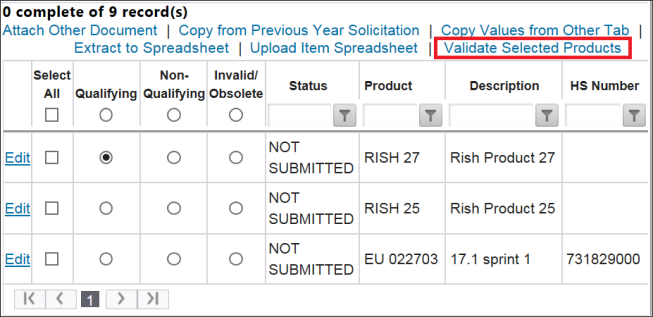
Related Content
-
FTA: Supplier Dashboard
Format: Article