
Using AES Transmission
Use the
Find Shipment Reference
Number drop-down menu to select a Shipment Reference Number (SRN) to send to AES. The SRN ties to the ShipmentRefNum
field on the Export Invoice Management screen. This number is used to uniquely identify a shipment, complete with all grouped invoices.Associating invoices to the same SRN allows the system to take multiple invoices and automatically consolidate them when transmitting to AES. Each available SRN, corresponding filing status, and associated ITN (if received) will display in the
Search
drop-down.To create a new Shipment Reference Number:
- ClickNewto create a unique Shipment Reference Number that can associate invoices to a shipment.
 The Search drop-down can be configured to allow only certain security groups to see shipments with an identifier tied to a security group name.
 Invoices where theShipmentRefNumfield is blank can be associated to a newShipment Reference Number.
 - ClickSelectfrom the listing shown below of all invoices with blankShipmentRefNum. Selected invoices are then consolidated.
To remove invoices that should not be transmitted in the AES filing, click
Remove
.If all shipments from an AES filing are removed, all information for the AES filing will be removed. AES header data will be common across consolidated invoices.
Once selected, you can review the information prior to filing AES. This information is provided within the
Transmission History, Header and Transportation, Parties
, and Commodity Details
tabs. Each of these tabs is explained in more detail in the subsections below.
Transmission History & EEI Report
U.S. filers to the AES (Automated Export System) can view a full history of all information transmitted to and messages returned from U.S. Census via the ACE system. Each time Census returns a message, an updated version of the EEI report can be viewed via a link in the
EEI Document
column of the Transmission History
tab.This report provides both header and detail level information about what was transmitted and returned messages. This
Standard EEI Report
automatically generates for all self-filing clients in AES.

Header and Transportation
The
Header and Transportation
tab is the only tab on the AES Transmission
screen where data can be modified.
When a change is made, the information must be saved before transmitting.

Parties
Individual tabs are available for each party type. The data on the
Parties
tab can be viewed on this screen, but it cannot be modified.
If the
UltimateConsigneeType
field has been left blank, an error message will appear at the top of the screen, alerting you that they cannot submit to AES until they have entered a valid value for UltimateConsigneeType
. In addition, the Transmit
link remains disabled until a user opens the shipment in Export Management again, updates it to add in a valid UltimateConsigneeType
, and re-processes the shipment.
Commodity Details
The tariff lines on the
Commodity Details
tab are a summarization of all the invoice line information under the Shipment Reference Number
. The lines are split based on AES specifications:- Tariff Classification/ECCN
- Export Code
- Origin Code
- Quantities and Values
- License Details
- Vehicle Details

By clicking
Show Quantities and Values
, you can review the details of the quantity and values on any specific Commodity Line on the AES shipment. If the shipment has been transmitted to AES previously, you will see the Last Transmitted information as well as the current information on the shipment.
By clicking
Show License Details
, you can review the license details on any specific Commodity Line on the AES Shipment. If the shipment has been transmitted to AES previously, you will see the Last Transmitted information as well as the current license information on the shipment.
By clicking
Manage PGAs
on the expand arrow on the left, you can edit, delete, and add records for each associated agency.
Save and Validate
Export shipments can be validated from both
Export Invoice Management
screens and the AES Transmission
screen.To validate in the
AES Transmission
screen, click Save and Validate
.
If the shipment has any validation errors that need to be cleared before it can be submitted to AES, the
Validation Errors
tab will display below.
Transmitting Individual Shipments
Once all validation errors are resolved, click
Transmit
. Thomson Reuters will then pass the data to AES. When AES responds, received messages are displayed within Thomson Reuters.
Clicking
Transmit
or Consolidate
in the AES Batch Filing
screen will open the AES Management
confirmation pop-up. This pop-up contains a summary of all actions that will occur, allowing you to confirm or cancel the process. This pop-up is covered in more detail in the AES Management
section of this User Guide.
The
Transmission History
tab records all AES transmissions and responses in order of the most recent first. The history includes the transmission date, status, number of replies, and the generated EEI documents within the response.
Response Messages
To display a response message:
- Click the rightward pointing arrow at the far left.
- ClickCodefor additional details to see why the shipment was rejected.
This action redirects to the
AES Response Code
screen, detailing reasons for rejection and providing guidance for error resolution.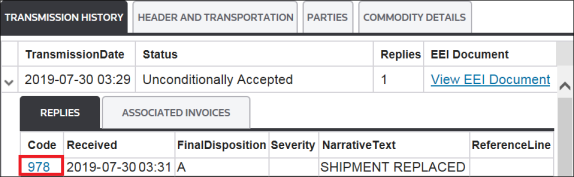

Generate SLI Report
In order to generate a SLI Report via Export Management, the exporter must first file the AES transmission and have a returned Internal Transaction Number (ITN). This document is generated ad hoc and is not retained for historical purposes on either the AES filing record or the individual invoices.
To begin:
- ClickGenerate SLIat the top of theAES Transmissionscreen to open theGenerate SLIpop-up.

- Select the report format, determine whether the last transmitted data or current shipment data values are to be used.
- Select whether or not all lines should be printed.IfPrint All Linesis selected, the report will print all lines (including lines exempt from transmission filing). IfPrint All Linesis not selected, only lines requiring transmission filing will appear on the report.
- ClickGenerateto generate the SLI Report.

After a SLI report is successfully generated, a hyperlink called
Consolidated SLI
will appear at the top of the screen. Click the link to open and review the report.
Cancelling a Shipment
To cancel a shipment:
- ClickCancel Shipmentto open theCancel AES Shipmentpop-up. Only shipments which have been previously accepted by AES can be cancelled.

- ClickConfirmto cancel the shipment. ClickXto drop changes and close the pop-up.

To cancel an AES Transmission, Customs must first send an acceptance notification. If an AES filing is cancelled prior to receiving acceptance from Census, a warning message will appear.
Clicking
Confirm
marks the AES filing as Cancelled in the Thomson Reuters system, but the shipment will still be on file with Census and may appear in subsequent Fatal Error Reports provided by Census.The Cancel Shipment functionality can be configured to define which users should be prevented from cancelling shipments based on security group.
Related Content
-
Automated Export System (AES)
Format: Article