
Bill of Lading Query
The “
Bill of Lading Query
” screen is used for querying information in the Automated Commercial Environment (ACE) by the following data prior to the submission of a Security Filing:- In-Bond Number
- Bill of Lading Number
- Air Waybill
“Bill of Lading Query” can also be used to review the ACE posting history against a particular Immediate Transfer (IT) or Bill of Lading (BOL). This screen can be opened by
choosing
“Bill of Lading Query” from the “Tools” menu.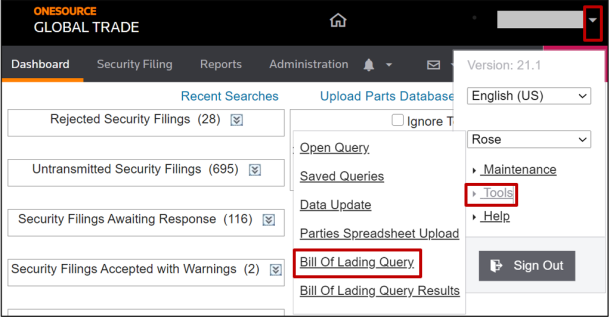
important
Responses are not limited to a specific EIN. All information will be available for review regardless of Importer of Record or Consignee.

Submitting an In-Bond Number Query
To
use submit
an In-Bond Number query, enter
an individual In-Bond Number in the “In Bond Number” field, and then click
“Query InBond”.
Proceed
to the “Opening a Submitted Query” section of this User Guide for more information.Submitting a Non-Air Shipment Query
To
query
non-air shipments, enter
the SCAC and Bill of Lading Number (House or Master) in their corresponding fields, and then click
“Query BOL”. This query also has an optional “Request BOL Info” checkbox, which can be checked or unchecked.Input | Box Checked | Output |
|---|---|---|
SCAC, Master BOL | Yes | Query results will be returned for the SCAC, Master BOL, and all associated House BOLs. |
SCAC, House BOL | Yes | Query results will be returned for the SCAC, House BOL, and the related Master BOL. |
SCAC, Master BOL | No | Query results will be returned for the SCAC and Master BOL. |
SCAC, House BOL | No | Query results will be returned for the SCAC and House BOL. |

Proceed
to the “Opening a Submitted Query” section of this User Guide for more information.Submitting an Air Waybill Query
To
query
air shipments, enter
the Air Waybill and House Air Waybill Numbers, then click
“Query Air Waybill”.The user must be able to identify the Master Air Waybill (MAWB) from the House Air Waybill (HAWB).

Proceed
to the “Opening a Submitted Query” section of this User Guide for more information.Opening a Submitted Query
After the user has submitted a query, a notification (“Your query has been submitted.”) will appear at the top of the screen.
To
open
the submitted query, click
on “Query Results”.
Clicking
“Query Results” will open the “Bill of Lading Query Summary” screen.To
view
details of a query, choose
a query from the grid and click
its corresponding “Replies” link.
In-Bond Query Results Example

Non-Air Bill of Lading Query Results Example

Air Waybill Query Results Example
important
The user will still need to choose a House Air Waybill from the “House Air Waybill House Part Ind” drop-down.

Related Content
-
Importer Security Filing (ISF)
Format: Article