
Edit Security Filing : Tabs
Header
The “
Header
” tab of the “Edit Security Filing” screen provides an overview of the Security Filing’s basic details.
The table below lists all required fields for the “Header” tab.
Fields | Description |
|---|---|
Action Reason* |
|
Type* |
|
Mode of Transport* |
|
Shipment Type* |
|
important
As of January 23, 2011, additional data elements are required when reporting an informal shipment (transaction type 11, for which bond information is not required):
Additional Data Elements | Description |
|---|---|
Estimated Value | This additional information is only mandatory for the “Informal Entry” type. Estimated Value can be used for the Simplified Entry process as well. Estimated Quantity, Estimated Weight, Weight UOM |
ISF Importer* | The ISF Importer (party responsible for filing the ISF to CBP). This field utilizes the “Type Ahead” feature to make it easy to search for parties. |
Bond Holder | The party whose bond is being obligated for the Security Filing. This field utilizes the “Type Ahead” feature to easily search for parties. |
Bond Indicator |
|
Bond Number | The identification number of the ISF Bond being used for the Security Filing. |
Surety Code | Enter the Surety Code of the entity the ISF Bond is being used for. |
SCAC* | The Standard Carrier Alpha Code (SCAC) for the carrier of the goods to be reported on the ISF. |
Bond Activity Code* |
|
Bond Type* |
|
The below table contains fields that are for internal reference only. These fields are not transmitted to CBP.
Fields | Description |
|---|---|
Booking Date | The anticipated date of cargo booking for the goods to be reported on the Security Filing. This field can be used for triggering notifications. |
Vessel Sail Date | The anticipated date the cargo leaves a Foreign Port of Lading. This field can be used for triggering notifications. |
Est. Date of Arrival | The date upon which the user anticipates the goods reported on the Security Filing will arrive in the first U.S. Port. This field can be used for triggering notifications. |
Modify Date | The date of the last modification to the Security Filing. The system autopopulates this field when the Security Filing is saved. |
Modify User | The last logged-in user to modify the Security Filing. The system autopopulates this field when the Security Filing is saved. |
important
A Bond Type 9 (Single Transaction) may only be used with a Bond Activity Code 16 (ISF Bond). If this condition is met, both the Surety Code and the Bond Reference Number (SBN) are required and the Bond Reference Number is NOT the bond number.
Bond information is mandatory for all Add or Replace transactions when the Shipment Type is one of the following:
Shipment type | Description |
|---|---|
01 | Standard/Regular Filings |
02 | To Order Shipments |
07 | U.S. Goods Returned |
08 | FTZ Shipment |
10 | Outer Continental Shelf Shipments (OCS) Shipment |
Parties
The “
Parties
” tab within the “Edit Security Filing” screen is used for assigning parties to the open Security Filing. These parties are either created within the “Parties Maintenance” screen, or by clicking the “Add New Party” link from the “Parties” tab or “Items” tab of the open Security Filing.Parties that are already on the Security Filing will appear in the grid portion of the “Parties” tab.

Party Mass Insert
When creating a new Security Filing or modifying an existing Security Filing, up to ten parties can be added to a Security Filing at the same time.
To
enable
the “Mass Insert” functionality, check
the “Mass Insert” box on the “Defaults” screen. This is covered in more detail in the “Defaults” section of this User Guide. If the “Mass Insert” data entry preference is not checked, the data entry for that particular partner will only allow one party at a time to be added to a Security Filing.
Adding a Party to a Security Filing (Mass Insert)
To
add
a party to a Security Filing, click
on one of the “Party Type” drop-downs beneath the grid and choose
the applicable party type from the drop-down.important
Booking Parties are only applicable for ISF-5 Security Filings.

Once a Party Type has been selected,
click
on the corresponding “Party” field and enter
a party name. As the party’s name is typed, a list of valid parties become available for selection. Select
the party to be added.
If the entered party is not listed in the “Parties Maintenance” screen, an “Invalid party entered” error message will appear, preventing the party from being added to the Security Filing.

More than one party can be added a time by following the steps listed above. Once all parties to be added are ready,
click
“Add List to Filing”. If the party does not currently exist in Maintenance and needs to be added, click
“Add New Party to Maintenance”.
Once a party is successfully added to the Security Filing, it will appear in the “Parties” grid.

Adding a Party to a Security Filing (Individual Party)
To
add
a party to a Security Filing, click
on the “Party Type” drop-down and choose
the applicable party type from the drop-down.important
Booking Parties are only applicable for ISF-5 Security Filings.

Once a Party Type has been selected,
click
on the “Party” field and enter
a party name. As the party’s name is typed, a list of valid parties become available for selection. Select
the party to be added.
If the entered party is not listed in the “Parties Maintenance” screen, an “Invalid party entered” error message will appear, preventing the party from being added to the Security Filing.

Once the party is ready to be entered,
click
“Add New Party”.
Modifying Existing Party Information
To
modify
an existing party, choose
a party from the “Parties” grid to modify. Once a party has been chosen, click
on the party’s name.
Clicking
on a party name will open a pop-up containing all current information on the party. Depending on the user’s security level, some or none of the fields on this pop-up may be open for modifications. Make any necessary changes
, and then click
“Save”.important
Any changes made to a party’s data will affect how the party appears for all Security Filings within ONESOURCE ISF, not just the currently open Security Filing.
Additional information about Application Level Security and/or Party Maintenance can be found in their appropriate sections in the User Guide.

Attaching Party Source Documents
A “Source Document” is a document that specifies the source of the provided data and has been identified in the “Other Identifiers” tab. The “Source Document” field is for internal use and reporting only. The contents of this field will not be transmitted to CBP.
Bills
The “
Bills
” tab in the “Edit Security Filing” screen is used for entering and storing one or more Master and/or House Bill of Lading identifiers for the selected Security Filing.Users may enter the Master Bill Identifier, the House Bill Identifier, or both the Master and House Bill Identifiers and a number of the above combination of Bills for the Security Filing.
Additionally, users may enter a Source Document for the Bills data. The Source Document is a document that was identified in the “Other Identifiers” tab of the Security Filing which specifies the source of the provided data.
The “Source Document” field is for internal use and reporting only. The contents of this field will not be transmitted to CBP.

Adding a Bill of Lading
To
add
a Bill of Lading (Master or House), click
on the “Master” or “House” field and enter
the Bill of Lading Identifier.Once the Identifier has been entered,
click
“Add”.
Once “Add” is clicked, the Bill of Lading will appear in the “Bills” grid.

Modifying an Existing Bill of Lading
To
modify
an existing Bill of Lading, choose
a Bill of Lading (Master or House) from the “Bills” grid to modify.Once a Bill of Lading has been chosen,
click
on the bill’s corresponding “Edit” link on the far left of the grid.
Clicking
“Edit” will open read-write capabilities for the data entry fields. Make any necessary changes
, and then click
“Update” on the far left.
Removing a Bill of Lading from a Security Filing
To
remove
an existing Bill of Lading, choose
a Bill of Lading (Master or House) from the “Bills” grid to remove. Once a Bill of Lading has been chosen, click
on the bill’s corresponding “Delete” link on the left side of the grid.
Clicking
“Delete” will remove the bill from the “Bills” grid. No further action is required.Containers
The “
Containers
” tab in the “Edit Security Filing” screen is used for entering any containers related to the Security Filing.If container data is entered on a Security Filing, the data will be submitted to CBP upon transmission. However, this data is not required for a valid Security Filing.
For a container to be reported on a Security Filing, all fields on the “Containers” tab must be populated for each container.
Additionally, users may enter a Source Document for the Container data. A “Source Document” is a document that specifies the source of the provided data and has been identified in the “Other Identifiers” tab.
The “Source Document” field is for internal use and reporting only. The contents of this field will not be transmitted to CBP.
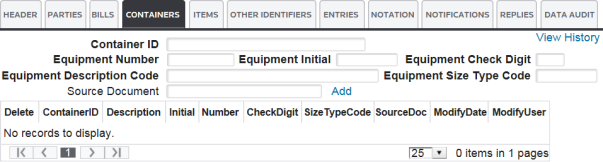
Adding a New Container to a Security Filing
To
add
a new container to a Security Filing, enter
the data for the container in the provided data entry fields. Once this data has been entered, click
“Add”.
Once “Add” is clicked, the Container will appear in the grid section of the “Containers” tab.

Removing a Container from a Security Filing
To
remove
an existing container from a Security Filing, choose
a container from the grid located in the “Containers” tab.Once a container has been selected,
click
“Delete”.
Clicking
“Delete” will remove the container from the grid. No further action is required.Items
The “
Items
” tab is used for entering and storing line item details for the selected Security Filing. On this tab, a number of fields allow the user to describe the particular product(s) involved with the Security Filing. Items can be added to the Security Filing simply by filling out a few of the key fields (see “Adding a New Item”) or uploading the items from a spreadsheet (see “Extracting and Uploading Spreadsheets”). If ISF is being used in conjunction with Global Classification and/or Foreign-Trade Zone Management; the “Type Ahead” feature can be included in the implementation. “Type Ahead” allows data to be pulled from Global Classification or Foreign-Trade Zone Management to consistently auto-fill one or more data entry fields.
Adding a New Item
When adding new items on this tab, users will need to complete the following textboxes with the appropriate product information.
The data elements with an asterisk (*) are required and will be transmitted to CBP as part of the Security Filing. Data elements without an asterisk will be transmitted to CBP as part of the Security Filing but are not required.
Fields | Description |
|---|---|
Product Number | After a Product Number is entered, this field can be configured to link to Global Classification and/or Foreign-Trade Zone Management to populate the Product Description and HS Number (as available). Clients utilizing Product Numbers representing sets of items with differing HS Numbers can enter set Product Numbers. The system will automatically convert the Product Number to the individual HS Numbers needed for CBP filing using data from Foreign-Trade Zone Management. |
Product Desc | The product description. This is used only for internal reference. |
HS Number* | A code representing the tariff number located in the Harmonized Tariff Schedule of the United States Annotated (HTSUS). Only the first six digits of the HS Number are mandatory for ISF filing, but users may control through the “Defaults” Maintenance screen to use 6, 8, or 10-digit HS Numbers within ONESOURCE ISF. Choosing “All” on the “Defaults” screen will allow the user to use various HS lengths on each filing. |
Manufacturer/ Supplier* | See “Importer Security Filing and Additional Carrier Requirements; Final Rule” for definition. |
Country of Origin* | See “Importer Security Filing and Additional Carrier Requirements; Final Rule” for definition. |
Source Document | The source document found in “Other Identifiers”, specifying a data source. |
Qty | The quantity of product included in the Security Filing. This is for internal reference only. |
To
add
a product to Security Filing, complete
at least all required fields and then click
“Add”. Users may add as many items as needed by following the procedure listed above.
Click
“Apply Manufacturer and/or COO to all blank items below" to enter ISF line items without Country of Origin and/or Manufacturer on individual lines.Populate
all items with a single indicated Country of Origin and/or Manufacturer. With this feature, all line items are updated simultaneously with the entered value(s) if those elements are blank on the item lines already entered.
Modifying Existing Party Data
Once an item is successfully added to the Security Filing, the manufacturer/supplier information for a specified item can be easily viewed/edited by clicking a party’s name in the grid.

Once a party’s name is selected, a pop-up will appear, allowing the user to view and/or edit the data specific to that party, based on the individual permissions assigned to that user in the Application Level Security.
Any changes made to the party’s data will affect the party in all Security Filings within ONESOURCE ISF.

Select All
The “
Select All
” header makes it possible to select multiple line items.
Removing an Existing Item
To
delete
one or more items, review
the grid to determine which item(s) to remove. If an item is to be removed, check
its corresponding box on the far left.
Once all items to be deleted have been selected,
click
“Delete Selected”.
In order to allow for a quick search on a long item list, each item header (ProductDesc, HS Number, etc.) is easily sortable by clicking on the specific header on top of the grid. The entry is also time-stamped by the user for security purposes. Additional information about Application Level Security and/or Party Maintenance can be found in their appropriate sections of this User Guide.
Get Latest from Source
The “Get Latest from Source” button allows the user to update the HS Number, Product Descriptions, or Country of Origin from the source system (Global Classification or the “Item Master” table in Foreign-Trade Zone Management) with a single click.
For this functionality to be activated, a source system must be set up. To check if this is available in your system, contact your Thomson Reuters system administrator.

Extracting and Uploading Spreadsheets
When a large number of item lines need to be added to a Security Filing, it may be easier to insert all data into an Excel spreadsheet and then upload it into ONESOURCE ISF.
To
generate
an empty Excel template and enter
the new data, click
on the “Download Spreadsheet Template” button.
Clicking
“Download Spreadsheet Template” will generate a spreadsheet with the required column headers and format for a spreadsheet upload. The user can then add new item information to the required columns, like in the example below:
To
modify
existing item data, click
on the “Extract” button at the top of the “Items” grid, as shown below. Clicking
this button will generate a spreadsheet in the correct format with all existing information populated into the columns. The user can then add new rows to create new items or modify data to update the existing items.
Once either spreadsheet is saved and ready to be uploaded,
click
on the “Upload Spreadsheet” button.
A pop-up will appear, prompting the user to choose a file from their hard drive. To browse for a file,
click
“Browse…”. Once a spreadsheet has been selected, click
“Upload and Import Data”.
It is important to note that when using the Spreadsheet Upload feature, especially when extracting to include existing data, the upload will be inserting the new data (vs. replacing). If old records are not deleted, uploading can result in duplicates. When uploading, the screen will provide a message to remind the user of this issue.
Once the spreadsheet is uploaded, the imported items will appear as though manually entered and can be edited under the “Command” header or deleted under the “Select All” header.
Other Identifiers
At the beginning of the User Guide, we first introduced the search bar in the “Dashboard” screen. This search bar allows the user to enter any data into the search field and to search for specific Security Filings.
In addition to the primary identifiers, the “Other Identifiers” tab of the Security Filing allows the user to set up additional information in relation to the specified Security Filing. Any additional information added to the “Other Identifiers” tab will be searchable from the “Dashboard” and “Security Filing Search” screens in order to allow the user to quickly identify Security Filings.
Once a document has been defined in the “Other Identifiers” tab for a Security Filing, the document can be used as a “Source Document” in the other Security Filing tabs. These “Source Documents” can be used to link a particular set of data (Item, Party, Bill of Lading and Containers) to a particular document in order to assist in issue resolution. Any information provided related to the “Source Document” details are for internal use only and will not be transmitted to CBP.

See the below table for a list of identifiers used to identify a Security Filing:
Identifiers | Description |
|---|---|
810 | Invoice |
850 | Purchase Order |
Advance Shipment Notice (ASN) | Notification of Pending Deliveries |
Commercial Invoice Number | Invoice Document (used for data entry) |
Container ID | A reference to any container included on the Security Filing that is NOT reported to CBP |
Custom | A reference to a custom association with a Security Filing |
Customer Reference Number | An internal reference number the user associates with the Security Filing for matching purposes to internal files or an ERP system that is not described by other types listed here. |
Data Entry Code | A reference number used to track data collection issues with filing. This is helpful for performance reporting and tracking data collection progress. |
Freight Forwarder | A reference to a freight forwarder associated with a Security Filing |
PO Number | A Purchase Order document (used for data entry) |
Transport ID | A Generic Identifier used when the labels above do not apply. |
Adding a New Identifier
Choose
an identifier from the “Type” drop-down.
Enter
the identifying information into the “Identifier” field. Include
the date of the document from which the identifier came and the date the document was received. Once all data has been entered, click
“Add”.
These additional details allow the user to identify and quickly search for the Security Filing record.
Modifying an Existing Identifier
To
modify
an existing identifier, choose
a record from the “Other Identifiers” grid and click
“Edit”.
Make any necessary changes
, and then click
“Update”.
Deleting an Existing Identifier
To
delete
an existing identifier, choose
a record from the “Other Identifiers” grid and click
“Delete”.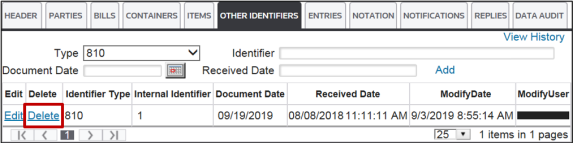
Entries
The “
Entries
” tab allows the user to input an Entry Number in relation to the Security Filing, if known. When populated, this data element is reported to CBP.
Adding a New Entry
To
add
a new entry to a Security Filing, enter
an Entry Number in the “EntryNum” field, and then click
“Add”.
Deleting an Existing Entry
To
delete
an existing entry, choose
an entry to be deleted from the “Entries” grid and click
“Delete” on the far left.
Notation
The “
Notation
” tab allows the user to input notes about the Security Filing, such as:- Data-researching notes other users may be interested in knowing
- Data corrections for the reference of others who may view the Security Filing
The field allows free form text entry. Therefore, any text may be added in the box.
To
add
a note to a Security Filing, enter
the note in the provided textbox. In order to save
the notes entered, click
“Save”. These notes will appear on the ISF Print for the user’s record. Although any notes entered into the “Notation” textbox will be linked to the specific Security Filing for which they were entered, the notes will not be transmitted to CBP.
Notifications
The “
Notifications
” tab of the Security Filing record displays any notifications that have been generated about the specified Security Filing. This tab will remain blank until a notification is triggered for the Security Filing. The tab will then populate with a list of the triggered notifications. When a notification is triggered and the e-mail is sent to the configured recipient, additional values may be referenced on that e-mail.The following fields (in addition to the Reference Number) may be included in the notification e-mail, depending upon the selections made when the notification is created:
- ISF Importer
- Bill of Lading(s) related to the ISF
- CBP Security Filing Number (if the Security Filing has been accepted)
The recipient is also provided a link that, if clicked, will navigate them directly to the Security Filing that triggered the notification. For more information on how to setup a Notification,
refer
to the “Notification Maintenance” section of this User Guide.
Replies
The “
Replies
” tab within the Security Filing record shows a listing of any replies returned from CBP in relation to the Security Filing. The process for transmitting a Security Filing to CBP is covered in the “Transmit” section of this User Guide. If CBP has not yet replied to the Security Filing, the grid in this tab will be blank.
Once a reply from CBP is received, a line item will appear in the grid below containing:
- The date of the reply
- A generic Message Type code
- A brief message detailing the response type

CBP Replies (Reply Detail)
To
review
further details about a reply from CBP, click
“Detail” on the far left.
Clicking
“Detail” will open the “Reply Detail” screen, which provides a detailed account of the CBP message and all relevant data associated to the reply.
The following fields are available on all replies received from CBP. If the data is not provided, the field will show as blank.
Fields | Description |
|---|---|
Date | The date and time the reply was received from CBP. |
SecurityFilingNumber | This field is with a Security Filing Number upon acceptance. Otherwise, this field will remain blank. |
ReferenceNum | The internal reference number for the Security Filing Record. |
Submission Type | 1 (ISF-10) |
Shipment Type |
|
Action Type/Reason |
|
SCAC | Standard Carrier Alpha Code submitted on the ISF Filing Record |
ISF Importer Qualifier | Importer of Record Qualifier
|
ISF Importer | Importer of Record is the entity liable for payment of all duties and responsible for meeting all statutory/regulatory requirements incurred as a result of importation. |
Mode of Transport |
|
Date of Birth | Date of Birth of the Importer (taken from passport if information was submitted in Security Filing. Will show “1/1/1900” if no data is found). |
Country of Issuance | The Country of Issuance on the Importer’s passport (if data is provided). |
Importer Bond Holder | The Bond Holder submitted on the Security Filing record |
Bonds Activity Code | A customs-defined code used to identify what activities are covered by a bond |
Bonds Type | Identifies whether a bond is Single Transaction, Continuous, etc. |
Message Code | Customs Message Response Code |
Message | CBP Message Response Message |
As of July 2010, more descriptive messages have been added by CBP when users receive a “No Bill on File” message. The additional messages are as follows:
Messages | Description |
|---|---|
‘NO BILL MATCH (NOT ON FILE)’ | The Bill was not filed in AMS. The ISF filer receives the status message, along with reminder status messages after 5, 20, and 30 days (as appropriate). |
‘NO BILL MATCH (WRONG TYPE)’ | The Bill was filed in AMS, but with a different type than what was filed in ISF. The ISF filer receives the status message, along with reminder status messages after 5, 20, and 30 days (as appropriate). |
To
return
to the “Replies” tab, click
“Return to Replies” at the top of the screen.
Data Audit
The “
Data Audit
” tab of the Security Filing record allows the importer to associate data audit codes to a specific source document. This feature is most applicable for Third Party Logistics Providers (3PLs) who have to report service levels to customers, but any importer can utilize the functionality.Data audit codes help track the accuracy and completeness of source documents used for the creation of a Security Filing.
The user may create a list of codes meaningful to the organization in areas that are typically challenging with ISF source documents (e.g., COO is missing, Manufacturer is missing, BOL was not timely, etc.).
After defining those codes, the user can link the codes to source documents on a particular Security Filing.
The user may also generate reports indicating what kind of data problems are being experienced with the source documents and which suppliers are linked to those source documents.

Related Content
-
Importer Security Filing (ISF)
Format: Article