
Work with datasets
Datasets view
- From the main menu, selectReturns>Returns.
- Group the returns by dataset:
- If it is not already active, select theShow Group Panelicon to open the heading pane. If the heading pane is already active, theShow/Hide Group Paneloption
 appears in the toolbar grid instead. You can use these icons to toggle the heading pane on and off.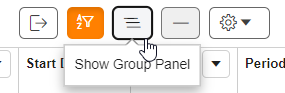
- Drag the column headings you want to group into the heading pane (located above the column headings). In this example, the grid will be grouped by Dataset.
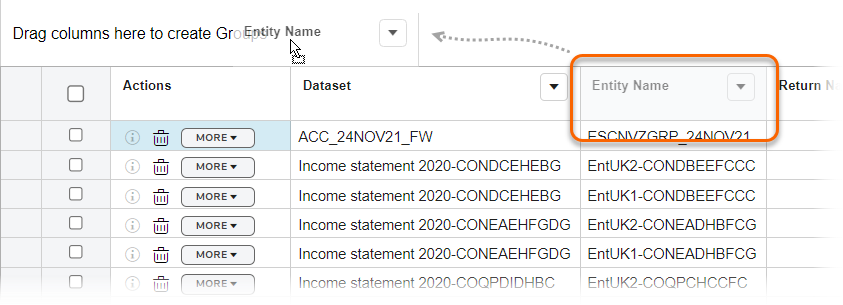
- To remove the grouping, select theXfor the grouping name in the column header.
Copying datasets
A dataset can be copied for multiple reasons, including:
- To make amendments to finalized calculations.
- To add or remove entities for analysis without changing the group structure in Entity Manager.
- For testing purposes.
To copy a dataset:
- From the main menu, selectReturns>Returns.
- Check the checkbox next to the dataset you want to copy.
- On the toolbar, select Copy.

- On theDataset Propertiestab, specify the period start and end dates, period length, and purpose. Select Next.note
- Copy of is added to the original dataset name if no new name is entered.
- Editing the start and end dates can impact the calculations if the group structure changes within the new start and end dates.
- On the Entities window, select or clear entities as needed. Select Next.
- On the Templates window, assign templates to new entities.noteYou cannot change the assigned template for an existing entity within the dataset.
- Select Finish to complete the editing process now, or select Next to add optional sheets.
- On the Sheets window, add optional sheets to templates that have been assigned to new entities on the previous page. Select Finish.
Deleting datasets
note
When you delete a dataset, all associated data and calculations are deleted.
- SelectReturnson the main menu and arrange the list by Datasets View.
- Check the checkbox next to the dataset you want to delete and select the Delete icon.

- In the warning dialog box, select the Delete button to verify you want to delete the dataset.noteDeleting a large dataset may take several minutes to complete.
Editing Datasets
- SelectReturnson the main menu and group by dataset.
- If it is not already active, select theShow Group Panelicon to open the heading pane. If the heading pane is already active, theHide Group Paneloption appears in the toolbar grid instead. You can use these icons to toggle the heading pane on and off.
- Drag the column headings you want to group into the heading pane (located above the column headings). In this example, the grid will be grouped by Dataset.
- To remove the grouping, select theXfor the grouping name in the column header.
- Check the checkbox next to the dataset you want to edit, then select Edit
 on the toolbar.
 - On the Dataset Properties window, make the necessary changes to the properties. Select Next.noteTo cancel the edit at any time, selectReturnson the main menu to go back to the Returns window.
- On the Entities window, select or clear entities as needed. Select Next.
- On the Templates window, assign templates to new entities.noteYou cannot change the assigned template for an existing entity within the dataset.
- Select Finish to complete the editing process now, or select Next to add optional sheets.
- On the Sheets window, add optional sheets to templates that were assigned to new entities on the previous page.
- Select Finish to save your changes.
Related Content
-
Datasets
Format: Article,
1 min read
Article,
1 min read