
Working with notes and queries
You have the option to add notes or queries to a return. Notes and queries can be added to a specific cell or for the entire sheet.
A query is similar to a note but allows responses. A query can function as an informal audit trail. You can view the query and its responses as a record of a discussion about a sheet or cell. Both notes and queries can be rolled forward to subsequent reporting periods.
By default, notes and queries are added to an individual cell, but can easily be applied to an entire sheet.
Adding a Note or Query to a Return
- Open the return that will contain the note or query.
- In the left panel, open the sheet that will contain the note or query.
- To add the note or query to a specific cell in the calculation, select anywhere inside the cell.
- Select the notes icon
 on the toolbar ribbon, and select Add Noteto add a new note orAdd Queryto add a new query. (If the information you are entering could potentially require a response, selectAdd Query.)
 - In the popup window, type your note or query in the box.
- If you want to apply this note to the entire sheet, select theSheetcheckbox. Otherwise, the note will be applied to the current cell.
- If you are added a query and you want it to roll forward, check theRoll Forward to Next Periodcheckbox.
- Select theSavebutton.
Icons indicate that there are notes or queries in a return:
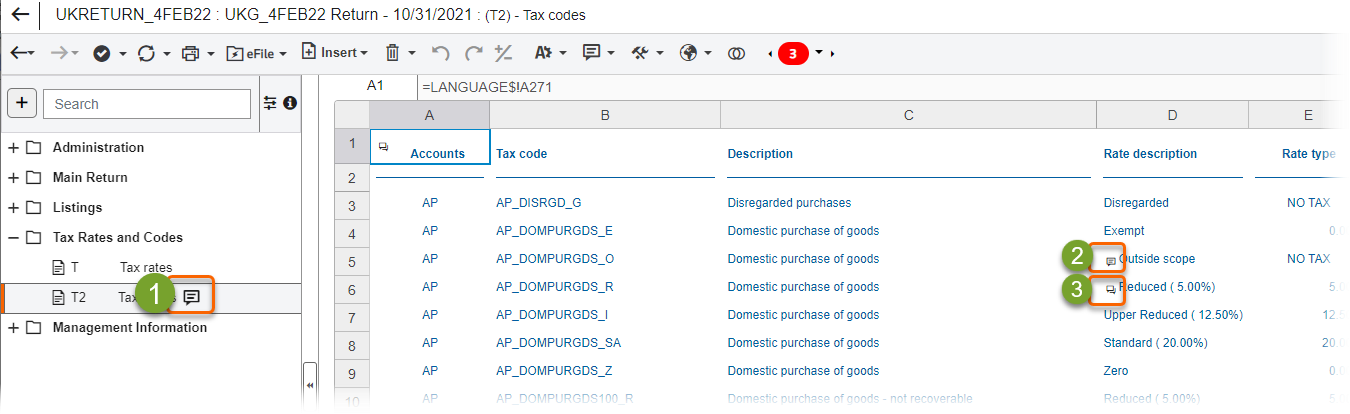
- The sheet contains a note or query that applies to the entire sheet.
- The cell contains a note that applies only to the cell.
- The cell contains a query that applies only to the cell.
Editing a Note or Query
To edit a cell-level note:
- Select the note indicator icon in the cell. A popup opens.
- Select the small arrow to the right and select an option.
- If you selectEdit, a popup opens. Type your updates to the note or query and select theSavebutton to save your changes.
- If you selectDelete, you are prompted to confirm that you want to delete the note. Select theDeletebutton. The note or query is removed from the cell.
To edit a sheet-level note or query:
- Locate the sheet in the left pane and select the notes indicator.
 A panel opens on the right side of the screen.
 - Use the dropdown to selectNotesorQueries.noteYou can also use this panel to show calculation attachments.
- Select the small arrow to the right of the note or query and select an option.
- If you selectEdit, a popup opens. Type your updates to the note or query and select theSavebutton to save your changes.
- If you selectDelete, you are prompted to confirm that you want to delete the note. Select theDeletebutton. The note or query is removed from the cell.
- To mark an open query as closed, check theMark as closedcheckbox. (For queries only.)
- To mark all queries in a sheet as closed, check theMark All as Closedcheckbox. (For queries only.)
Responding to a query
- Open the query:
- For a query at the sheet level, locate the sheet in the left pane and select the notes indicator. Select Queriesin the dropdown.
- For a query at the cell level, select the queries indicator in the cell.
- SelectRespond.
- Type your response in the space provided.
- SelectSaveto save your response.
Related Content
-
Returns notes window
Format: Article,
2 min read
Article,
2 min read
-
Add an attachment to a return
Format:
Article,
3 min read