
Use the Bulk Edit feature
If you need to make changes to multiple transactions, the
Bulk Edit
feature can save you time and effort.
note
You can't start a subsequent edit, defer, or add action when a bulk edit action is in progress.
Using the Bulk Edit feature
- Go toTransactions, thenImport Details.
- Select a hyperlink to open the transaction detail in theActivecolumn.
- On theView Transactionsscreen, mark the checkboxes next to the transactions you want to edit.
- Select theEditicon
 .
. - In theApply the following edits:section, enter the updated value in the field you want to change.
- If prompted, enter your comment in theCommentcolumn. This field may be required, depending on your settings.
- SelectSave.
Using the Bulk Edit feature from the Import Details Warnings column
You can make bulk edits on the
Import Details
page to transactions from the Warnings
column.- On theImport Detailsscreen, the number of warnings for each dataset is shown in theWarningscolumn. Select the number for the set of transactions you want to edit. TheTransactionscreen opens, showing you the details about the individual transactions in the set.

- Mark the checkboxes next to the records you want to include in the bulk edit. To select all the transactions in the list, mark the checkbox in column header.
- SelectEdit.
- On the panel that opens at the top of the screen, select the field for the value that you want to change and enter the new value. If you're changing a date, select theCalendaricon next to the field and enter the new date on the calendar pop-up.
- SelectSaveand selectOKwhen prompted.
- After you make a change using theBulk Updatefeature, theEditedcolumn shows the number of records that were edited. You can select the number to open theView Transactionswindow, which lets you see details about the transactions you changed.
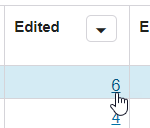
- On theView Transactionswindow, you can use theShowdropdown to show details about the transactions.
Using the Bulk Edit feature when the number of transactions exceeds the threshold limit
The
Bulk Edit
function is limited to a maximum of 50,000 transactions. To use the Bulk Edit
feature when the number of transactions exceeds the threshold limit:- From theView Transactionsscreen, select the check box in the column heading of the first column of the grid. A message displays, indicating that the number of transactions in the grid exceeds the threshold limit. You're prompted to select the transactions on the current page, or filter your data.
- Complete one of the following:
- SelectYesto select the transactions on the page.
- SelectNoto return to the view transactions screen and filter the data to reduce the bulk transactions to less than the threshold limit.
- Make your edits.
- SelectSave.
Edit status
- A notification appears in the notification center; you can view the values as they update.

- Select the arrow next to the indicator to show details about the update.
- For a successful edit, a notification appears in the notification center, you can view the values as they update. The notification indicates 'Edit notifications is completed, updates to returns are queued - success.'
- If the edit failed, a description of the error appears in theErrorcolumn. The notification includes the import name and indicates the edit failed.
Related Content
-
Edit transactions
Format: Article,
3 min read
Article,
3 min read
-
Audit upload details
Format:
Article,
1 min read