
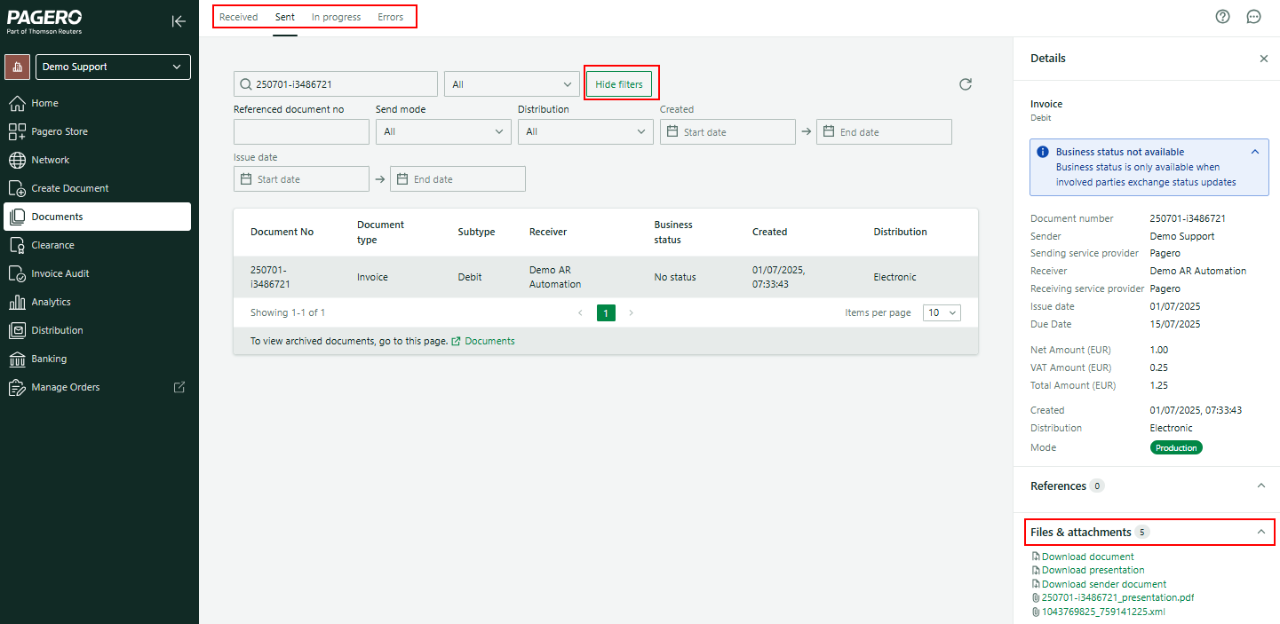
Documents interface
Documents listed on these views display the following information about them:
- Document number
- Document type
- Sending/Receiving company name
- Business status: a status will only be shown if the involved companies exchange status updates. Examples of business statuses are:Acknowledge, In process, Rejected, ApprovedorPaid. Otherwise,No statuswill be displayed.
- Creation date
- Distribution type:ElectronicorEmail.
- Send mode: Production(Prod),Certification(Cert)or Test(Test)mode.
Document Details
When selecting any of the listed documents, a new panel on the right of the screen will appear, showing more detailed information about it.
- Details: displays the same information you can see when not selecting the document, plus some extra fields such as the total, net and VAT amounts or the due date.
- References: if an invoice receives an application response, or other document that references it is available, it will appear in this section. You are able to click on it to quickly access its information.
- Files & attachments: you can download the electronic document, its PDF presentation, and any included attachments from this section.
Filters
Above the listed documents you can find the filters section, which will let you easily find a specific document. The interface consists of:
- Search bar: allows you to enter the document number or the receiving/sending company name to find a specific invoice or all invoices by that company.
- Document type dropdown: allows you to filter by the document type (for example,Invoice, Order, Payment reminder, etc.)
- More filters: if you require more search options, you can display additional filters using this button. The same button can be used to hide the extra filters if they are not needed anymore. However, please note that hiding the extra filters won’t delete values added there, so be sure to clear them prior to hiding the extra fields.
- Referenced document number: some document types, like credit notes and application responses, contain the document number of the invoice they are linked to. Using this search bar, you are able to find these types of documents using the original invoice number.
- Send mode
- Dates: you can select a time period so only documents inside that range will be displayed.Createdis the date in which the document was uploaded to Pagero Online, whileIssue dateis the date included on the invoice.
Related Content
-
Documents in progress
Format: Article,
2 min read
Article,
2 min read
-
Sent & received documents
Format:
Article,
2 min read