
Create a SMART Start Client Engagement
note
This topic covers the steps for creating a SMART Start client engagement. To create a regular client engagement, see the Create a Client Engagement topic.
If you select practice aids titles with SMART Start data, you will see a new option on the
Create Client Engagement
window that lets you enable SMART Start, an audit process for small, noncomplex entities.To create a SMART Start client engagement:
- On theFilemenu, clickNew.
- ClickClient Engagement (from PPC Title).The Create Client Engagement window appears.
- Enter the appropriate Client engagement information.
- Select the database. (Use theBrowsebutton to locate a remote machine/database.)
- Enter the client name (or select the name from the drop-down list).
- Enter a name for the engagement.
- Enter the engagement date, or clickDateto select from a calendar.
- Select an engagement type from the drop down. Depending on your selection of the engagement type, another drop down may appear.
noteASelect Review Typedrop-down appears if you select the Review engagement type and aSelect Compilation Typedrop-down appears if you select the Compilation engagement type. The Select Review Type drop-down comes with aHelp me decidelink to help you decide what review type to choose.- In case of the Review engagement type or Compilation engagement type, select a review type or compilation type as appropriate.
- ClickNext.
- On the next window select apractice aidtitle for this engagement. (Only installed practice aids titles are listed.)If you select a practice aids title with SMART Start data, you may see a new option called "Use SMART Start?."
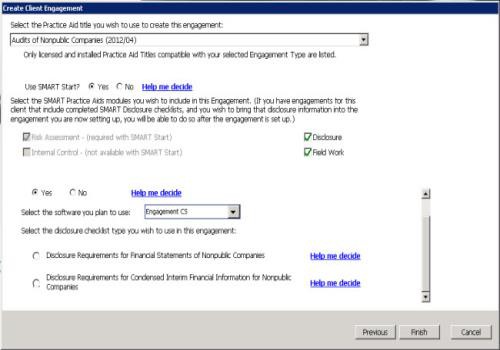 noteClick theHelp me decidelink for a summary of benefits, cautions, and other considerations when using SMART Start.
 - Select theYesoption. (The default isNo.)The system automatically selects the Risk Assessment module. Then it disables and deselects the Internal Control module and provides the ability to enable Disclosure and Field Work.noteThe modules available to include in the engagement depend on the engagement type you choose (in Step 3), and the system automatically selects modules, disables modules or provides the ability to enable modules based on the practice aid title you choose (in Step 5) for the engagement.
- Select the software and the disclosure checklist type you wish to use.
- ClickFinish.
The system creates a new client engagement, populates the engagement with SMART Start content, opens the engagement to the first planning form in the engagement, and places the SMART Engagement Setup Questions report in the engagement as the first form in the planning area (immediately before Identified Risks).