
Assign members
A binder can have one or more members. By default, a binder will have 1 member - the owner. You can add additional members or change the owner from FileRoom, SPbinder, and TaxCaddy.
Assign members and owner
Follow these steps to assign a new owner or additional members to a binder:
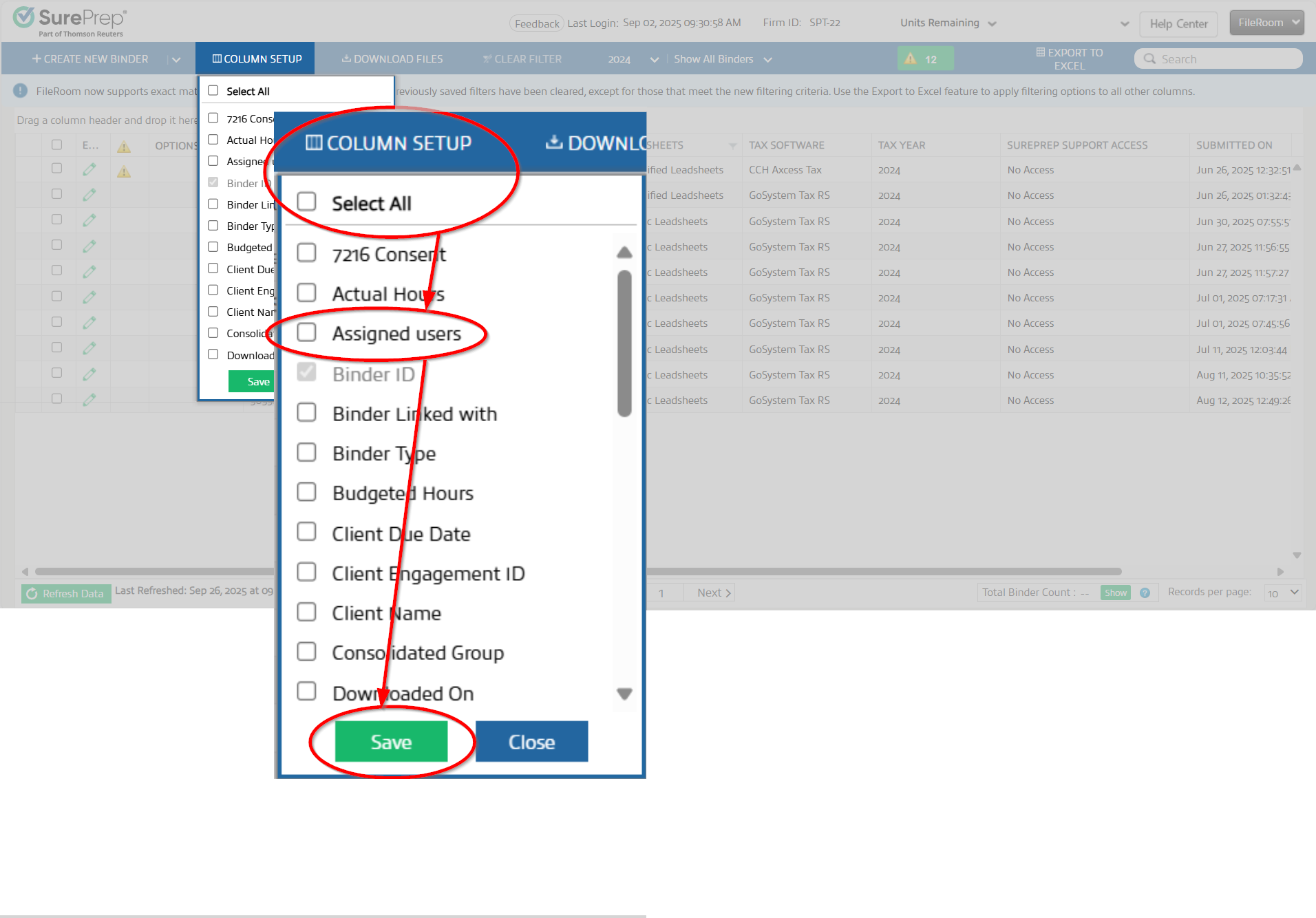
- To see theASSIGNED USERScolumn, selectCOLUMN SETUP, mark theASSIGNED USERScheckbox, then selectSave.
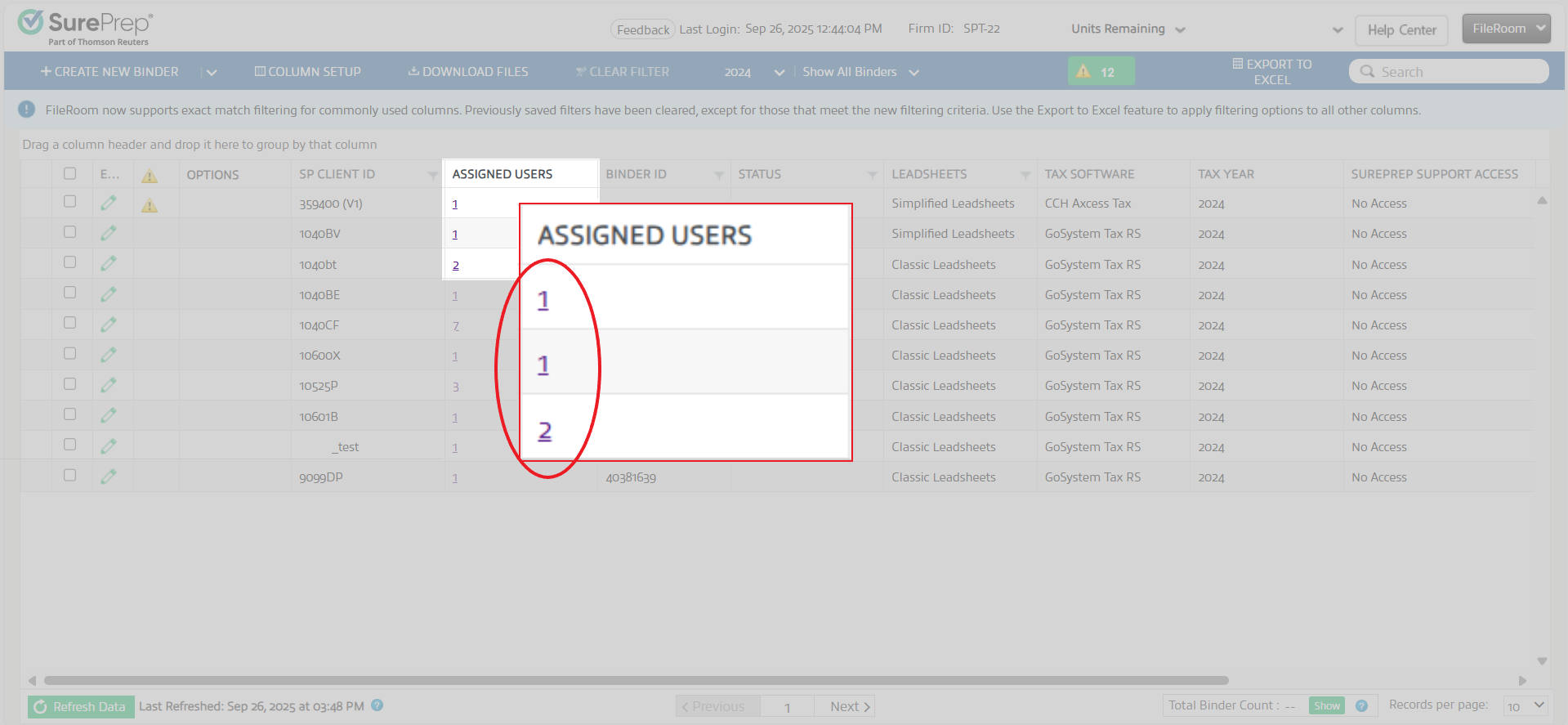
- In the row corresponding to the binder for which you want to assign members or change owners, select the link displaying a number in theASSIGNED USERScolumn.noteThe column displays the number of members assigned to the corresponding binder.
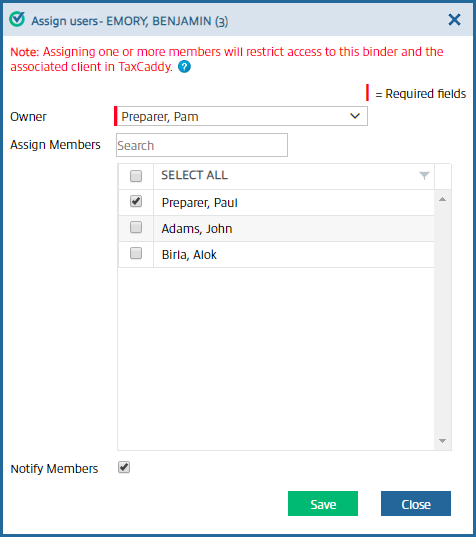
- You will now see theAssign Userswindow.noteIf your firm has binder access restrictions enabled for Assign Members, then you must have applicable permissions to assign members or change the owner.
- To change the owner, select theOwnermenu to view a list of users. Select theuseryou want to set as the new owner.
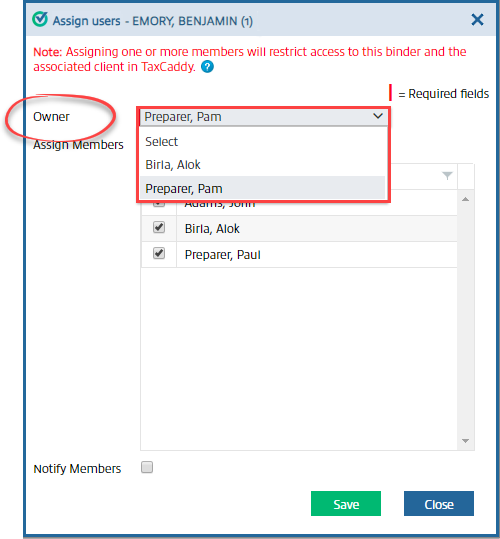 Only user groups that are applicable to be owners will be available in the dropdown menu. You can enable user group permission to be an owner, go to , then on thePERMISSIONScolumn mark theCan be an Ownercheckbox.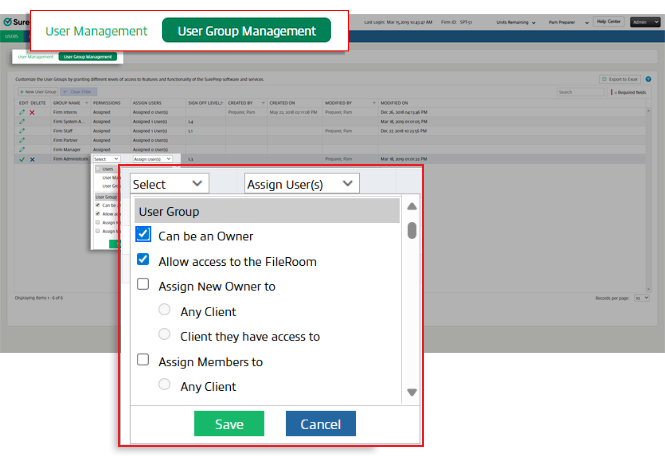
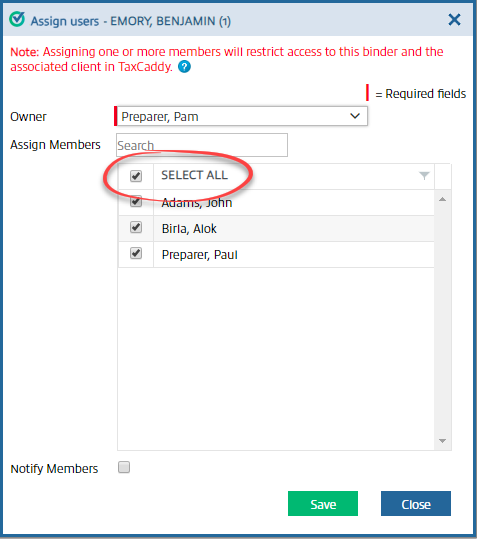
- If you want to assign all members to the binder, markSELECT ALL.
 Alternatively, you can select individual members by selecting the users' checkboxes.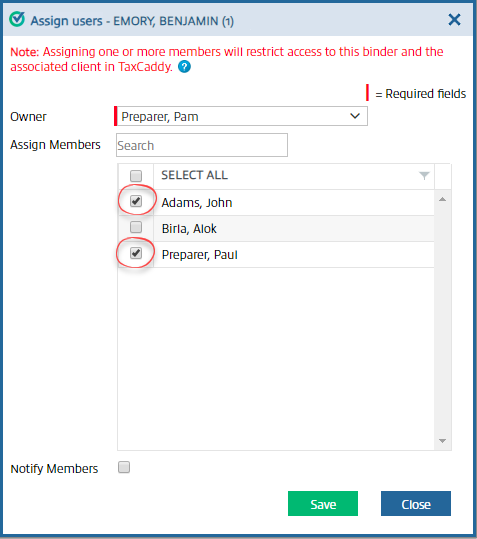
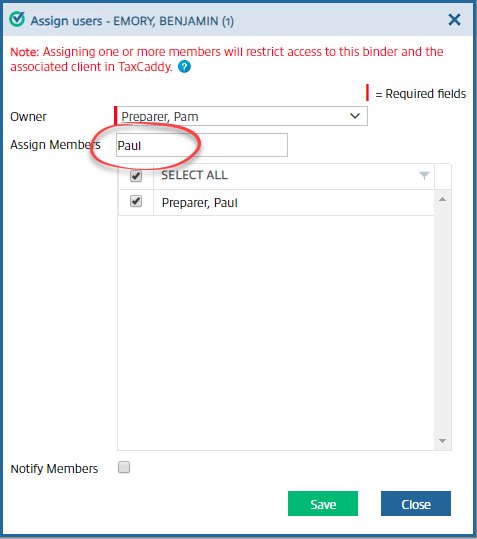
- To search for particular members, enter their name in thesearch box, then select thesearch button.
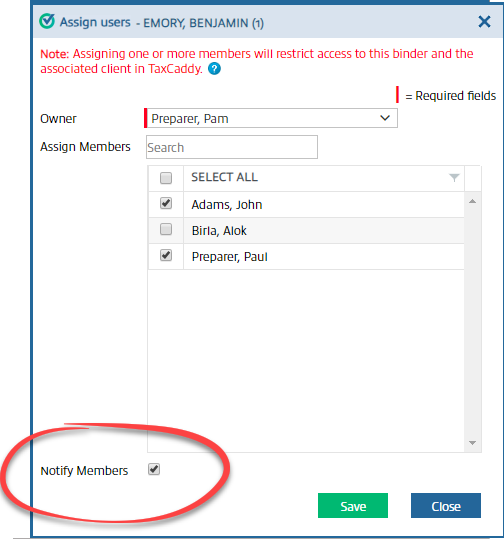
- To send a notification email to the members, markNotify Members.
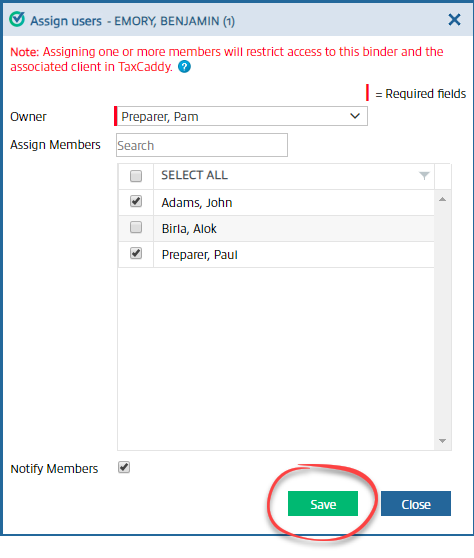
- SelectSave.
You can also enable binder restrictions for assigned members. With binder restrictions enabled, only assigned members can access the binder.
Related Content
-
Troubleshoot: Unable to access binder
Format: Article

