
Select binder options
Configure basic binder settings, including owner, member access, office location, 7216 consent, leadsheets, service options, and post-submission actions, when creating or editing a binder.
Basic options about how the binder is processed and assigned are available under
Select Binder Options
. For example, the Select Binder Options
section lets you select the following:- The person responsible for the client (that is,Owner).
- Should access to a client's binder be restricted to a specific group of users only (that is,Members).
- If your firm has multiple office locations, you can select the office location the client is associated with.
- If your firm prepares returns outside the United States, then you'll need the user's permission, 7216 Consent option.
- If your firm opted to useLeadsheets, then you can select which leadsheets the binder should have.

7216 consent received?
If your firm prepares returns outside the United States then you will need your client's permission to send their information outside the United States - this permission is called 7216 Consent. You will have a
7216 Consent Received?
option if your firm-level options require 7216 Consent from the client.Setting 7216 Consent option as:
- Yes- lets offshore users access and work on the binder.
- No- restricts offshore users from accessing the binder. These users must be assigned to a user group with 7216 access restrictions permission.
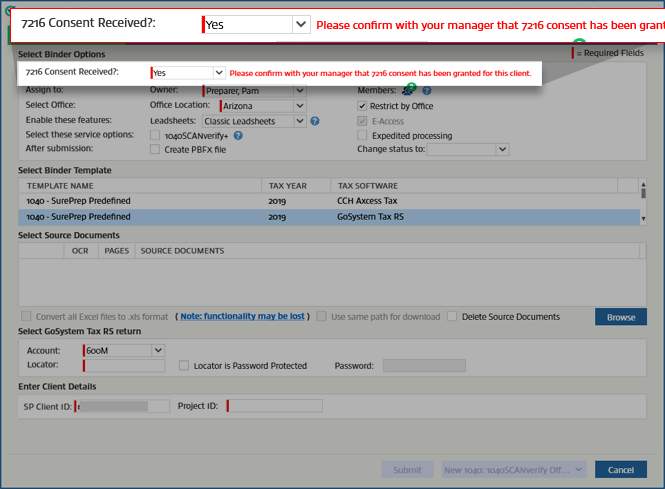
7216 Consent Received?
option only appears when the firm enables this feature on the domain.Assign to
Assign to
row lets you select the user to whom the binder is assigned and which members can access the binder. 
Owner
Select
Owner
and select the name of the person to whom this binder will be assigned. The names consist of owners set up in FileRoom.
Members
A binder can have one or more members. By default, a binder will have 1 member - the owner. To assign members to the binder in the  icon.
icon.
Create New Binder
window, select the Members
icon.
On the
Assign Member
window, select the member to be assigned by selecting the checkbox next to their name.note
Assigning one or more members will restrict access to this binder and the associated client profile in TaxCaddy. Any users following the clients in TaxCaddy will be unfollowed if they are not an assigned member.
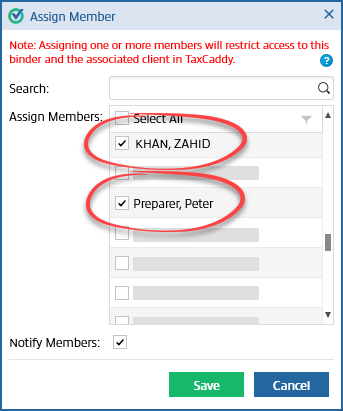
If you want to notify the members that they’ve been assigned to a binder, select the
Notify Members
checkbox, then select Save
.
The number of members selected will be displayed on the  icon.
icon.
Members
icon.
Adding (assigned) members will restrict binder access to the Owner and assigned members only.
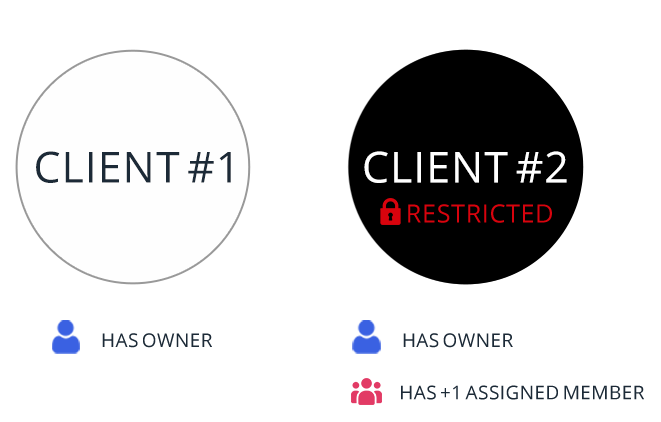
Know about assigning members in SPbinder.
Know about assigning members in FileRoom.
Select office
Office Location
If you're using an office location, select the location from the
Office Location
dropdown. Office locations can be configured in . This setting will be remembered for the current user on subsequent submissions.
note
Required fields are marked with a red line  .
.
.Restrict by office
Select the
Restrict by Office
checkbox to restrict this binder by the selected office location.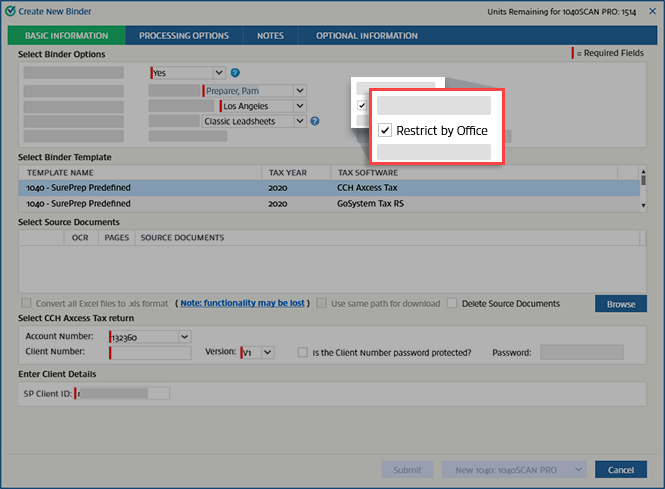
note
This checkbox will be auto-selected and not available if the
Office Locations
checkbox is selected under .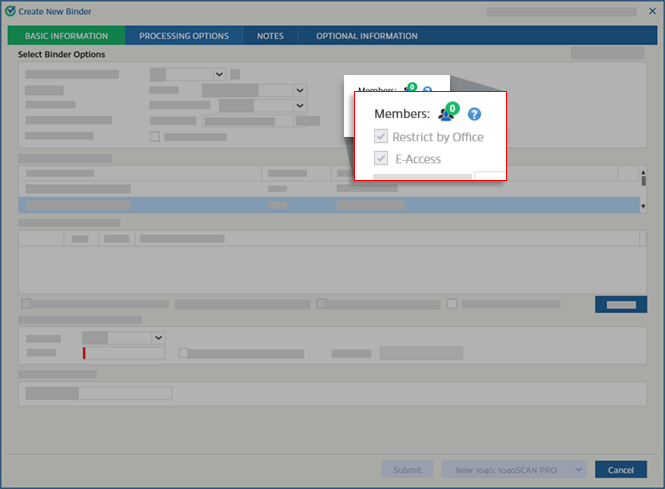
Leadsheets
The options in this row let you enable leadsheets for the binder. For outsource binders, you can't change these settings.

Leadsheets
Select the
Leadsheets
options to choose whether or not to use leadsheets. Your choice will be remembered, so you won't have to reselect it during the next submission.- None: Select this option to create a binder without leads.
- Classic Leadsheets: Select this option to create a binder with leads. This will generate leads, references/stamps, and DreamWorkpapers for the binder.
- Simplified Leadsheets: Simplified leadsheets make it easier to enter data from non-standard documents. This is only available for CCH Axcess Tax and GoSystem Tax RS.
note
- Leadsheets are not available for custom binders.
- Your firm purchases binder units and Leadsheet units separately. Leadsheet units can only be used together with a binder; they can't be used on their own.
- If your firm's number of leadsheet units matches or exceeds the number of available binder units across all service types, SPbinder will automatically require remaining binders to be submitted using the option for either Classic or Simplified Leadsheets; “None” will no longer appear as an option. This prevents Leadsheet units from being wasted in a situation where all binder units have been used up though some Leadsheet units are left over.
- You can purchase additional binder units if you would like to preserve your available Leadsheets units for other binders.
Select these service options
The
Select these service options
row is only present for outsource returns and is not available for custom binders.Expedited processing
If the
Expedited processing
checkbox is selected, SurePrep will process the binder at a faster pace compared to the standard due date. The Expedited processing
checkbox won’t be visible if the feature is not enabled by your firm.You can also check your firm's Account Usage History for expedited processing.
note
Additional fees will apply if the
Expedite Processing
checkbox is selected during the binder submission process.After submission
After submission
row controls what will happen after submission. 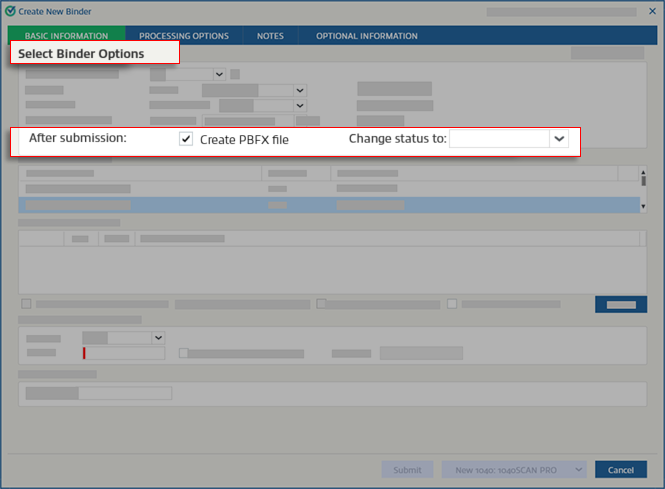
Create PBFX file
Select
Create PBFX file
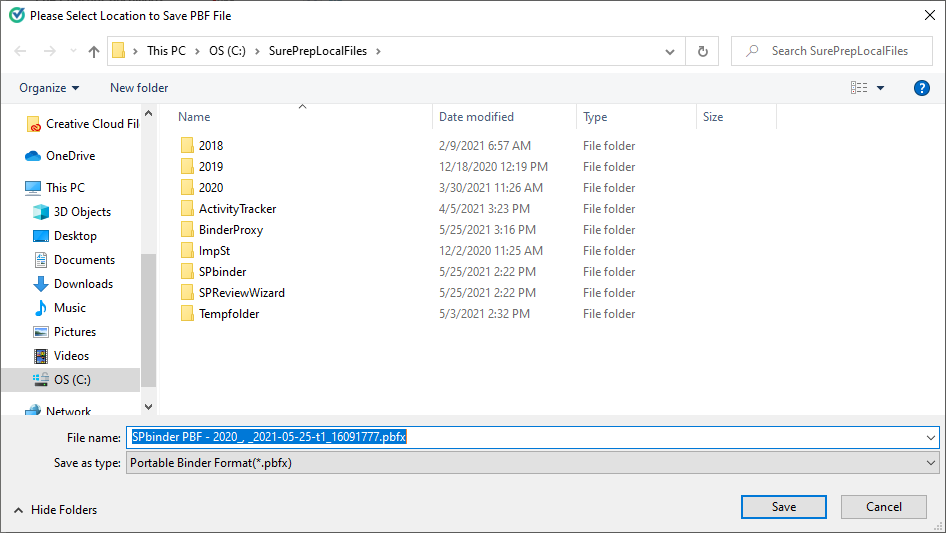
to create a PBFX file at a location that you can use to open the binder without opening FileRoom. This setting will be remembered for the current user on subsequent submissions.If the
Create PBFX file
checkbox is marked when you select Submit
, you are prompted to select a location to save your PBFX. Go to the location where you want to save the PBFX file and select Save
.
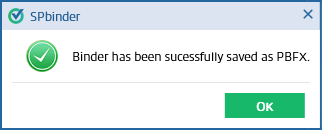
When the PBFX is saved, you'll receive a confirmation message. Select
OK
.
You can open the binder from FileRoom or by opening the saved PBFX file.
Change Status to
Most binders will go through
Documents Uploading
, SP Processing
, and In Verification
processes. Custom binders will go through SP Processing
only. After binders have completed the In Verification
process (or SP Processing
for custom binders), their status will be blank by default. To use a custom status, select in Change status to
and select the status.To create or delete custom statuses, go to .
Related Content
-
Basic information
Format: Article

