
Basic information
When creating a new binder, the information under the
BASIC INFORMATION
tab is required.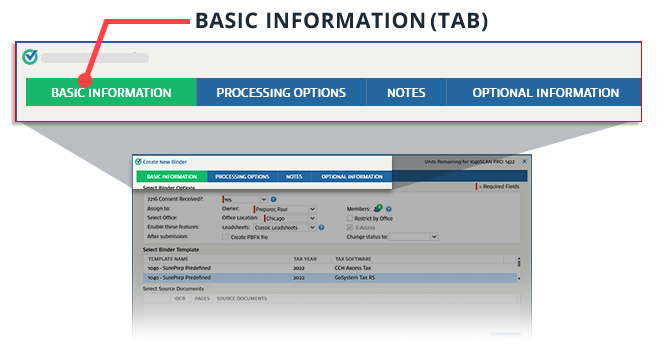
You will see the following sections under the
BASIC INFORMATION
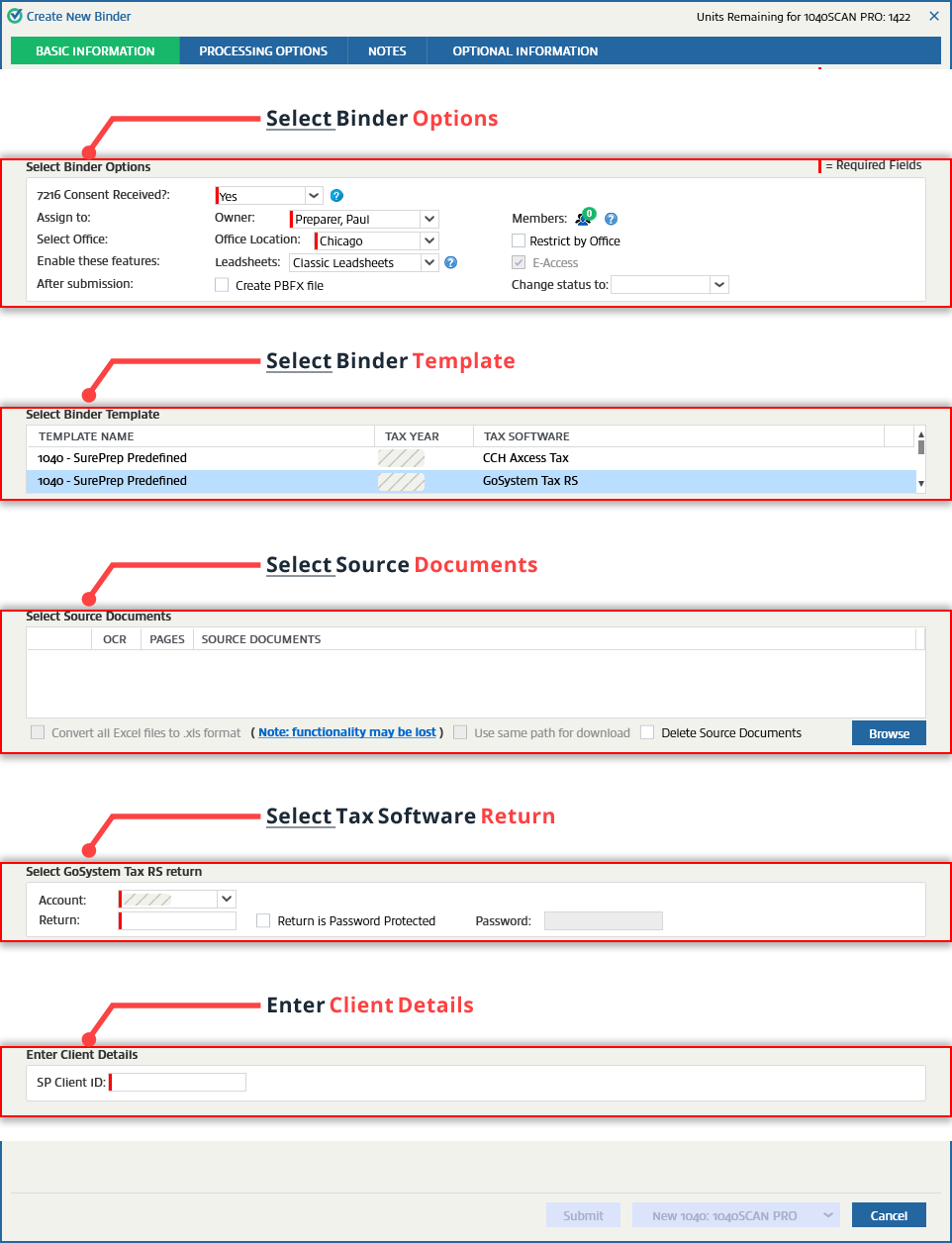
tab: - Select Binder Options
- Select Binder Template
- Select Source Documents
- Select... return
- Enter Client Details
Select binder options
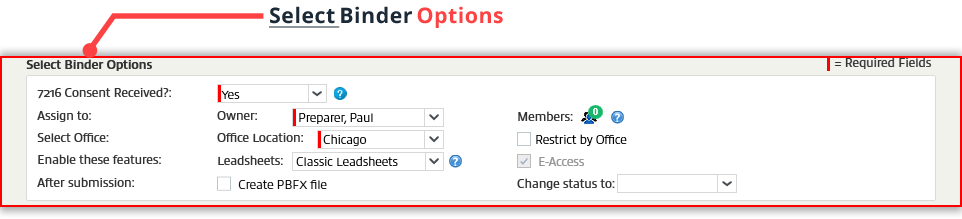
These are the most basic settings regarding the process for this binder. You can select the firm user responsible for the client (for example, Owner), which office location should the client be assigned to, whether to create a binder with or without Leadsheets.
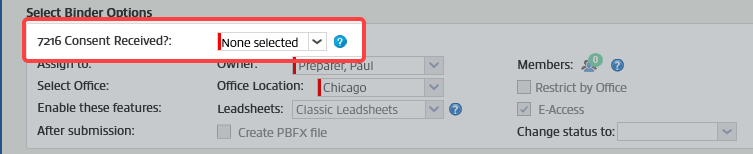
If your firm has 7216 Consent Restriction enabled then you will see an additional option to confirm if consent has been received.
Select binder template
The
Select Binder Template
section lets you choose a specific binder template for a particular tax year and tax application. Only binder templates based on the tax application configured in Tax File Activation
will be displayed.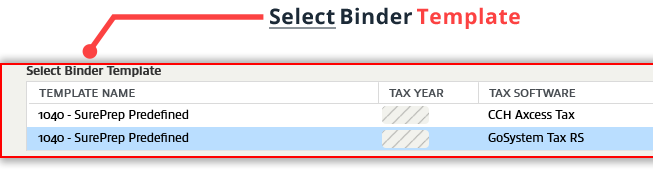
Your firm must activate a tax application to see that tax application template in the list of available templates. To activate the tax application, go to , then select from the following articles for your tax application:
- CCH Axcess Tax
- UltraTax CS
- GoSystem Tax RS
- Lacerte
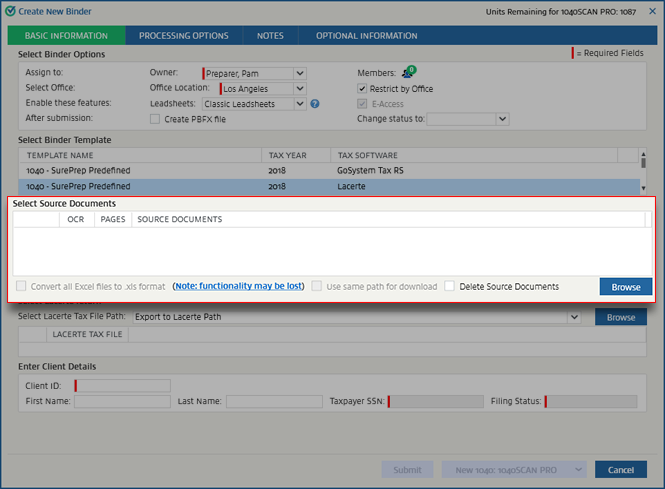
Select source documents
This section lets you select documents you want to upload to the binder.
note
If you're uploading scanned PDF documents, we recommend the following SurePrep's best practices when scanning documents. SurePrep's best practices ensures optimal results when documents go through OCR.
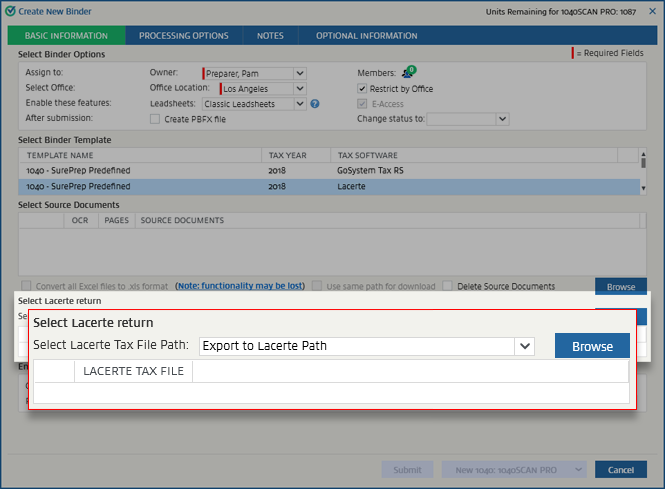
Select... return
note
This section will look different depending on your selected tax application.
This section is used to specify the client's tax return in the tax application. Once the binder is created, SurePrep will import and export data to the specific client in the tax return.
Enter client details
note
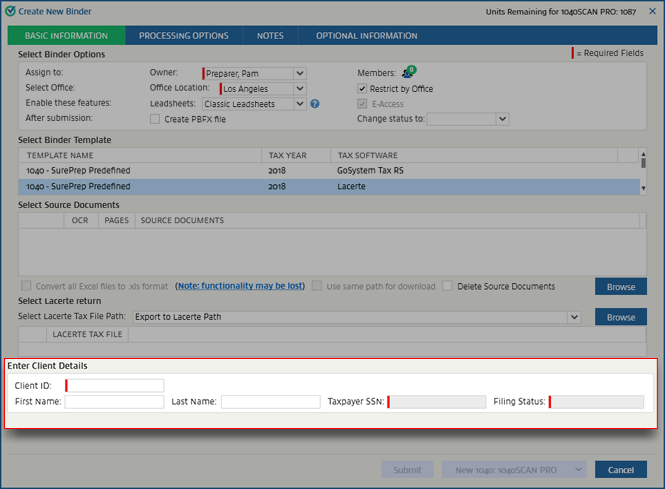
The
Enter Client Details
section shows different fields and options depending on your selected tax application and binder type (1040, 1065). This final section contains details about the client. In this section you must also enter a unique SP Client ID - this can be the same as your Tax Client ID.
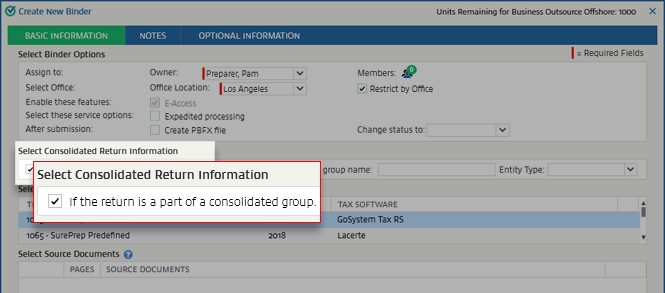
Select Consolidated Return Information (1065, 1120, 1120S binders only)
If you selected 1065, 1120, or 1120S service, then you will have an additional section to consolidate your group return information.
Related Content
-
Select binder options
Format: Article
-
Select binder templates
Format:
Article
-
Select source documents
Format:
Article
-
Enter client details
Format:
Article
-
Select tax application files
Format:
Article

