
Export Schedule D information
When creating a binder, you can select how you want the Schedule D information to be exported. Choose your options for Schedule D settings to ensure the export of capital gain and loss transactions based on your preferred settings.
Follow these steps to configure Schedule D options:
- Initiate creating a new binder.
- On theCreate New Binderwindow, select theProcessing Optionstab.

- SelectTax Return.

- Locate theSchedule Dsection.

- The summary information will always be captured regardless of your choices here.You can choose whether to capture transaction details. To skip the details if the number of transactions in the entire return (not just a single statement) exceeds a particular number, type that number in theEnter summary information if there are more than [] transactions box.For example, if you type15. Summary information will always be captured. If there are 15 or fewer transactions in the whole return, details will be captured too (per the other selections described as follows). If there are more than 15 transactions in the return, only the summaries will be captured.note
- The maximum number you can specify here is9999.
- If you never want details and only want the summaries, specify0.
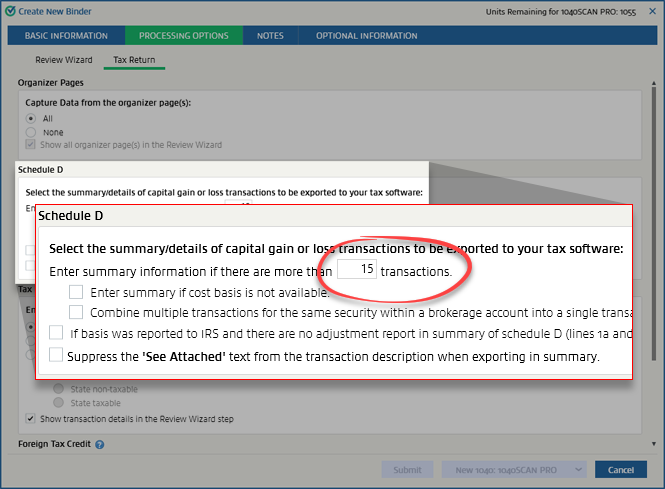
- If you entered0in the previous step, the remaining options won’t be selectable, and you don't need to read further. If you entered a number larger than0, continue following these steps.Checkboxes are not selectable if the amount entered is 0.
 Even if details are to be captured based on the number of transactions in the return, you can choose to skip capturing the details when the cost basis isn't available. Summaries will still be captured. To do this, select theEnter summary if cost basis is not availablecheckbox.
- To combine multiple transactions for the same security within a brokerage account into a single transaction when captured, select theCombine multiple transactions for the same security within a brokerage account into a single transactioncheckbox.

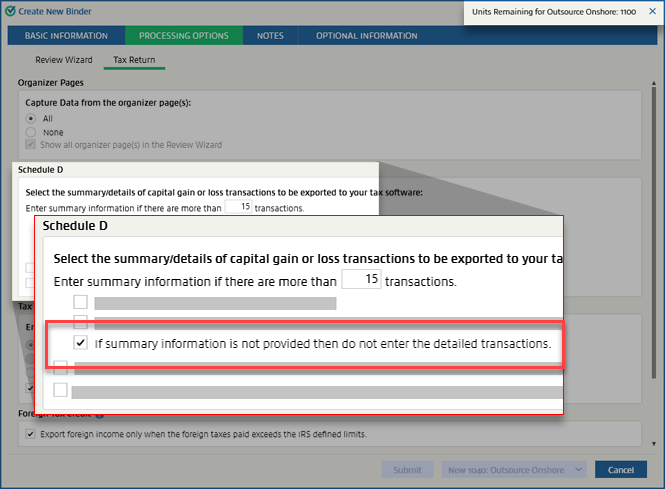
- For outsource binder types, if you want to skip capturing details when the summary information isn't provided, select theIf summary information is not provided then do not enter the detailed transactions (Outsource only)checkbox.noteThis option will appear for Outsource only.
- To skip capturing the details of covered transactions if they don't have wash sales, select theIf basis was reported to IRS and there are no adjustments, report in summary of schedule D (lines 1a and 8a) and not on form 8949checkbox.noteIf details are not being captured because the number of transactions doesn’t exceed the number specified, this won't apply.

- If the binder qualifies for a summary transaction, then the “See Attached” text along with its corresponding code will be suppressed for non-covered transactions in the binder. To enable this option, selectSuppress the 'See Attached' text from the transaction description when exporting in summary.

note
If the brokerage statement includes an Other/Unknown Realized gain/loss statement and if the date sold and date acquired is provided, then OCR will capture detailed transactions. If the date acquired is not provided but summaries are available, then OCR will capture summary information only. If the date acquired is not provided but summaries aren't available, details will still be captured. This will override the option selected in the section.
By default, these settings will match those chosen in . You can make changes here for this particular return. These settings will override the ones made in
Admin
.Related Content
-
Processing options
Format: Article

