
Tax exempt income
When creating a binder, you can select how you want the
Tax Exempt Income
to be allocated for state purposes.Follow these steps to configure Tax Exempt Income options:
- Initiate creating a new binder.
- On theCreate New Binderwindow, select theProcessing Optionstab.

- SelectTax Return.

- Locate theTax Exempt Incomesection.

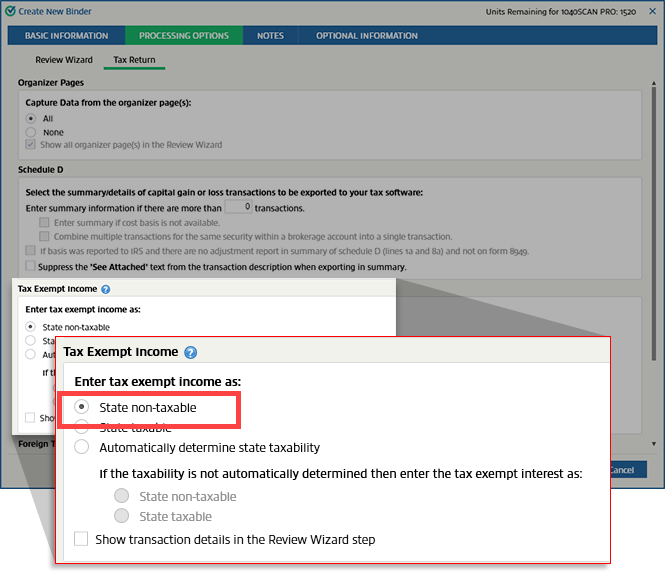
- By default,State non-taxableis selected. When this is selected, all tax exempt income will be consideredState non-taxable.noteIf the resident state is Texas, Washington, Florida, or Nevada, then tax exempt income will always be treated as state non-taxable.
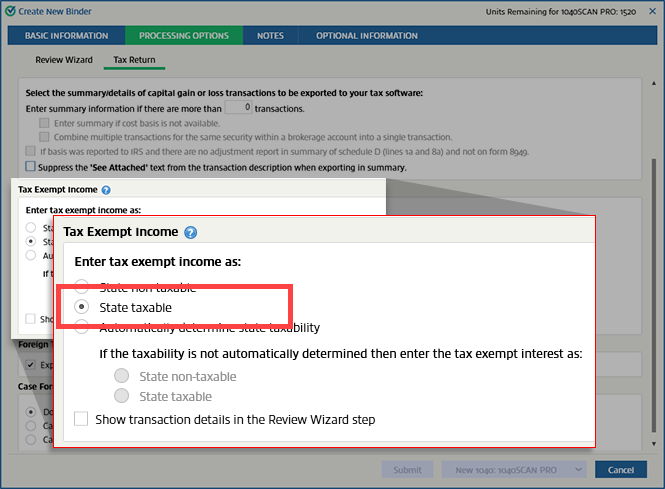
 SelectState taxableif you want all tax exempt income to be consideredState taxable.
 SelectAutomatically determine state taxabilityto have the system determine the state taxability automatically by matching the security descriptions with the predefined list, abbreviation table, and state names. If you chooseAutomatically determine state taxability, you need to choose how to consider unmatched descriptions. They can be considered eitherState non-taxableorState taxable.If you selectedAutomatically determine state taxability, then the checkbox next toShow transaction details in the Review Wizard stepwill be selected and grayed out by default. When state taxability is determined automatically, the detailed tax exempt income transaction will always be shown in the Review Wizard.
note
The ability to automatically determine state taxability begins processing for new binder around February 15 of the calendar year.
By default, these settings will match those chosen in . You can make changes here for this particular return. These settings will override the ones made in
Admin
.Related Content
-
Processing options
Format: Article

