
Filter tabs
Use FileRoom tabs to filter binders by their current state in the workflow
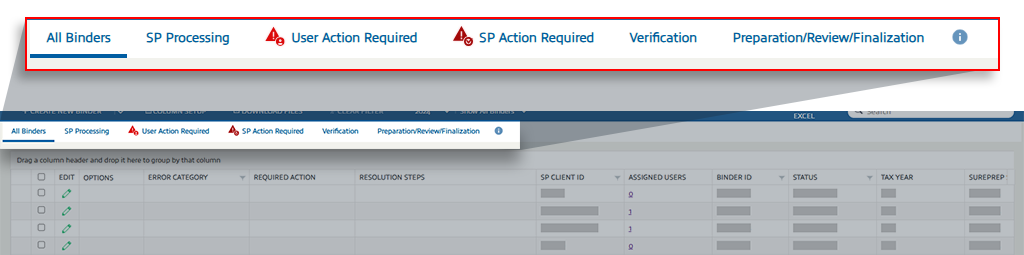
When your FileRoom has multiple binders, you need an optimized method of checking which binders are being processed, ready for verification, or have an issue. FileRoom has a tab-based filtering system designed to help you quickly find, review, and resolve issues in your binders. FileRoom tabs provide enhanced navigation, dynamic error displays, and real-time updates. The tab-based error filtering system organizes your binders into clear categories with tabs at the top of your FileRoom screen. Each tab helps you focus on specific binder statuses, such as those needing your attention or those in processing.
Each FileRoom tab is there to help you filter your view and focus on reviewing what you need. Select the tab name to view the filtered list.
FileRoom workflow filter tabs
Tabs | Description | User can take action? |
|---|---|---|
All Binders | Shows all FileRoom binders in 1 view, irrespective of verification status, errors, or pending actions. | On binders that have gone past SP Processing status. |
SP Processing | Shows binders that are successfully processing (in SP Processing status). No user action required during this step. | No |
User Action Required | Shows binders that require you to take an action. Binder processing can be interrupted for several reasons, like the tax file or locator being open in the tax software or the tax return being password-protected, which would require you to take action. | Yes |
SP Action Required | Shows binders with SurePrep system issues; no action is required from your firm. On this tab, you will see which of your binders failed SurePrep's quality checks and are currently being investigated and proactively resolved. Letting you focus your efforts on the binders that need your attention in the ' User Action Required ' tab.If the binder issue is not addressed in time, contact SurePrep Support for inquiry. | No |
Verification | Shows binders that are ready to be verified by your firm ( In Verification status) | Yes |
Preparation | Shows binders that have completed verification and are now ready for preparation in SPbinder. These binders will have blank status (as in no status) pr custom status set by your firm users. These binders are ready for preparation, meaning you can now start working in these binders and export their data to the tax software. | Yes |
Review/Finalization | Shows all binders that preparers have flagged for final review. For some context, in SPbinder, once preparers are done with preperation, they can use the Flag this binder for Review to indicate that this binder is ready for a final review by a reviewer.These flagged binders will appear exclusively in the Review / Finalization tab, giving high-level reviewers quick access to the binders they need to review and finalize.note
This feature is an optional feature for firms to use if desired. For firms using custom statuses, this enhancement does not replace your current workflow setup. Flagging a binder for (final) review provides a new standardized workflow where preparers can flag binders for review and reviewers can see a dedicated location to review binders, without needing to create customer statuses. You can continue to use your firm's current workflows custom statuses as desired. | Firm's choice |
In summary, as the binder progresses over time, it will go in the following order:
- SurePrep is processing your documents (SP Processing)
- Your firm verifies the captured data for accuracy (Verification)
- Complete preparing the workpapers in SPbinder (Preparation)
- Complete the process by sending the binder to the final reviewer (Review/Finalization)
The FileRoom tabs are arranged based on workflow order; the binder starts from the left to the right tab as it goes further into the process until it reaches the final state.
Review binder errors in FileRoom
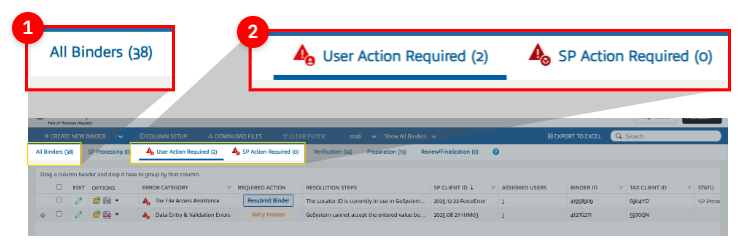
Binder submission and data export can be interrupted due to various factors, from a user error to a system-related issue, which causes the binder to show an error. Some errors will need to be addressed by a firm's user (like incorrect Client ID), and others will be addressed by SurePrep.
To help you understand and resolve binder submission and export errors efficiently, FileRoom shows you errors in the
All Binders
, User Action Required
, and SP Action Required
tabs.Tabs: All Binders, User Action Required, and SP Action Required
In FileRoom, the '
User Action Required
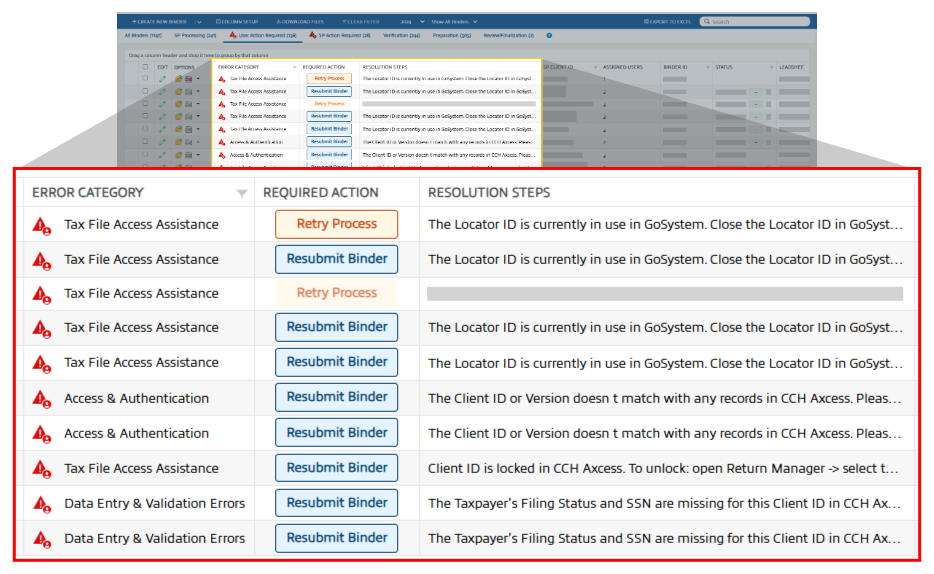
' tab shows you three columns that highlight if a binder is in error and what actions are required to resolve the error:Column name | Description |
|---|---|
ERROR CATEGORY | Describes the type of category the error belongs to (like an authentication issue, file upload issue). |
RESOLUTION STEPS | Describes instructions on how to resolve the issue. |
REQUIRED ACTIONS | Describes what you need to do (like Retry Process ,Resubmit Binder ). |
Columns to help users resolve errors: Error Category, Required Action, and Resolution Steps
Some actions appear with an outline. You can select these actionable buttons directly from FileRoom to trigger the next step in the process. Other actions that do not have an actionable button with an outline may need to be resolved after you open the binder.
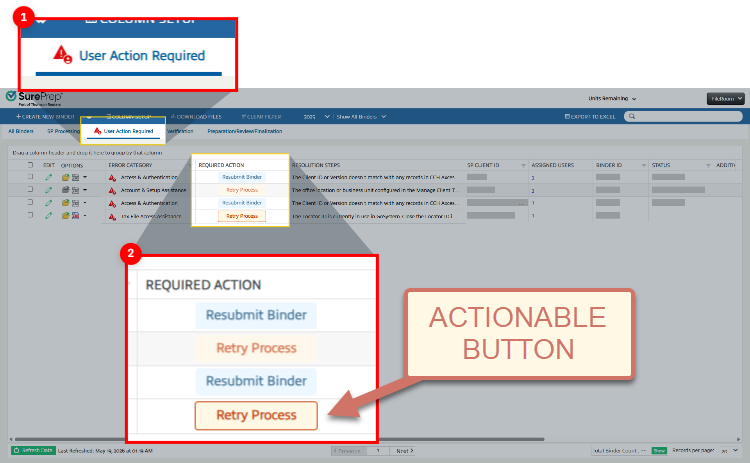
You will see the following
REQUIRED ACTIONS
:Required Action | When It Occurs | User Action | Appears In |
Resubmit | When a binder is submitted for the first time, and an error occurs during processing before it reaches In Verification status. | Open the binder to download the PBFX file, then resubmit the binder. | All binders and User Action Required |
Retry | When an error occurs after the binder has completed the first workflow (for example, during the export process) | Fix the underlying error and select Retry to restart the process that encountered the error. | All binders and User Action Required |
Fix in Progress | When an error occurs that requires technical or support team intervention and can't be resolved by the user. | No action is required. Wait for technical support to resolve the issue. | All binders and SP Action Required |
Reminder: User Action Required
After you sign into FileRoom, you may see a pop-up notification indicating that one or more binders may require your attention (
Reminder: User Action Required
). When this happens, you must close this pop-up and review the User Action Required
tab to resolve any items that may be blocking your workflow.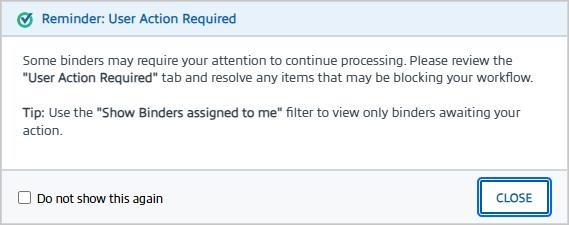
note
You can select '
Do not show this again
' to permanently dismiss this notification from appearing in the future. To enable this feature again, please contact Support.All Binders: Show or hide error columns
The '
All Binders
' tab shows users three columns that highlight if a binder is in error and what actions are required to resolve the error (as in ERROR CATEGORY
, REQUIRED ACTION
, RESOLUTION STEPS
). Select
Show Error Columns
to display the columns.Select the
Hide Error Columns
button to hide the error columns.
Related Content
-
Access FileRoom
Format: Article

