
Navigate records
You can use the navigation bar in FileRoom to do the following:
- View when the current page was last updated.
- Navigate multiple records on different pages.
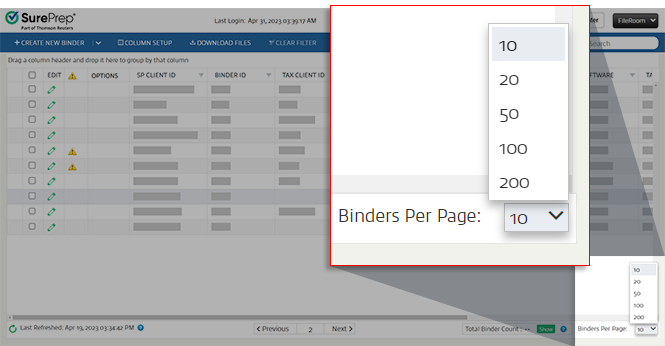
- Set the number of records (for example, binders) to show per page.
On the lower left, you can see when the current page was loaded/updated. Select  to see updated client records (for example, binders). It will show the date and time of the last refresh.
Refresh Data
to see updated client records (for example, binders). It will show the date and time of the last refresh.
Refresh Data
allows you to reload fresh binder data without reloading the FileRoom from scratch. Your firm may have records spanning multiple pages.
- SelectPreviousto navigate back to the records on the previous page.
- SelectNextto navigate forward to the records on the next page..
The current page will display between
Previous
and Next
.
note
Previous
isn't available (grayed out) if you're on page 1. Next
isn't available if you're on the last page and there are no remaining records left. The number of records and pages available will vary if the current page has any active filters or searches narrowing down the count.
Total Binder Count
To get the total binder count in FileRoom, select
Show
on the bottom toolbar by the page navigations.
By default, the
Total Binder Count
shows you the number of total binders created by your firm for the selected tax year.If you're currently using filters or search, the total binder count will only count binders within the current search/filter parameters.
Total Binder Count
updates automatically when you're using a search and filters. Binders Per Page
The
Binders Per Page
drop-down menu allows you to select the maximum number of records that will display per page.
Select an option from the dropdown. After you select an option, your preference will be saved, and the total records on the page will update automatically. You can choose
10
, 20
, 100
, or 200
.
Related Content
-
Access FileRoom
Format: Article

