
Set up and filter columns
Customize how binders appear in FileRoom by choosing which columns to display, resizing and sorting them, and filtering the data to find specific binders. Your settings apply only to your own view.
In FileRoom, you can use columns to view your binders and find particular binders. Using
COLUMN SETUP
, you can choose which columns are visible. You can also change the width of your columns, sort the data in the columns, and filter the columns. These settings are saved for each individual user and won’t impact other users at the firm.Choose displayed columns
- On the SurePrep ribbon, selectColumn Setup.

- A list of all columns will show.SP Client IDandBinder IDwill be automatically selected and grayed out so you can't select them. These columns are included by default and can't be removed.
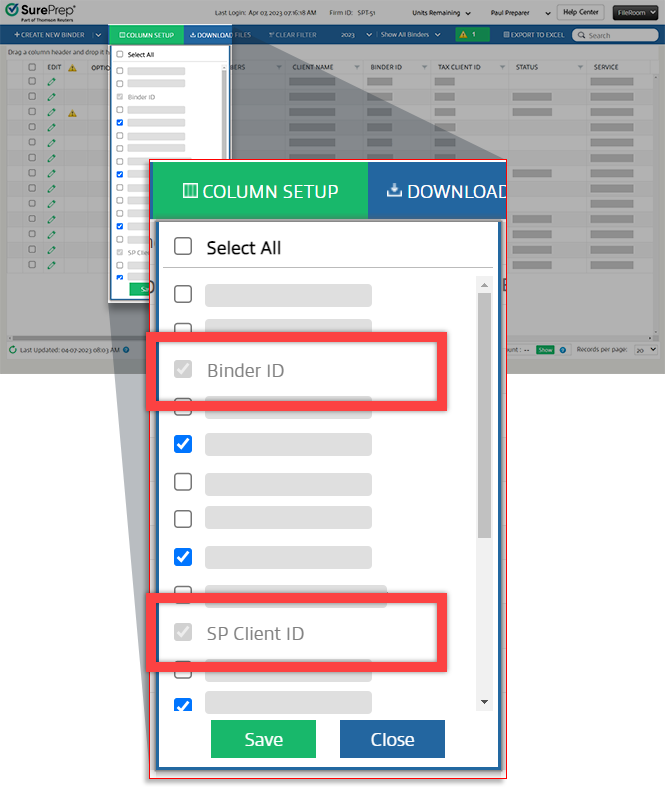
- Mark the checkbox next to the columns you want to show in FileRoom. To show all columns, mark theSelect Allcheckbox at the top of the list.
- SelectSaveto display the selected columns in FileRoom or selectCloseto go back to the screen without saving.

Resize columns
To resize a column's width, point to the middle of 2 columns, when the  appears, select and drag the edge of that column.
Resize
icon appears, select and drag the edge of that column.Sort columns
Follow these steps to change the sort order:
- Select a column header to sort that column alphanumerically. A sort direction arrow will appear next to the header of the column being sorted.
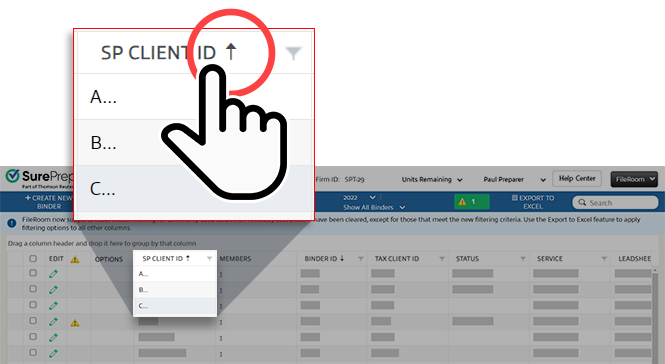
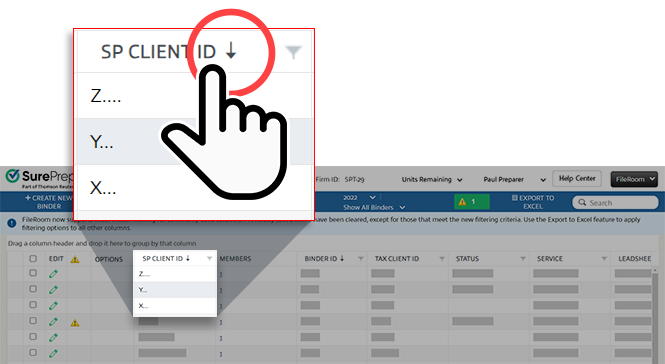
- Select the header a 2nd time to reverse the sort order. The direction of the arrow will change from up to down or vice versa.
Filter columns
You can filter the data shown in FileRoom using the filter function.
- Select theFiltericon
 in the column you'd like to filter.
Column filters will only be available for commonly used columns:
in the column you'd like to filter.
Column filters will only be available for commonly used columns:- SP Client ID
- Client Name
- Binder ID
- Tax Client ID
- Status
- Additive Status
- Service
- Leadsheets
- Binder Type
- Owner
- Office Location
- Tax Software
- If you filter the Owner column, a list of owners will show by family name, followed by first name. In theShow items that match exactlyfield, select an option from the dropdown, then selectFilter.
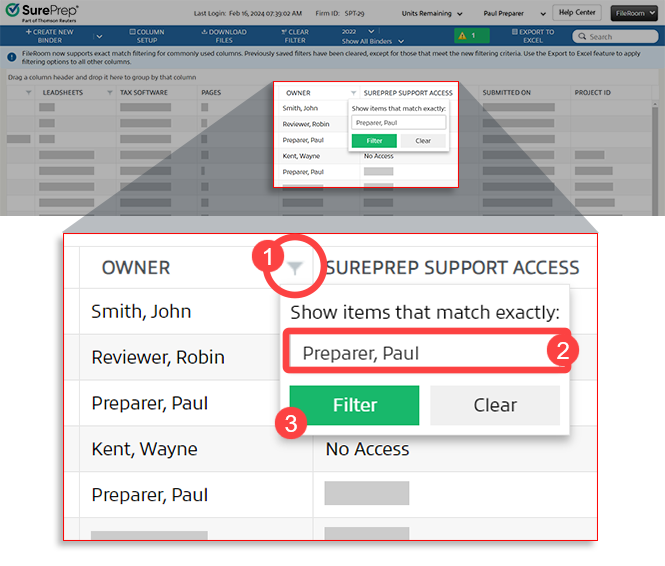 Once the column filter is applied, only the binders that match that owner name will show in the Owner column.noteYou can apply filters to multiple columns to further control what binders are visible.Certain columns will have multiple filter options:For example, if you filter the SP Client ID column, you can select theShow items with value thatdropdown and choose eitherIs equal toorContainsthen enter the filter text.
 - When you selectFilter, only the binders that match the chosen filter will show.
- If you want to turn off the filter for a specific column, select the filter icon on the column header then selectClear Filterin the filter panel.
- If you want to remove the filters on all columns, selectClear Filter.
You can also use the search feature to find information that partially ‘contains’ the text for the following columns:
- SP Client ID
- Binder ID
- Tax Client ID
Column setup list
You can select which of the following columns to view or hide. Certain columns are enabled by default and can't be disabled.
- 7216 Consent
- Actual Hours
- Binder ID
- Binder Linked with
- Binder Type
- Budgeted Hours
- Client Due Date
- Client Engagement ID
- Client Name
- Consolidated Group
- Downloaded On
- Due Date
- E-Access
- Estimated Complexity
- Expedite
- Leadsheets
- Live Sync Status
- Locked
- Members
- Modified On
- Notes
- Office Location
- Owner
- Pages
- Processed By
- Ratings
- Restrict by Office
- Service
- SP Client ID
- Status
- Submission Source
- Submitted On
- SurePrep Support Access
- Tax Client ID
- Tax Software
- Tax Year
Column filter options
Columns | Filters available: |
|---|---|
SP Client ID |
|
Status |
|
Client Name |
|
Owner |
|
Office Location |
|
Binder ID Tax Client ID Binder Type |
|
Service Leadsheets Tax Software Submission Source | Dropdown list |
Related Content
-
Access FileRoom
Format: Article

