
SPbinder AutoDownloader
Are you on a shared network path and experiencing slowness? In that case, SPbinder AutoDownloader might be able to help your firm.
SPbinder AutoDownloader
is for firms that have users accessing binders from different workstations on a network/shared path. When a user opens a binder, the user's workstation connects to SurePrep servers to get images for the binder. When multiple users access SPbinder (for example, preparer or reviewer), each user's workstation will connect to SurePrep servers to download binder images.To improve binder performance,
SPbinder AutoDownloader
prefetches binder data and images from SurePrep to your firm's network drive. When a user opens a binder, SPbinder imports binder images locally from the network drive instead of fetching them over the internet from SurePrep servers. This helps improve time when opening pages in a SPBinder.note
Not sure if your firm uses a network/shared path? Check out your firm's
SurePrep Download Folder
path in Account Admin
. If your firm's SurePrep Download Folder
path is linked to a shared drive that's not on your workstation then you are using a network/shared path (for example, x:\SurePrepFiles or 10.0.0.1/SurePrepFiles). Before you begin
Before you can initiate the installation process, contact your firm's IT professional to have the following prerequisites ready:
- .Net Framework 4.0
- .Net framework 4.5.2
- You will need local admin rights to perform the installation steps.
SPbinder AutoDownloader Installation
Follow these steps to install SPbinder Auto-downloader.
- Create a folder on a shared network path (for example, AutoDownloader), then turn on sharing on the folder.
- Provide full control to users (everyone preferred) on the folder.

- SelectFileRoom, thenAdmin.
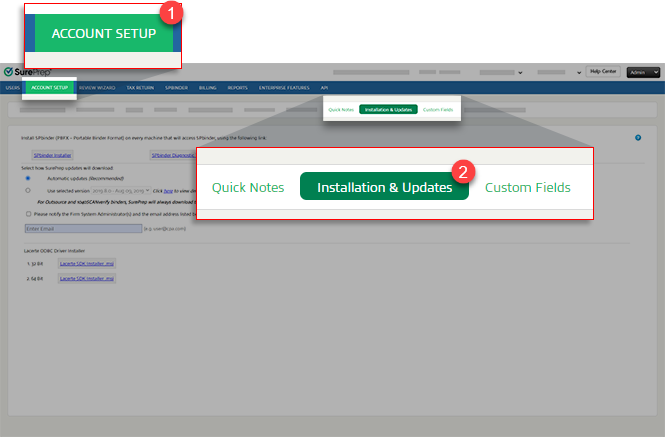
- SelectAccount Setup, thenInstallation & Updates.
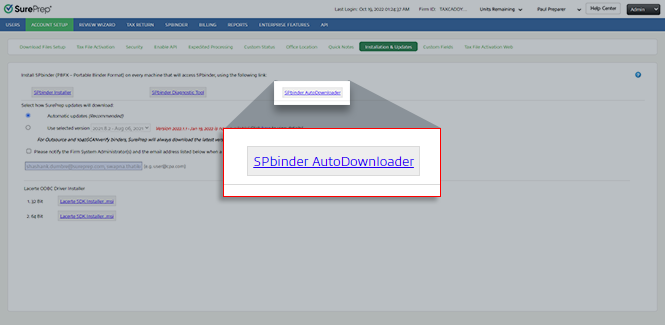
- SelectSPbinder AutoDownloaderto begin downloading the auto downloader.
- After downloading the ZIP file, extract the contents to a local folder (for example, C:\ drive).
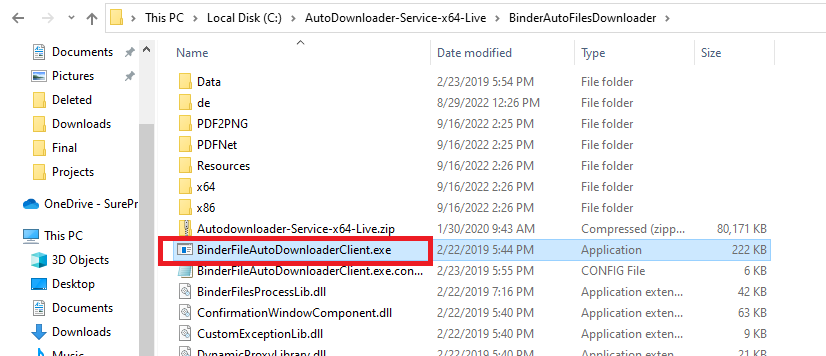
- Go to the extracted folder, then double-click to openBinderFileAutoDownloaderClient.exe.
- On theSPbinder AutoDownloaderwindow, sign in to your FileRoom.
 noteFirms using single sign-on (SSO) will need to use their Firm System Administrator users' credentials in FileRoom since they can use hybrid mode (that is, can sign in to FileRoom as well as use SSO).
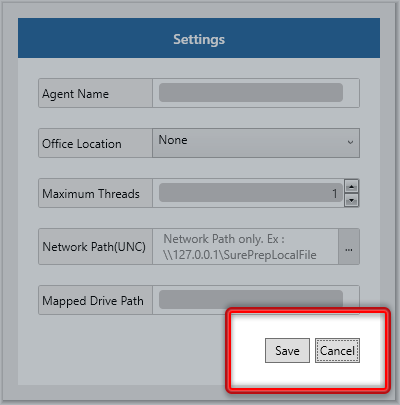
 - Enter details on theSettingsscreen.
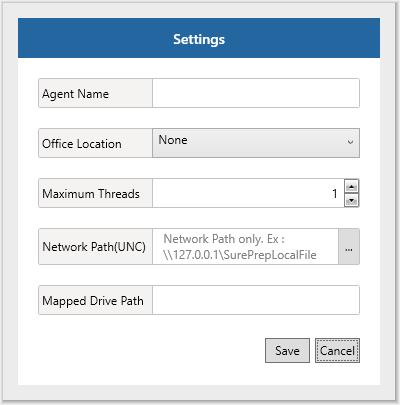 OptionDescriptionAgent NameEnter a unique agent name for each office location (letters, numbers, or a combination).Office LocationSpecify theOffice Locationoption asNoneif you want to download binders for all office locations associated with your firm's domain, irrespective of office location.Maximum ThreadsEnter the number of binders that can be downloaded simultaneously (Recommendation 5-10)Network Path (UNC)Select a local server path where the service will download the files. This can be different at each location.The path should be a UNC path (for example, \\10.2.1.100\SurePrepLocalFiles or \\MachineName\SurePrepLocalFiles).The network path should be limited to only 1 sub folder.Mapped Drive PathThis needs to be the same in all office locations and mapped to the path defined by network path (UNC). ex.: M:\.
 - SelectSave. Wait for the operation to complete and don’t close the window during the wait period.
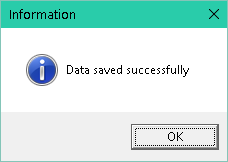
- Select theStartmenu. Entercmd, then right-clickCommand Promptand selectRun as administrator.

- Go to%systemDrive%\Windows\Microsoft.NET\Framework\v4.0.30319.

- RunInstallUtil.exe C:\BinderAutoFilesDownloader\FileAutoDownloaderService.exe.
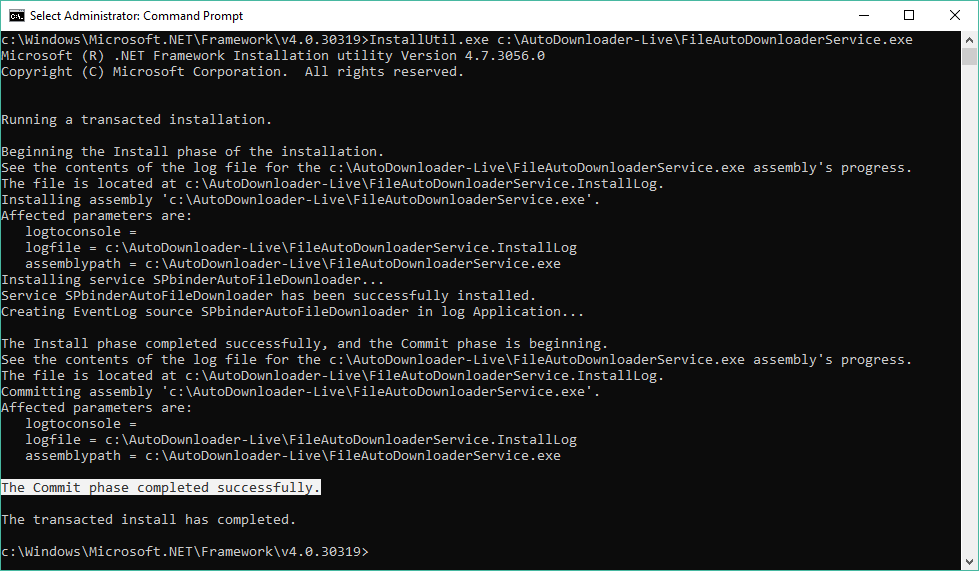
- Verify the service installation by going to .The service will install with the nameSPbinder Auto File Downloader.
- Start the service manually.
Troubleshoot installation
If a command prompt failed to complete, you may see the following message:
The system cannot find files specified
. 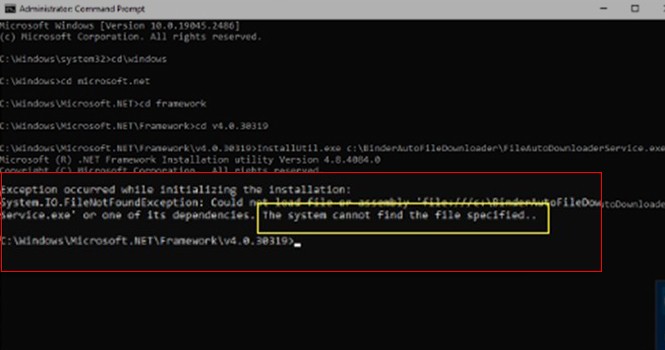
To continue, you will need to unblock
FileAutoDownloaderService.exe
.Go to
C:\BinderAutoFilesDownloader
, locate FileAutoDownloaderService.exe
, then right-click and select Properties
.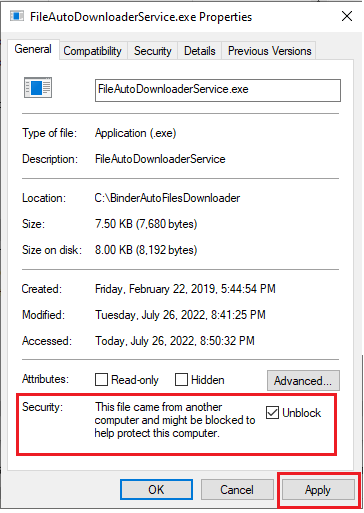
It might be necessary to unblock all DLLs and EXEs in the
Properties
window for each file accessed via Windows Explorer. Unblock the following EXEs:
- SurePrep.PortableBinderFormat(PBF).exe
- PDFTOPNGTool.exe
- FileAutoDownloaderService.exe
- BinderFileAutoDownloaderClient.exe
Make sure all the prerequisites are completed (.NET installation with local admin rights), then try again.
Related Content
-
Install SPbinder
Format: Article

