
Set up UltraTax CS Outsource folder
When you outsource returns to SurePrep for full preparation, you need to provide a copy of your tax software file. You also need a folder to download and store the completed tax software files submitted by SurePrep after preparation.
Select a network location to save your SurePrep information. Select a location that is easily accessible by all internal staff that will access data sent to and received from SurePrep.
Create a main folder that will store all SurePrep information named
SurePrep
.Within
SurePrep
, create a folder called Submit To SurePrep
. This is a central location used to store all documents and tax files ready to upload to SurePrep.Create a second folder within
SurePrep
called Received From SurePrep
. This is a central location used to save all workpapers and files received from SurePrep.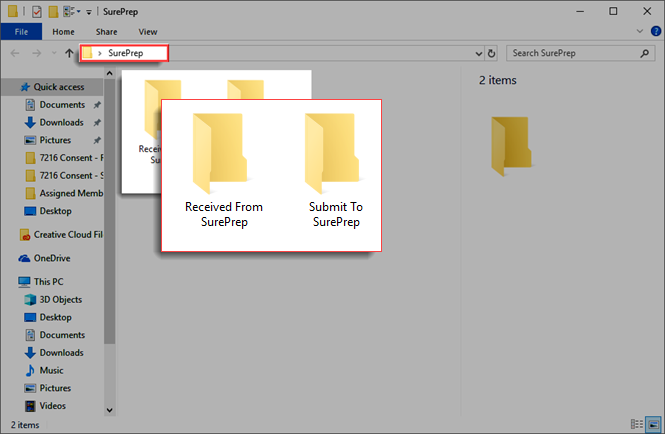
Setup Outsource folder path
Go to
FileRoom
, Admin
, Account Setup
, then Tax File Activation
. 
Open the PBFX file once it completes downloading.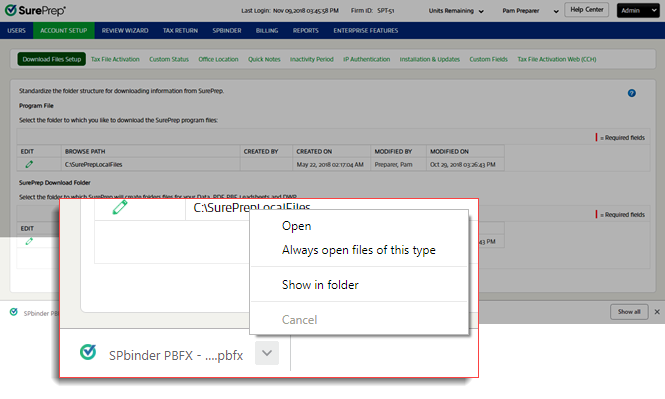
When the
Tax File Activation
window appears, select the UltraTax CS
tab.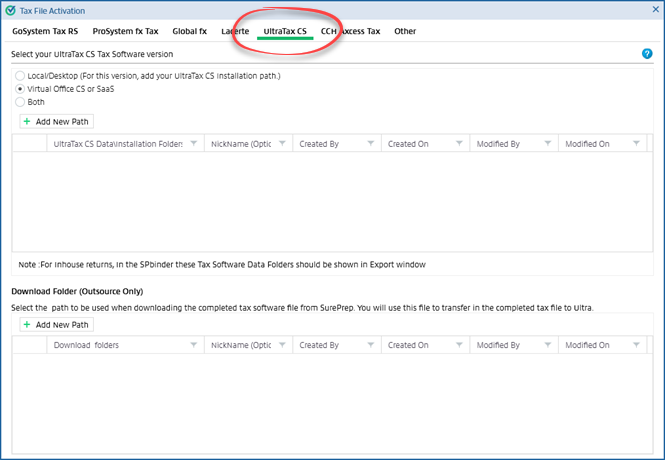
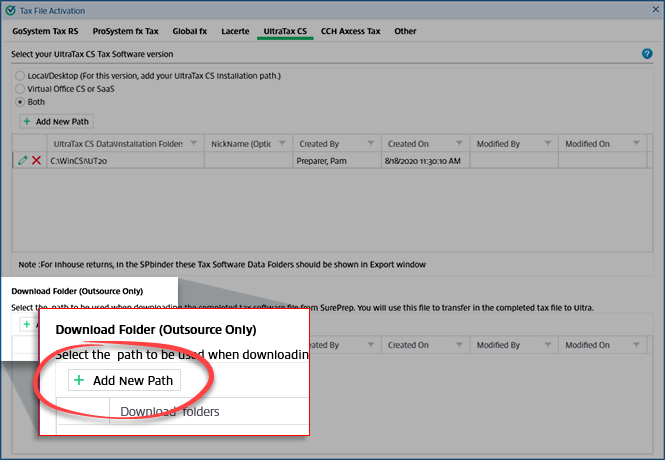
Select
Add New Path
.
On the
Download folders
column, select the search icon, then select the Received From SurePrep
folder path. Select OK
to verify.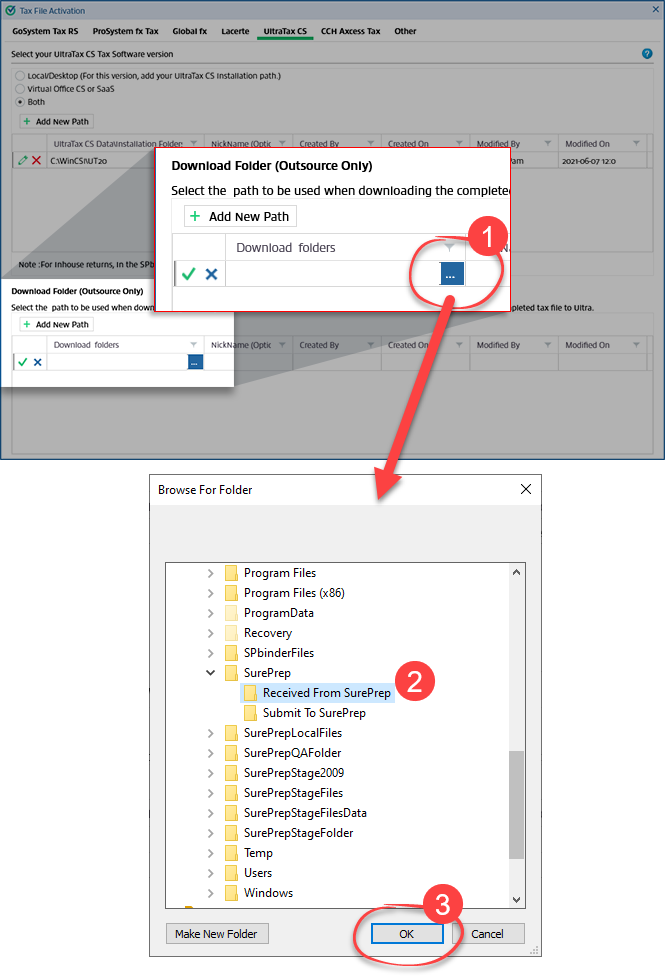
Select the  icon.
icon.
Save
icon.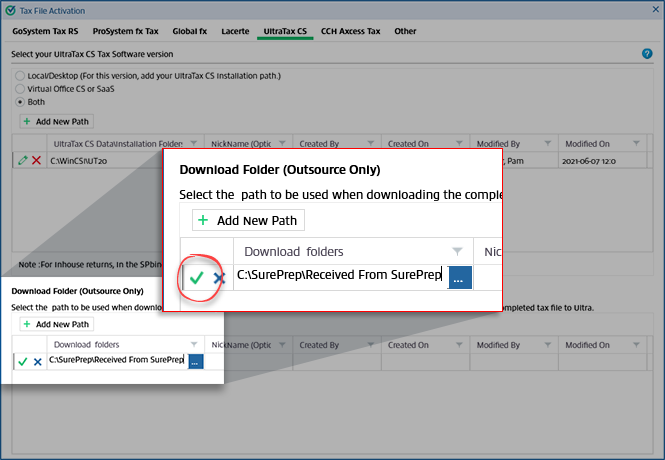
On the top section, select
Add New Path
.
Select the icon.
Submit to SurePrep
folder path then select the Save
icon.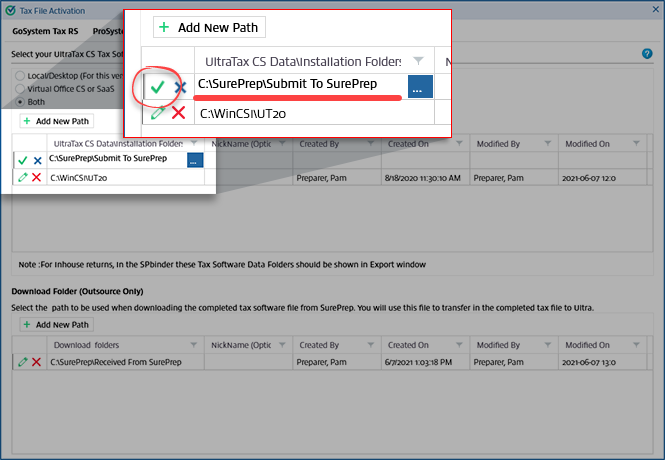
After downloading the file, restore it to UltraTax from this folder.

