
Tax Automation workflow to process binders
Use the Tax Automation feature in UltraTax to automate workflows with SurePrep, from gathering documents to final review.
Tax Automation is a streamlined workflow that integrates your existing SurePrep services directly into UltraTax CS (starting 2025 tax year). If you're currently using SurePrep 1040SCAN PRO, 1040SCANverify Onshore, or 1040SCANverify Offshore, Tax Automation provides a unified interface to manage the entire tax preparation process, from document upload through final review, without leaving UltraTax CS while still benefiting from the 1040SCAN services.
Before you begin
Your firm needs to complete the following prerequisites before you can use Tax Automation.
- You need to turn on UltraTax and SurePrep integration using the new integration method introduced starting tax year 2025. See the "Activate UltraTax CS" article for details.
- Users using tax automation in UltraTax need to have the same email address account created in FileRoom.
- The user needs to also have the "Can be an Owner" permission inAdminsettings.
- Your firm needs to have service units available to process that service (as in 1040SCAN PRO or 1040SCANverify).
- You are using UltraTax for 2025 or a later tax year.
- Skip this step if your firm doesn’t use Single Sign-On (SSO) to sign in. If your firm uses SurePrep's legacy SSO, then you need to switch to Thomson Reuters SSO.
Using Tax Automation
You can use Tax Automation to create binders and upload documents without leaving UltraTax.
Follow these steps on how to use Tax Automation:
- Open UltraTax CS, then select theTax Automationbutton.

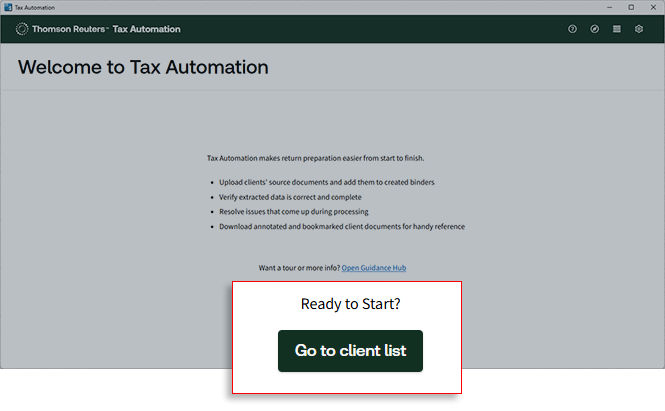
- Read the instructions on the Welcome window, selectGo to client list.
- Select theUpload documentsbutton.Alternatively, you can locate the client in the client list, select

- Next, on theUpload documentspage, complete the upload form:Select binder detailsFieldDescriptionClientSelect the client from the dropdown menu (may be pre-filled)Office locationSelect the office location assigned to the clientService typeSelect how you want to verify the accuracy of the data captured:
- 1040SCAN PRO (In-house verification)
- 1040SCANverify Onshore (SurePrep verification)
- 1040SCANverify Offshore (SurePrep verification) - Since this is an offshore service, you will need to get 7216 Consent from your client. Once the consent is received, select theClient consent confirmedcheckbox to acknowledge that you've received consent to send documents offshore for verification.
Note: A notification will appear on the Welcome screen if you don’t have enough units for a service typeLeadsheetToggle to turn on if you would like to create a binder with Leadsheets (must be set at initial upload)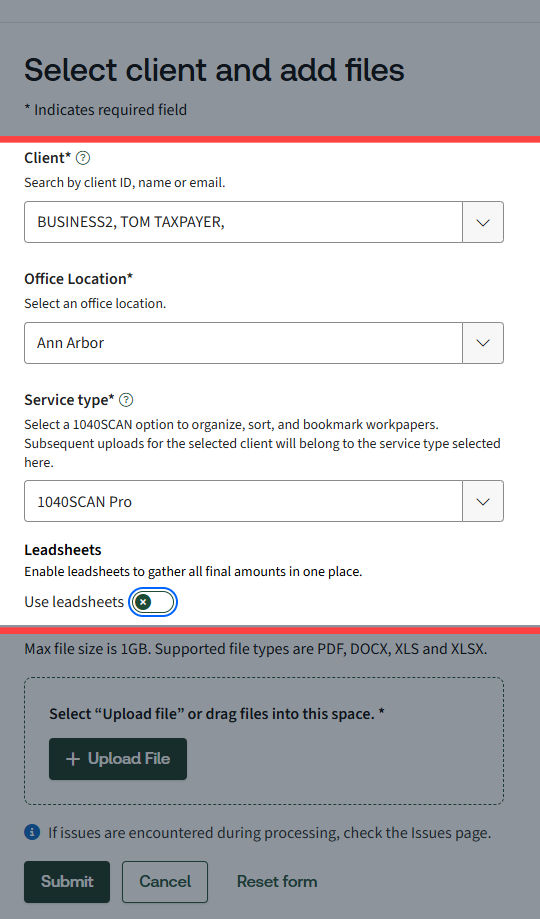
- SelectUpload fileto upload your documents.
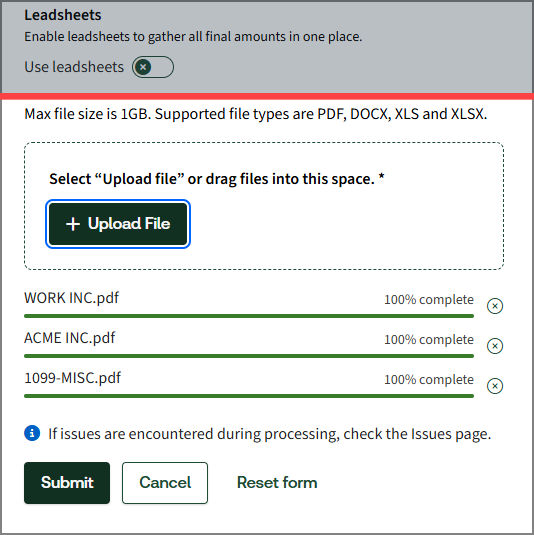
- You can upload PDF, DOCX, XLS, or XLSX files (max 1GB per upload). However, we recommend converting Word documents to PDF for the best user experience in SPbinder.
- SelectSubmit.
- SelectBack to Client List.
Client List screen overview
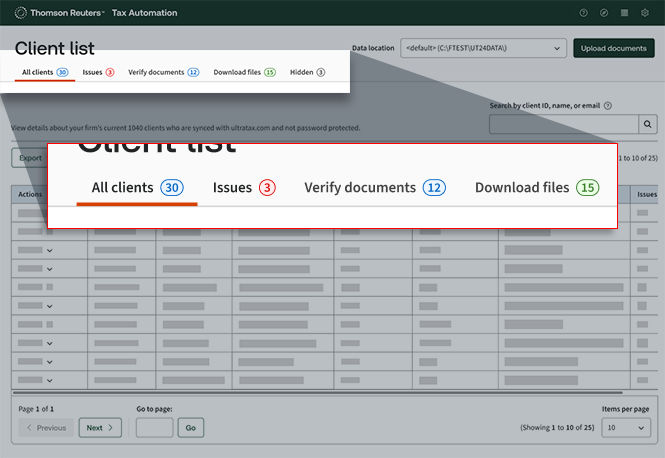
Each tab represents a different phase of the workflow.
note
Tax Automation will only list binders created through the Tax Automation feature in UltraTax.
Back on the
All Clients
tab, as clients move through the workflow, their Process stage
and Description
update to reflect their current status: 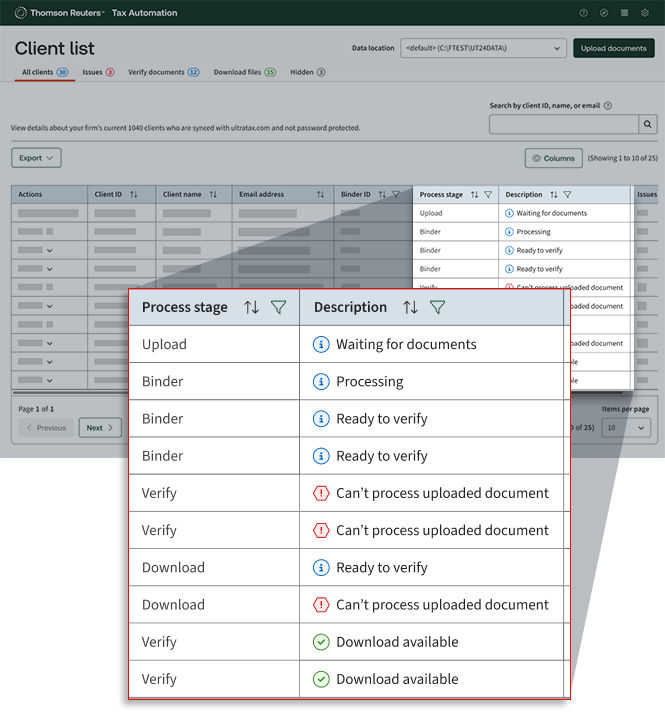
Process Stage | Description | What It Means |
|---|---|---|
Upload | Waiting for documents | Client needs document upload to create binder. |
Binder | Processing | The system is creating the binder and documents are being processed. |
Verify | Ready to verify | Documents are ready for review in Review Wizard (applicable if you opted for In-house verification) |
Issues | Various error messages | Problem occurred; check the Issues tab for details. |
Download | Download available | Verified documents ready to download |
Issues tab
If problems occur during binder creation, the client will appear in the
Issues
tab with a description of the problem. If there are no issues, go to the next tab (Verify
or Download files
).Available actions:
- Retry: Resubmit the binder to resolve the issue
- Hide: Move the client to the Hidden tab until you're ready to address the issue
Verify documents tab
If you submitted a binder using 1040SCAN PRO service, then the client will appear in the
Verify
tab if there are pages that need your review. To review, select the select .If you didn't submit a 1040SCAN PRO service binder, skip to the next step.
Download files tab
After the client is fully processed and verified, they will appear in the
Download files
tab. Select to review the details (annotations, bookmarks, a 'Not Indexed Documents' section for any non-standard documents that may require manual entry).UltraTax CS automatically imports the verified data from Tax Automation. You can review the imported data alongside the downloaded source documents and manually enter any additional information from nonstandard documents. Complete the return preparation as usual.
Additional notes
Important Limitations:
- One-way data flow: SurePrep and UltraTax have a one-way data flow from SPbinder to UltraTax; UltraTax doesn't sync back to SPbinder
- Deletion handling: If you delete something in SPbinderafteryou've already exported it into UltraTax CS, that information doesn't go away automatically in UltraTax CS when you export again next time. It may appear as a duplicate. You'll need to delete the data from both applications manually.Furthermore, if you need to delete proforma data in SPbinder, go toFORMS, add a reference on a page, then select Delete to remove the reference from the fields. Export the data and then delete it from UltraTax CS.
- Manual comparison: For data comparisons, you'll need to manually enter information in Leadsheets
Common questions
- Q: Can I use Tax Automation for prior tax years?A:No, Tax Automation is only available for tax year 2025 and forward.
- Q: What if I can't find a client in Tax Automation?A:Ensure the client has a 1040 return created in UltraTax CS and has been synced to UltraTax.com. Only clients meeting these criteria will appear in Tax Automation.
- Q: Can I still create binders through FileRoom, API, TaxCaddy, etc?A:Yes, you can continue to create binders through your desired method.
- Q: Will Tax Automation show all binders in FileRoom?A: No, Tax Automation will only show binders that were created through the Tax Automation feature in UltraTax. All FileRoom binders will not be shown.
- Q: Can I upload additional documents after creating the initial binder?A:Yes, you can upload additional documents at any time by selectingUpload documentsfor that client. The system will create a subsequent binder with its own Binder ID.
Related Content
-
Activate UltraTax CS
Format: Article

