
Create a binder for UltraTax CS
These instructions are for creating an UltraTax CS binder for tax year 2025 and onward.
Creating a binder is a starting point from where you can submit your client's tax documents and have them processed through OCR, get verified, and go into SPbinder for preparation. You can create a binder for your client by providing basic information about the type of binder you want to create. At this stage, you can set which firm user should be the Owner, the office location, binder access permissions, and binder tax year.
When you create a binder in FileRoom, SurePrep gets your client's information from the tax application and creates a binder specifically catered for that taxpayer client. The information fetched from your client's tax application file is used to create placeholders called “proforma” (for example, W-2 proforma placeholder for “ABCD, Inc.”). In SPBinder, you can organize documents to their respective (proforma) categories and export the data to the correct entities in the tax application.
You will need to upload the client's most recent tax application file details. Before creating a binder, make sure the client is created or proforma (rolled forward) to the current tax year.
You can upload binders as in-house or outsource services based on the tax application configured by your firm.
note
If you are using
1040SCANverify Onshore
& 1040SCANverify Offshore
services then follow the instructions listed under the following In-house
section.Show all hidden content
Select
In-house binders
or Outsource binders
for binder creation instructionsIn-house binders
In-house binders
Before you begin
Before you begin, complete a one-time setup between SurePrep and UltraTax CS (Virtual Office or SaaS). The integration lets SurePrep connect with UltraTax CS. You can check your integration status at .
Creating UltraTax VO binders
- Open UltraTax CS.
- If you are starting a new tax year and rolling forward clients from the previous tax year to the current tax year:
- Select .
- Next, sync the clients to ultratax.com – you can either sync clients on theProformawindow (as in rolling forward previous year clients to the current tax year) or from the Utilities menuProformawindow (recommended): Select the clients you want to roll forward to the current year, select the checkbox forSync client to ultratax.com on proforma, then selectProforma.
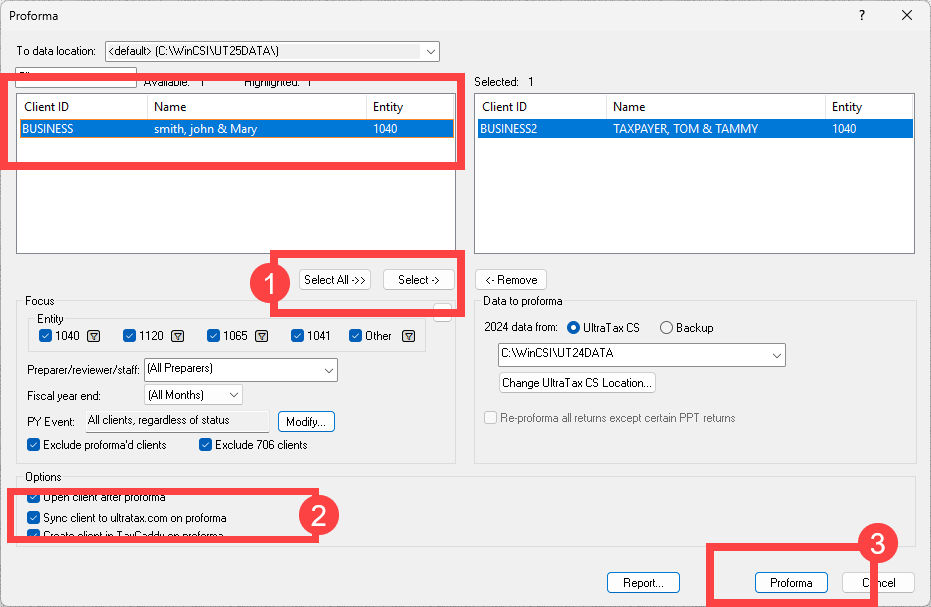 Sync clientswindow: If you already used theProformafeature without selecting the sync clients checkbox, then you can either redo the Proforma and start over, or go to to sync clients.
noteClients in Red- Clients that are missing the required information will be highlighted in red (for example, Name, and SSN). To create tax files for these clients, open the client’s tax return and update any missing information.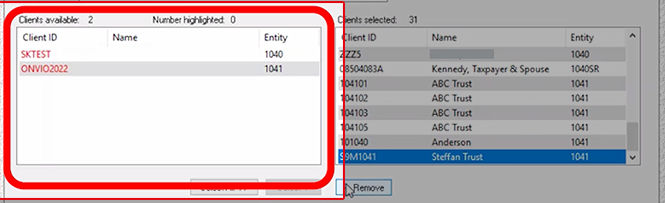 Clients not appearing- Clients that are currently locked in UltraTax CS won’t appear in the window. To unlock your client go to tab.
 - Log in to SurePrep FileRoom.
- Select from the following services:
- 1040 SCAN PRO
- 1040SCAN ORGANIZE
- SPbinder
- * 1040SCANverify Onshore&1040SCANverify Offshore
 *while1040SCANverify Onshore/Offshoreare not In-house services, the same instructions can apply as other In-house services.
 - PBFX will download automatically. Open the PBFX.

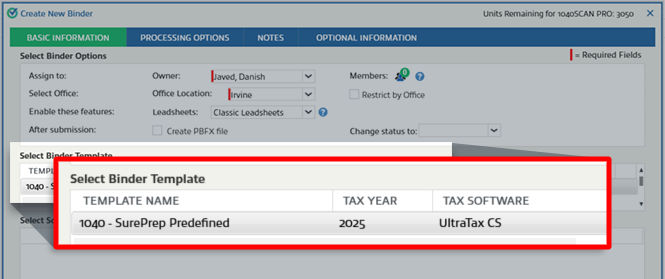
- TheCreate New Binderwindow will appear. UnderSelect Binder Template, select the template with the tax year andUltraTax CSas the tax application.
- UnderSelect Source Documents, selectBrowse.
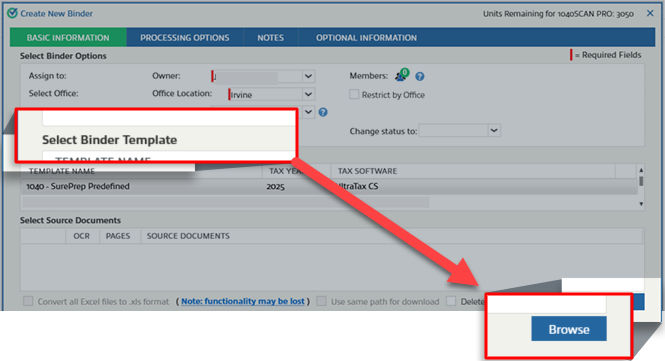 Select your source documents, then selectOpento attach the source documents.
 tipIf the name of the 1st source document's filename matches theClient IDin UltraTax, theCreate New Binderwindow will automatically autofill theClient IDand fetch your client information from the tax application.
 - Enter theClient IDto search for the client in UltraTax, then selectSearch. TheAliasfield will auto-populate if the taxpayer is found.
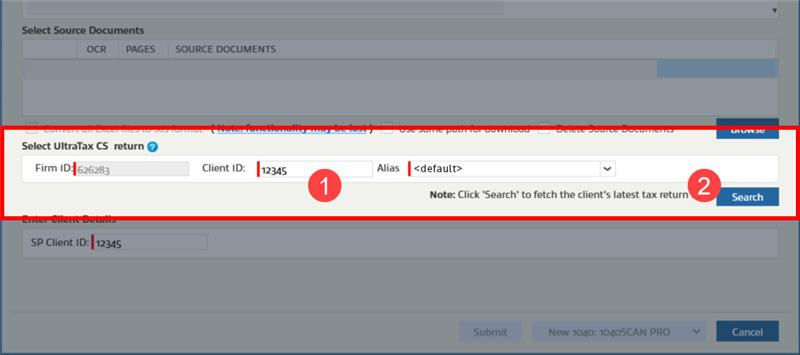 noteStarting with Tax Year 2025 and later, the UltraTax CS binder creation no longer shows identifying fields (like First Name, Last Name, SSN, and Filing Status) when creating a 1040 and 1041 binders. Instead, you enter the Tax Client ID, and SurePrep automatically pulls the taxpayer details from UltraTax CS as part of the updated API integration.
 - If the name of the 1st source document matches the Tax Client ID in UltraTax, theCreate New Binderwindow will automatically autofill the Client ID.
- You will see a confirmation window if the client is fetched successfully.
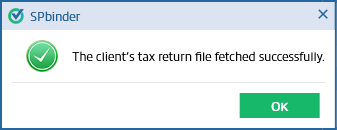 If the client couldn’t be found then you will see the following notification message Client's tax return file not found. Confirm if the file exists for the selected tax year and Alias path.
 The client's tax return file couldn’t be found due to the following reasons:
- The Tax Client ID used to search the client was incorrect. The 1st source document name didn't match a Tax Client ID.Solution: Manually enter theClient IDthen selectSearch.
- The client was not synced to ultratax.com throughProformawindow or through theUtilitiesSync Clients to ultratax.com. Solution: See the previous steps and sync the client's tax return file to ultratax.com in UltraTax CS.
Outsource binders
Outsource binders
- OpenUltraTax CS.
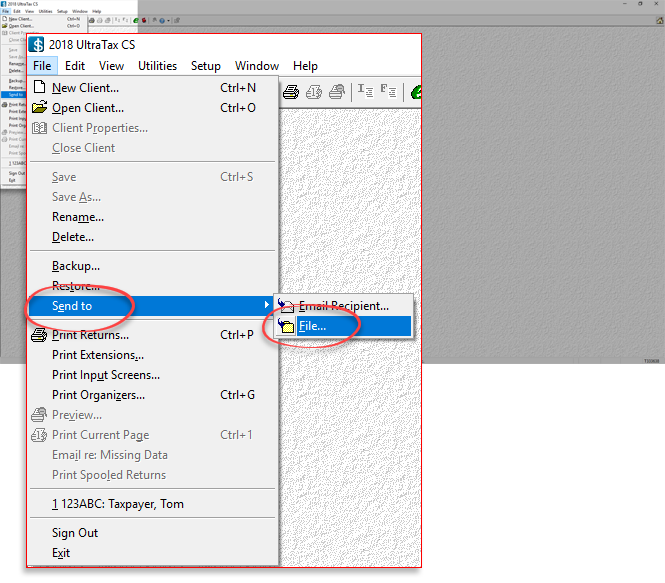
- SelectFile, point toSend to, then selectFile.
- On theSend to File Locationwindow, underClients,select to select the client you want to submit to SurePrep.
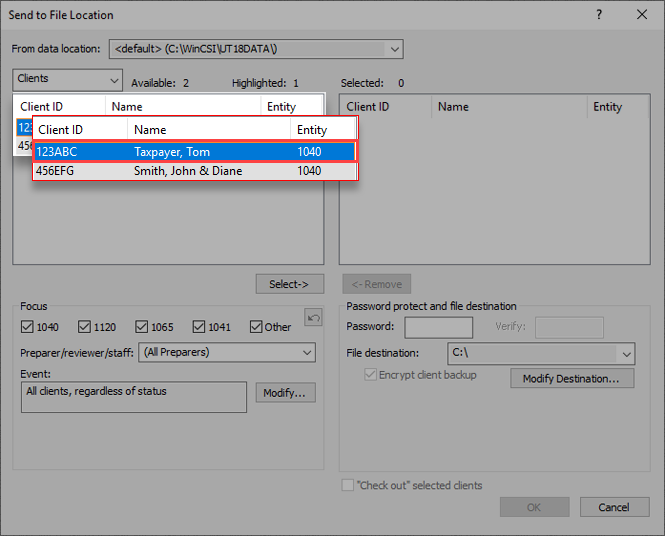
- SelectSelect.

- The client will now appear underSelected.

- SelectModify Destination...to change where the file is saved.

- Select theSubmit To SurePrepfolder, then selectOK.View details on setting up folder structure for UltraTax CS.
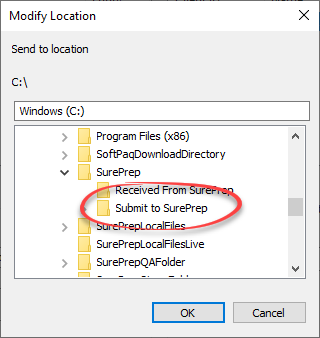
- Once theFile destinationis set, selectOK.
- On the"Send to" file savedwindow, selectOK.
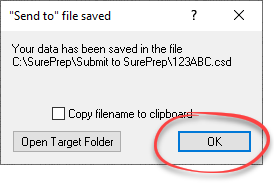
- The client's CSD file will now be saved in theSubmit To SurePrepfolder and is ready to be uploaded.

- InFileRoom, point to theCreate New Bindercaret icon

- Point to1040.

- Select from the following services:
- Outsource Onshore
- Outsource Offshore

- PBFX will download automatically. Open the PBFX.
- TheCreate New Binderwizard will open. UnderSelect Binder Template, select the template with the tax year andUltraTax CS (Virtual Office or SaaS)as the tax application.Under
 Select UltraTax CS (Virtual Office CS or SaaS) return, the folder path set inTax File Activation, thenUltraTax CSwill be displayed by default inSelect UltraTax CS File Path. View Tax File Activation for UltraTax CS To automatically match the client tax file, select the same path (that is, Submit to SurePrep) where you saved the client's CSD file earlier.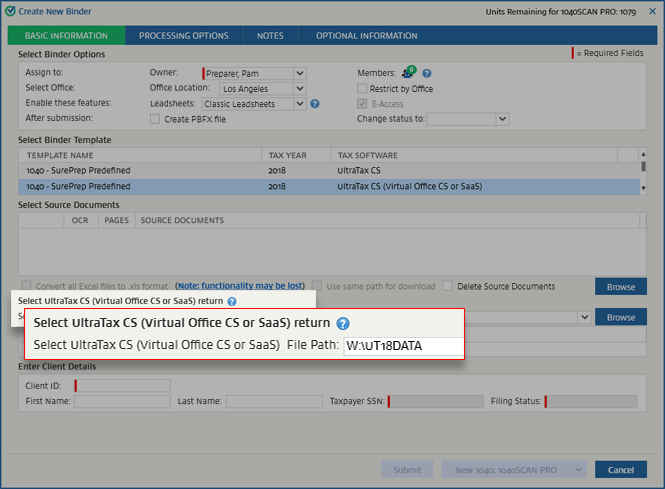
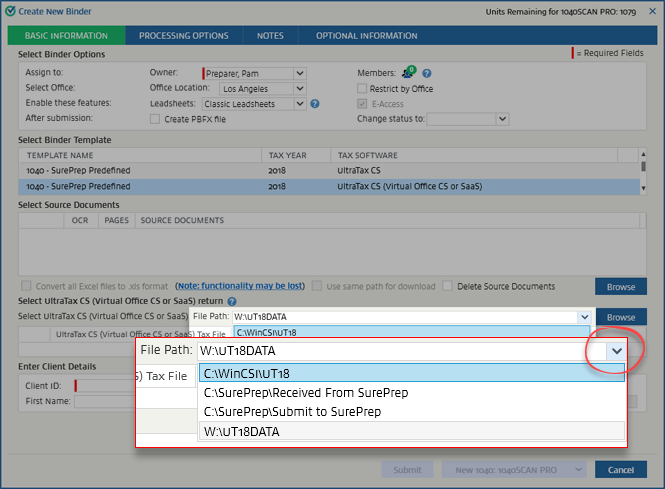
- If more than 1 folder exists, choose the folder inSelect UltraTax File Path.noteThe path that was last selected will be remembered, and you won’t be required to reselect it.
- UnderSelect Source Documents, selectBrowse.

- Select your source documents, then selectOpento attach the source documents.
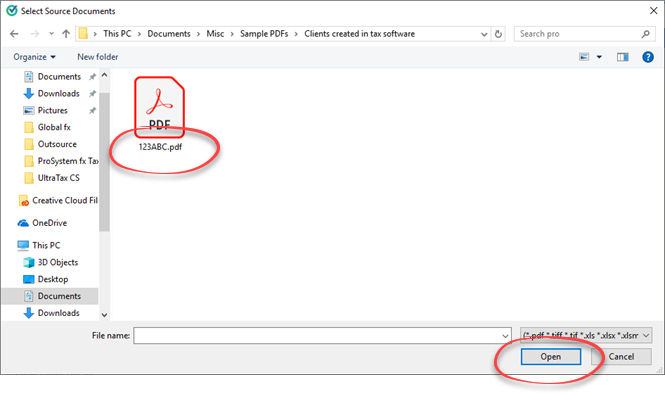
- If the name of the 1st source document matches the client ID in UltraTax, the UltraTax CSD file is automatically selected.

- If the name of the 1st source document doesn’t match the client ID, selectBrowse.
 The folder selected inSelect UltraTax CS File Pathwill open. Select theUltraTax CSD filein that folder, then selectOpen.
 - When the CSD file is attached, the client ID will be automatically populated.
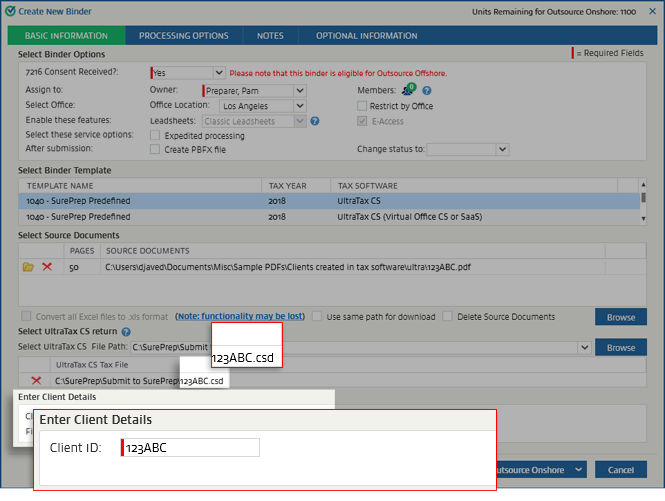 If the UltraTax CSD file attached doesn’t belong to the selected tax year, you'll see a message similar to the following:
 If the CSD file contains more than 1 client ID, the following message appears:

