
Send Schedule K-1 data from Additive to SurePrep
Learn how to transfer Schedule K‑1 information from Additive to SurePrep
After you complete your Additive integration with SurePrep, you are now ready to transfer data from Additive to SurePrep! As a tax professional, you can now upload K-1 documents to Additive, where data is automatically extracted and organized for review in Excel. After verifying the information, you can transfer it to SurePrep and export it to their tax software, making your tax preparation process faster and more efficient.
Step 1. Upload K-1 Documents to Additive
- On your workstation, place all your Schedule K-1 documents into a zip file.
- In Additive, select the upload area, then upload a zipped folder containing your K-1, K-3, or State K-1 PDFs.
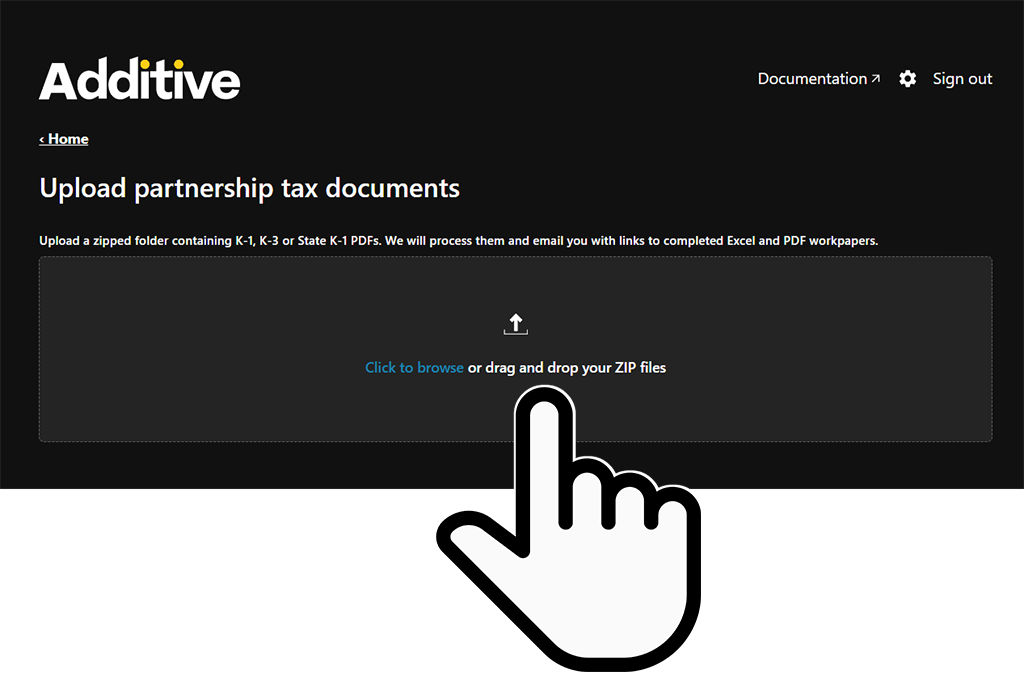
- You can upload multiple PDFs in a single ZIP file. The Schedule K-1 documents must be in PDF format inside the ZIP folder.
- Maximum limits: 1,000 files per ZIP, 1,000 pages per PDF, 500 MB total upload size, 100 ZIP files at once
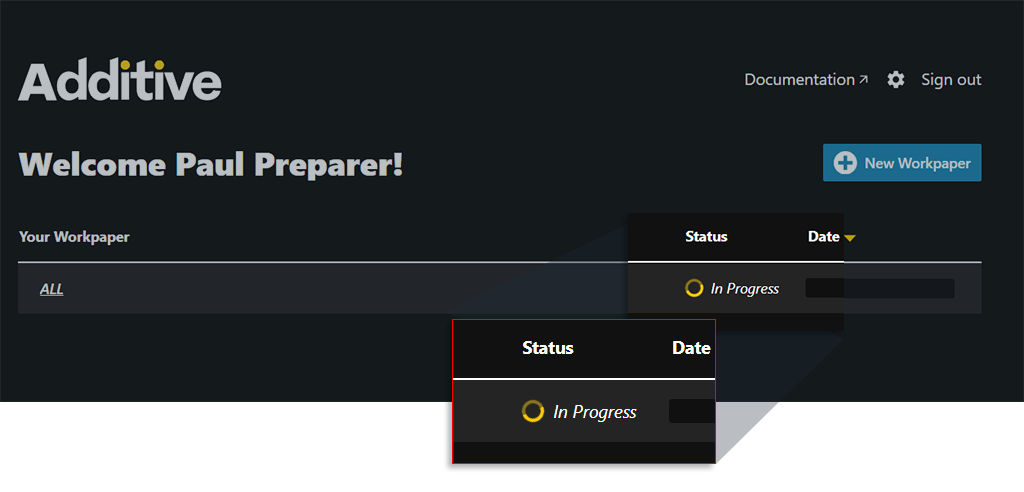
- Once the zip file is uploaded, Additive will begin processing your files. Go back to Additive’s dashboard, you will see your workpaper documents being processed in progress.
- Once the progress status changes toComplete, select the workpaper.
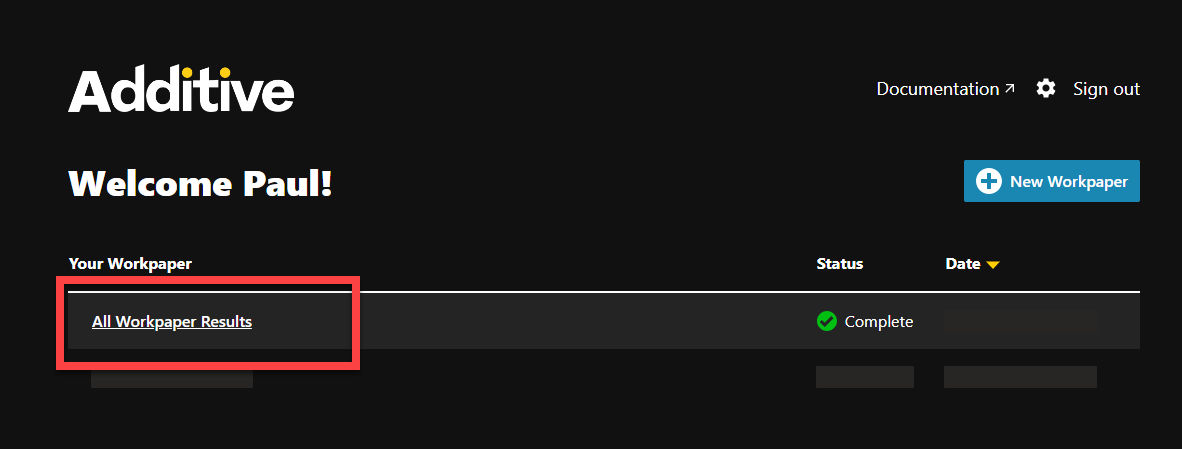
- Download the Excel workpaper from your Additive dashboard – look for the .xlsx in the file extension.

- Review the data inside Excel first and make any corrections or modify the information as needed to match the annotated PDF.noteInformation in the Excel file will be uploaded to the tax software through SPbinder. We highly recommend you verify the information captured on each sheet inside the Excel file before you move to the next step.For binders without Leadsheets (as in None), you will not be able to correct the amounts in SPbinder once the data from the Excel file is uploaded to SPbinder.

Step 2: Transfer data to SurePrep
Transfer Additive captured Schedule K-1 data to SurePrep
After you review and correct all the data Additive captured in the Excel file, you can use the Additive add-in to transfer the data into SPbinder, which then flows downstream into the tax software.
- Open the downloaded Excel workpaper
- On theHomeribbon tab, clickAdd-insand selectAdditive
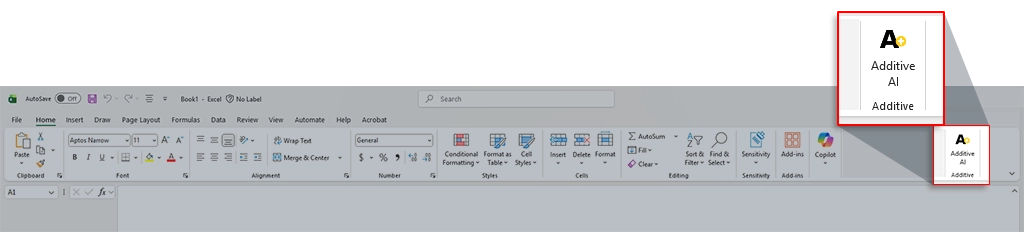
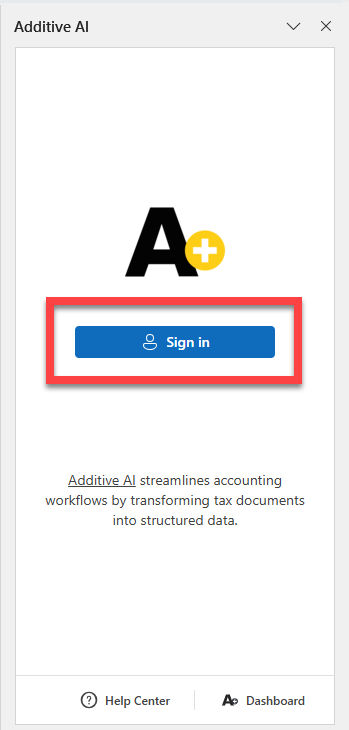
- TheAdditive AIpanel will appear on the right side. SelectSign inand enter your Additive credentials.
- Enter form details.
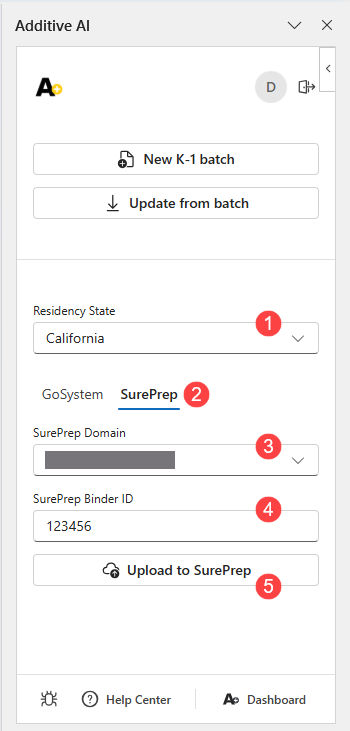
- Select theSurePreptab in the Additive panel
- Choose yourResidency State(if applicable)
- Select yourSurePrep Domainfrom the dropdown
- Enter theSurePrep Binder IDwhere you want to upload the K-1 data
- Find the binder ID in your SurePrep FileRoom. For binders without Leadsheets, make sure to enter the main/parent binder ID and not the nested binder ID.
- SelectUpload to SurePrep
note
- For Simplified and None Leadsheet binders, the verification must be completed, and the data should be exported to the tax software before you send Additive-extracted data to the binder.
- You must have a unique SP Client ID for the binder. If you are using multiple binders with the same Tax Client ID (even if they have different Tax Client Versions), each binder must have a unique SP Client ID in the domain.
Step 3. Verify in SurePrep
- Navigate to FileRoom. Your binder will showSP Processingstatus while the data is being transferred
- Once complete, the data will appear in your binder.
- Continue with your normal SurePrep workflow (Leadsheet, K-1 Reclass, export to tax software)
note
- Additive transfers only the extracted K-1 data, not the source PDF documents. You'll need to separately upload source documents to SurePrep if required for your workflow.
Supported Documents
Information from Additive will populate into all the fields currently supported by SurePrep. Coming soon, SurePrep will expand its coverage to cover more fields.
note
State K-1 (including resident and non-resident) information is not supported for UltraTax.
Managing Updates and Amended Returns
Best practice to process subsequent K-1 submissions or updates from amended returns
If you upload K-1 data to a binder that already contains K-1 information, SurePrep will open a dialog box allowing you to resolve conflicts—similar to adding a document directly in SurePrep. You can mark the new data as a duplicate or as an override of existing data.
Best practice for incremental updates:
- Option 1:Maintain all documents in Additive and perform one final push to SurePrep
- Option 2:Process separate batches in Additive and push each batch to SurePrep individually (manage duplicates in SurePrep)
- Avoid:Adding documents incrementally in Additive while repeatedly uploading to SurePrep, as this requires resolving duplicates each time
Additional notes
SurePrep Admin settings
Your firm's SurePrep domain admin settings for K-1 processing will be respected during the integration:
- State K-1 capture settings:Data will be captured/exported based on whether you've configured "Capture for proforma'd states only," "Capture all State K-1s," or "Bookmark only."
- Supplemental pages setting:If enabled, K-1 supplemental pages will be captured and K-1 reclass functionality will be available
- SALY (Copy Prior Year) setting:Configured SALY settings for Schedule K-1 will be applied
Related Content
-
Additive integration with SurePrep
Format: Article
-
Get started with Additive-SurePrep integration
Format:
Article

