
Document auto-categorization in TaxCaddy
As a tax professional, you receive hundreds of tax documents from your clients, and organizing these documents into their respective categories can be time-consuming. What if you could snap your fingers and organize documents automatically? Introducing AI-powered Auto-Categorization.
Document Auto-Categorization leverages TaxCaddy's AI  to analyze each document page and automatically sort them into their appropriate tax categories and forms.
to analyze each document page and automatically sort them into their appropriate tax categories and forms. Additionally, if you or your client upload a single PDF containing multiple tax documents, Auto-Categorization will analyze each page, separate the individual tax documents, and organize them into their respective categories within the client profile.
Auto-categorize documents
- Sign in to TaxCaddy.
- Select a client tile from theOverviewscreen.
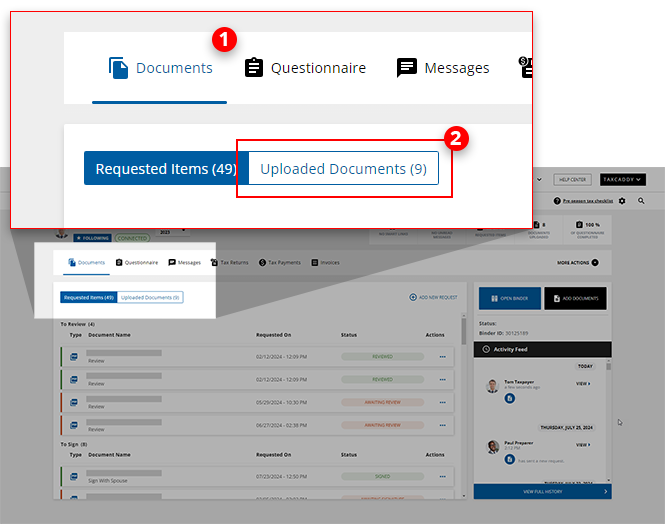
- SelectDocuments, then selectUploaded Documents.
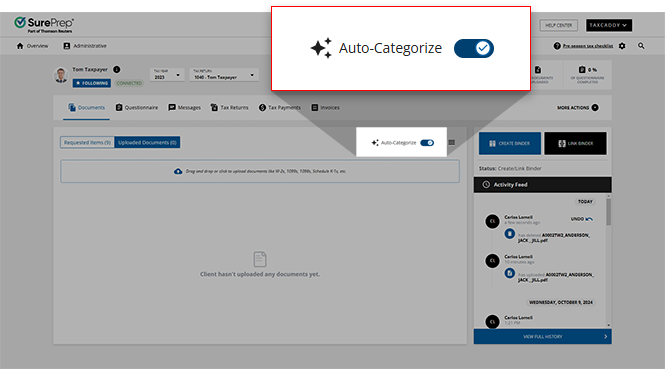
- Select theAuto-Categorizeswitch to turn the feature on or off. When enabled, Auto-Categorize will use AI to find a match and categorize any tax document you upload. You can also upload a single PDF with multiple tax documents, and auto-categorization will extract all the tax documents to categorize individually.noteWhen necessary, you can select theAuto-Categorizeswitch to turn off the Auto-Categorization feature for yourself, allowing you to manually select categories when uploading documents.
 noteImprove your Auto-Categorization resultsTaxCaddy's AI-powered Auto-Categorization learns from your actions and improves the results over time. For example, when a document match is not found, Auto-Categorization places it in theUncategorizedsection.
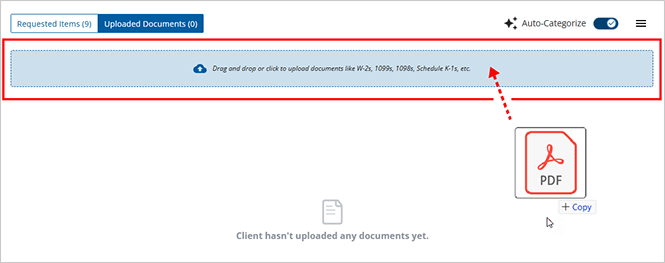
 - With theAuto-Categorizeswitch enabled, selectDrag and drop or click to upload documentsto select the document you'd like to Auto-Categorize.noteDocuments exceeding 200 MB can't be uploaded for auto-categorization.
 You can also locate this file in your workstation, then drag and drop it into the upload area.
 tipRecommend uploading separate PDFs for each of your clients' tax forms for the best, most consistent results. Combining multiple forms into 1 PDF can increase the chance of a form getting miscategorized.
 - Once a document is selected, a toast notification will appear to indicate the file's upload percentage.

- When the document upload reaches 100% complete, the toast notification will update to indicate that the Auto-Categorization process has begun.
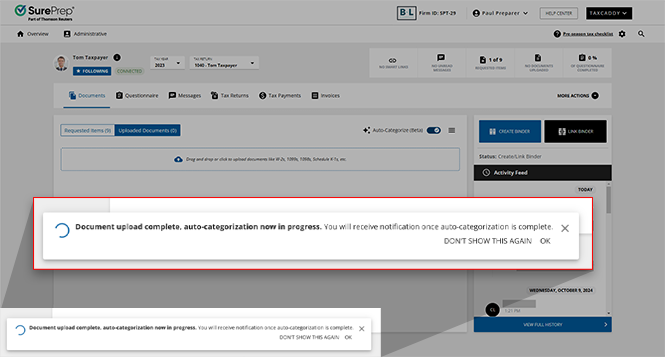 The toast notification will be updated toAuto-categorization is completeonce the document has been categorized.
 - The documents that TaxCaddy's AI has automatically categorized will appear in their respective categories in the Uploaded Documentstab.
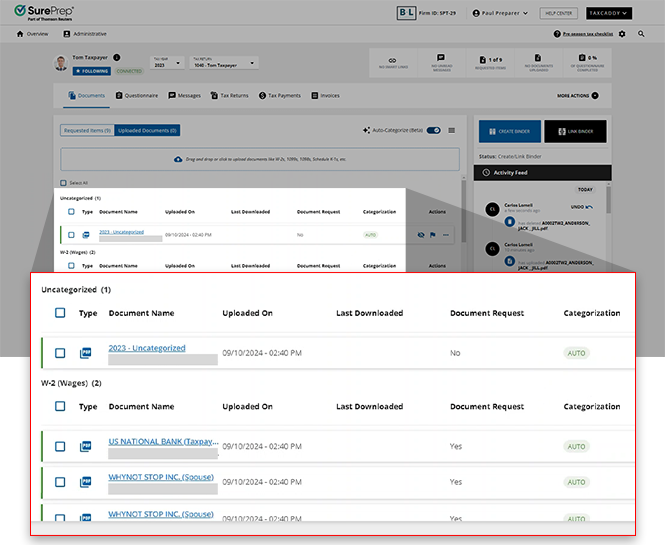
- In theCategorizationcolumn, Auto-Categorized documents will show theAUTO
 badge.
noteDocuments that have been manually moved to a different category will show the badge asMANUALinstead ofAUTO.
badge.
noteDocuments that have been manually moved to a different category will show the badge asMANUALinstead ofAUTO.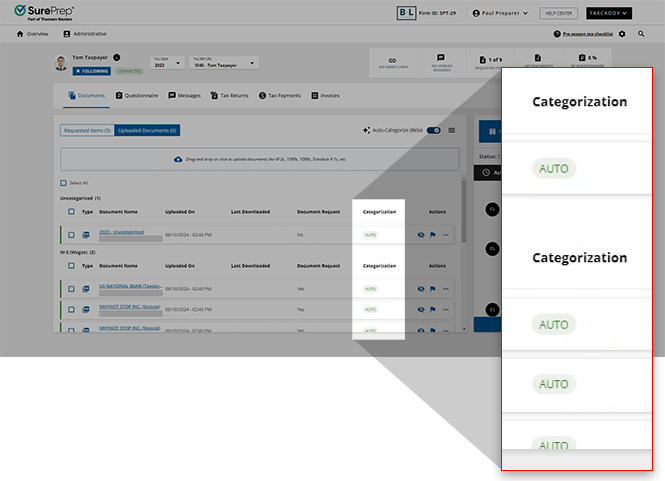
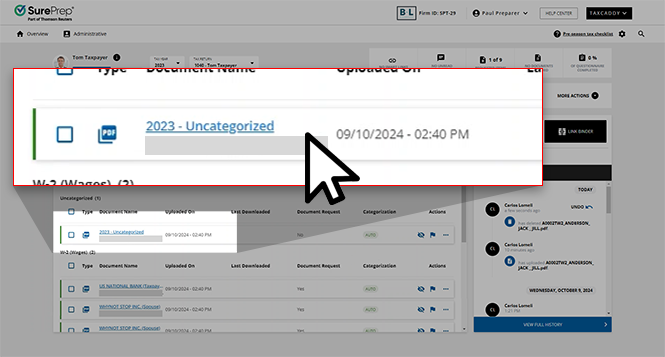
- Users can select these documents in the Document Viewer panel to verify that TaxCaddy's AI accurately grouped the document's pages and placed them in the correct categories.
Restore pages
When using Document Auto-Categorization on larger files containing multiple forms, TaxCaddy AI will split the document as necessary to best categorize the forms within the larger file. If a document is incorrectly split and miscategorized, users can restore the pages to unify under the single original document.
will split the document as necessary to best categorize the forms within the larger file. If a document is incorrectly split and miscategorized, users can restore the pages to unify under the single original document.- From the Uploaded Documents panel, open theMenu
 of one of the forms that was incorrectly split from the original document then select Restore original pages.
- TheRestore OriginalPages window will appear listing all of the forms found in the original document. Review the forms listed and selectCONTINUEif you wish to proceed with the restoration.
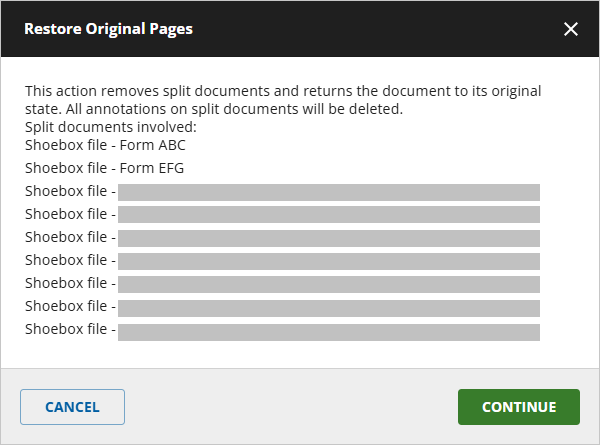
- The original larger document will be restored and placed in theUncategorizedsection where you can begin your manual review.
Supported document types
TaxCaddy's Auto-Categorization feature can categorize documents into one of the following IRS and Non-IRS forms.
Show all hidden content
Select
IRS
or Non-IRS
forms to view a complete list of supported form typesIRS
TaxCaddy's Auto-Categorization feature can categorize documents into one of the following IRS forms.
- Form 1099DIV
- Form 1099INT
- Form 1099MISC
- Form W2
- Form K1
- Form 1099R
- Form 1099B
- Form 1099NEC
- Form 1099SSA
- Form 1098E
- Form 1098T
- Form 1098MortgageInterest
- Form 2439
- Form 5498SA
- Form 1099C
- Form 1099A
- Form 1099RRB
- Form W2G
Non-IRS
TaxCaddy's Auto-Categorization feature can categorize documents into one of the following Non-IRS forms.
- Bank Statements
- Credit Card Statements
- Loan Statements
- Receipts
- Child and Dependent CareCredit
- Medical and Dental Expenses
- Vehicle Documents
- State and Local Real Estate Taxes
- Gifts to Charity
Best practices
To optimize your categorization results, we recommend adhering to the following best practices prior to your use of TaxCaddy's Auto-Categorization:
- Use clear document scans.Ensure that all documents are scanned clearly and at a high resolution. Poor‑quality scans can result in document miscategorization or missing/incorrect metadata.
- Check file size before upload.Confirm that each file is under the 200 MB upload limit. Larger files are not supported and may cause processing errors.
- Verify multi‑page forms.For multi‑page forms such as Form 1099‑DIV or Schedule K‑1, verify that all pages are grouped correctly. Continuation pages may require manual review to ensure accurate organization.
- Don't combine closing or consolidated documents.Closing statements, consolidated statements, and other non‑IRS documents should not be combined with standard IRS forms. Combining standard IRS forms with these documents may cause the entire document to be inaccurately categorized. We recommend that these documents be uploaded individually for proper categorization.
- Review uncategorized documents.Always review the documents listed in theUncategorizedsection to ensure that each tax form is properly sorted in its respective category. Documents like instruction pages, pages with partial or incomplete information, or other non-standard pages can remain in theUncategorizedsection.
Common questions
Review these common questions regarding this Auto-Categorization feature:
- What are some key benefits of using Auto-Categorization?Some of the key benefits include:
- Auto-Categorize: Automatically scans and recognizes the uploaded tax documents and organizes them into their tax categories. Saving you time from manually organizing each uploaded document.
- Automatically splits pages: You can upload a single PDF file containing various types of tax documents (that is, W-2s, 1099s, 1098s) and Auto-Categorization will separate PDF files for each document.
- How will Auto-Categorization know which categories to file each document into?TaxCaddy's AI-powered Auto-Categorization learns from your actions and improves the results over time.
- Does Auto-Categorization have to be used for all clients when enabled?
- Auto-Categorization within TaxCaddy is applied to all client profiles for each firm user. To turn this feature off when uploading documents for all clients, select theAuto-Categorizeswitch within a client's profile.A firm user activating/deactivating Auto-Categorization will not impact other firm users' Auto-Categorization settings.
- What document types are accepted when using the Auto-Categorize feature?Auto-categorization works on PDF file formats.
- Are there any size limitations to the documents?Documents can't exceed 200 MB to qualify for Auto-Categorization. Documents exceeding this size will fail the Auto-Categorization process and must be split before uploading.
- How long does the categorization process take?There is no determined amount of time that the categorization process takes as multiple factors can contribute (that is, uploaded file size). We ask that users be patient as the categorization process takes place. You can go away from this client profile during categorization and return later.
- Why are some pages missing after Auto-Categorization?Pages without recognizable entities (for example, instruction pages, pages with partial or incomplete information, or other non-standard pages that don't clearly match a supported form) may be filtered out. Check theUncategorizedsection after categorization.
Related Content
-
2026-02-03 (Document Auto-Categorization)
Format: Article

