
Fujitsu FI-7160 and 7260 scanner set up with PaperStream Capture 2.5.0
note
If you don't have the driver, you can download it from: http://imagescanner.fujitsu.com/global/dl/
PaperStream Capture can be used to create PDF or TIFF files of your client’s source documents to be uploaded to SurePrep.
Select drivers
Complete the installation of PaperStream IP drivers. Then follow these instructions to select the driver:
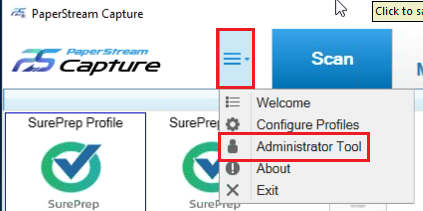
- Open PaperStream Capture. Select theMenuicon and then selectAdministrative Tool.
- On theGeneraltab, selectISISin theDriver Type.
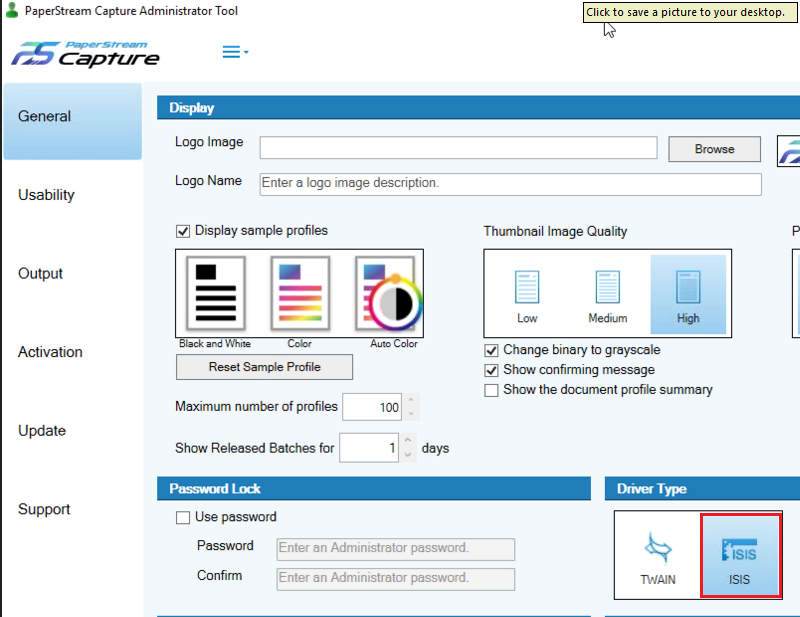 noteIf you don’t have the ISIS driver, you can download it from:http://imagescanner.fujitsu.com/global/dl/
 - On theUsabilitytab, selectSingleunderClick Mode.

Configure profile
- Select the Menu icon and then selectConfigure Profile.
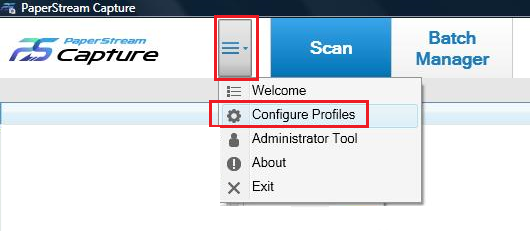
- Select+to create a new profile.

- If you have a profile created already and want to edit it, mouse over the profile and then select theEditicon.
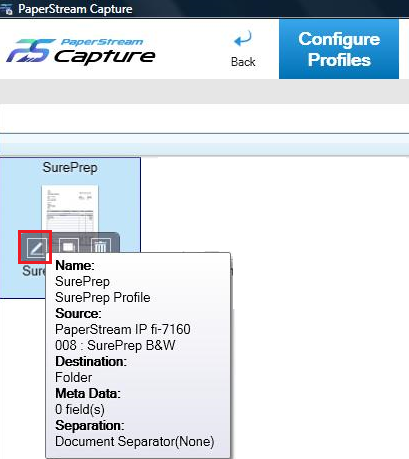
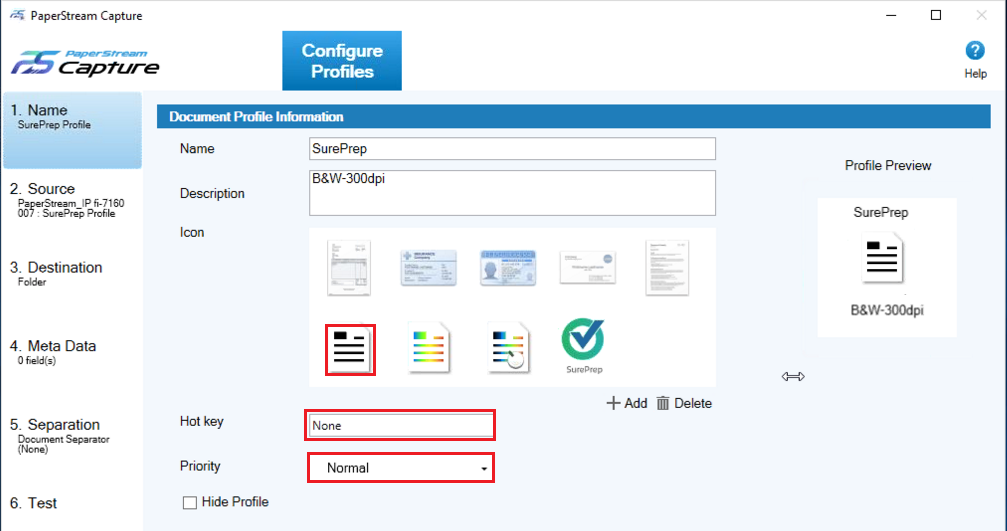
- Nametab will be auto-selected when you configure the profile. Enter the following settings:
- Name: SurePrep Profile
- Description: B&W -300 dpi
- Icon: Black & White
- Hot Key: None
- Priority: None
- Select theSourcetab, change the following settings:
- Source: PaperStream IP fi-7160
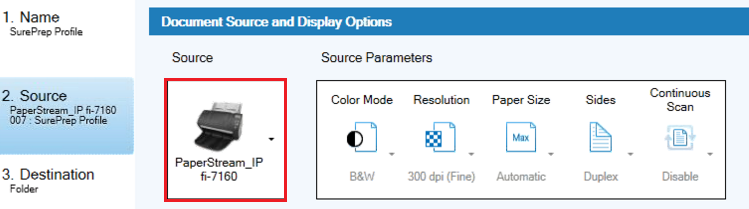
- SelectScanner Driver Profileand selectEdit.

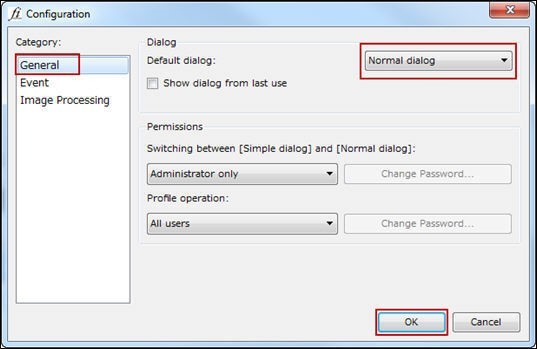
- A PaperStream IP (ISIS) window will appear, select thePreferenceicon.

- On theConfigurationwindow, select theGeneral tab. OnDefault dialogselectNormal Dialogand then selectOK.
- Select theBasictab, and then set the following settings:
- Image Mode: Black and White
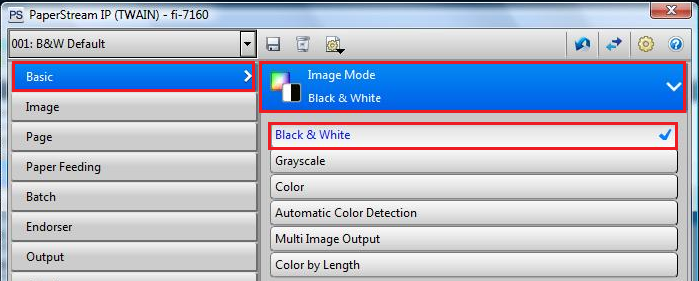
- Paper Source: Feeder (Both Sides)
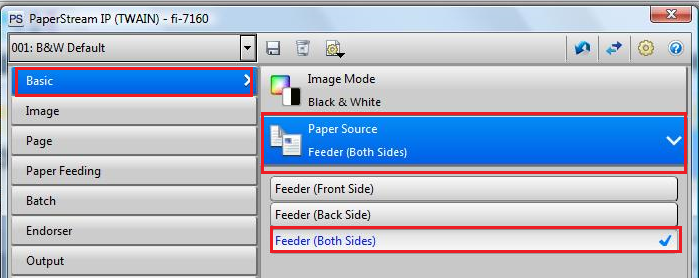
- Resolution: 300 dpi.

- Paper Size: Scanner’s Maximum

- Carrier Sheet: Off

- Front/Back Merging: Off

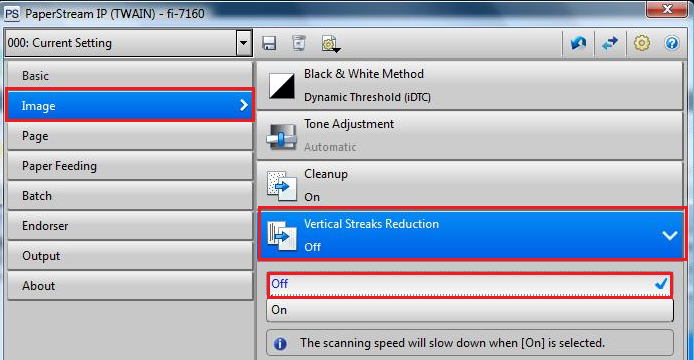
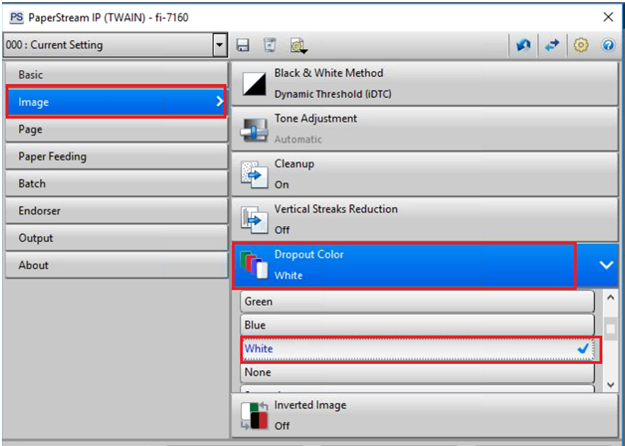
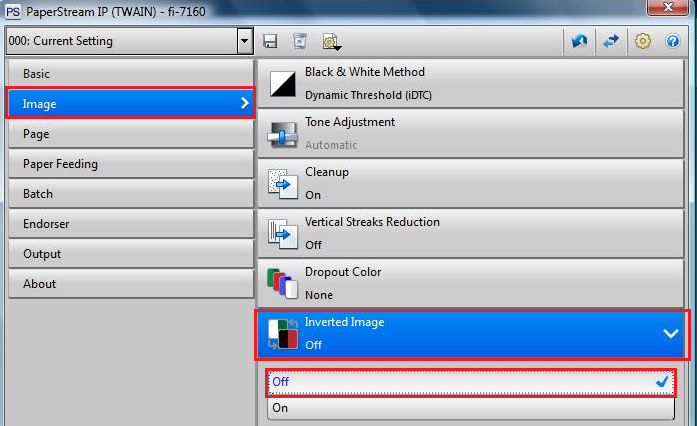
- Select theImagetab, and then set the following settings:
- Black & White Method: Dynamic Threshold (iDTC)

- Tone Adjustment: Defaulted to Disabled.

- Cleanup: On
- Character Thickness: 0 (Zero)
- Character Augmentation: 0 (Zero)
- Noise Removal: 0 (Zero)
- Background Pattern Removal: 2
- The White Level Follower: Automatic.

- Vertical Streaks reduction: Off
- Dropout color: White
- Inverted Image: Off
- Select thePagetab, and then set the following settings:
- Cropping: Automatic Size
- Output Size: Margin
- Priority: Speed

- Split Image: Off

- Rotation: Automatic

- Edge Correction:
- Edge Repair: On
- Edge Filter: On
- Fill Color: White

- Hole Punch Removal: On
- Fill Color: White
- Mode: Standard

- Blank Page Detection: On
- Image Output: Do not output
- Content Sensitivity: 0 (Zero)
- Target Pages: All Pages
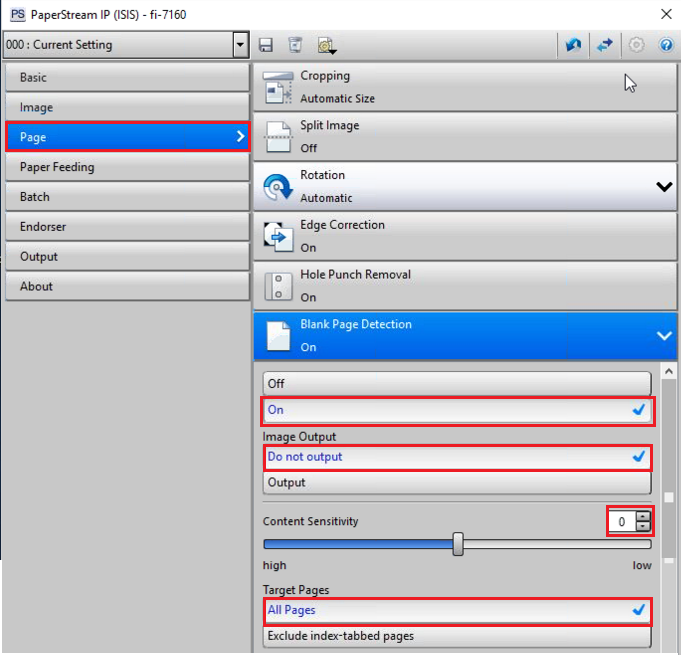 noteNote: The higher the sensitivity, the more likely that the pages will be detected as blank.
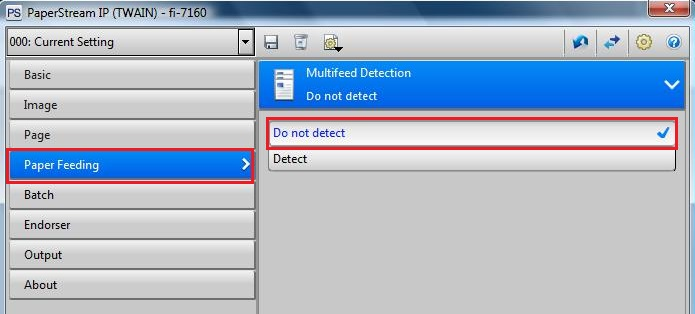
- Select thePaper Feedingtab, and then set the following settings:
- Multifeed Detection: Do not Detect
- Paper Protection: On

- Pre-Pick: On
 noteNote: Enabling the Pre-Pick shortens the interval between scanning each document.
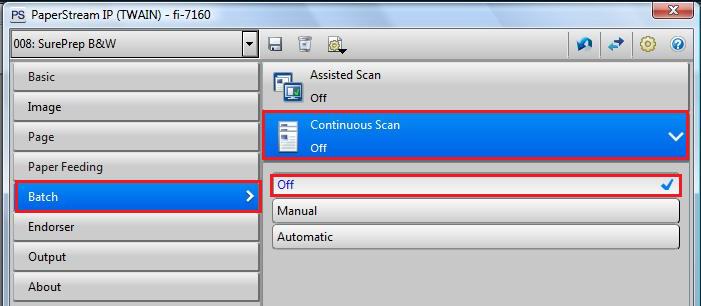
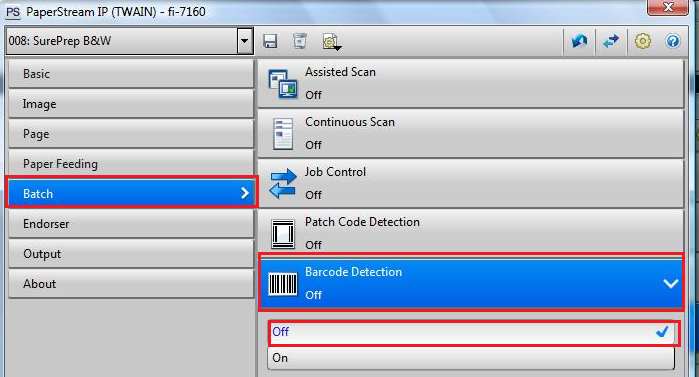
- Select theBatchtab, and then set the following settings:
- Assisted Scan: Off

- Continuous Scan: Off
- Job Control: Off

- Path Code Detection: Off

- Barcode Detection: Off
- Select theEndorsertab, and then set the following settings:
- Digital Endorser: Off

- Select theOutputtab, and then set the following settings:
- Statistic Information: Off
- Display: Off
- Save: Off
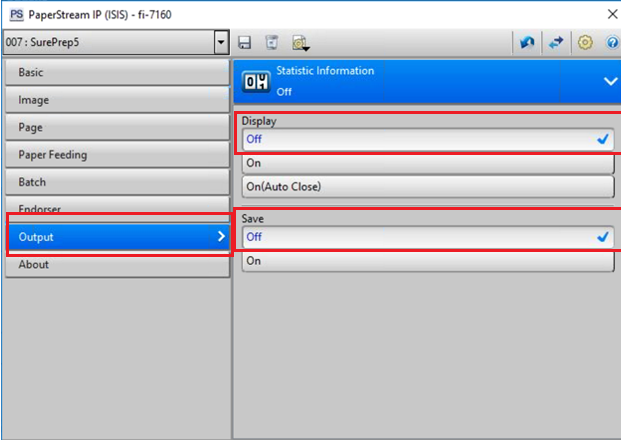
- Once you have set all the settings, select theSaveicon on the toolbar to create a profile.

- TheSave Profilewindow will appear. EnterSurePrep Profilein theDescriptionfield and selectOK. The profile will be saved as SurePrep, selectOK.
- Select theDestinationtab, change the following settings:
- Destination: Folder
- File Properties: PDF File (*.pdf)
- Compression: Follow software-deter
- Folder: Select the location where you want to save the PDF file
- File: <EDITSTR>

- Select theMeta Datatab, no changes required.

- Select theSeparationtab, no changes required.
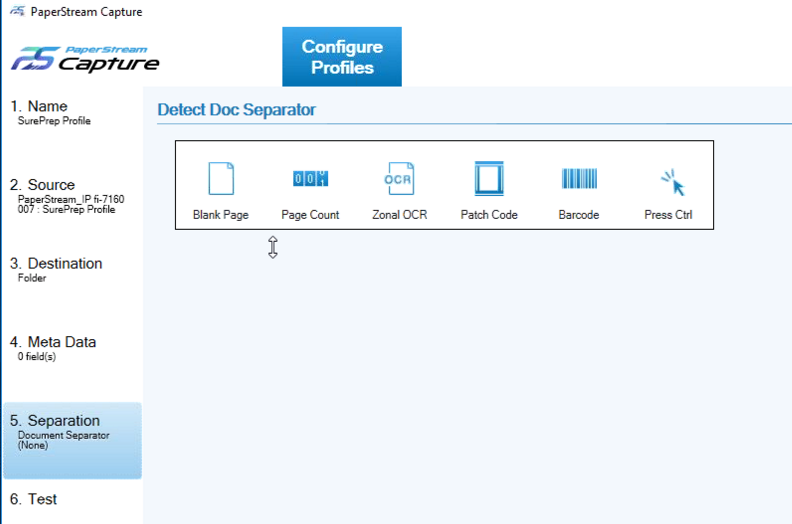
- SelectSaveand thenClosefrom the bottom of the screen.

The SurePrep profile is ready to use. Now place the paper in the scanner’s feeder and select
SurePrep Profile
to scan the pages.
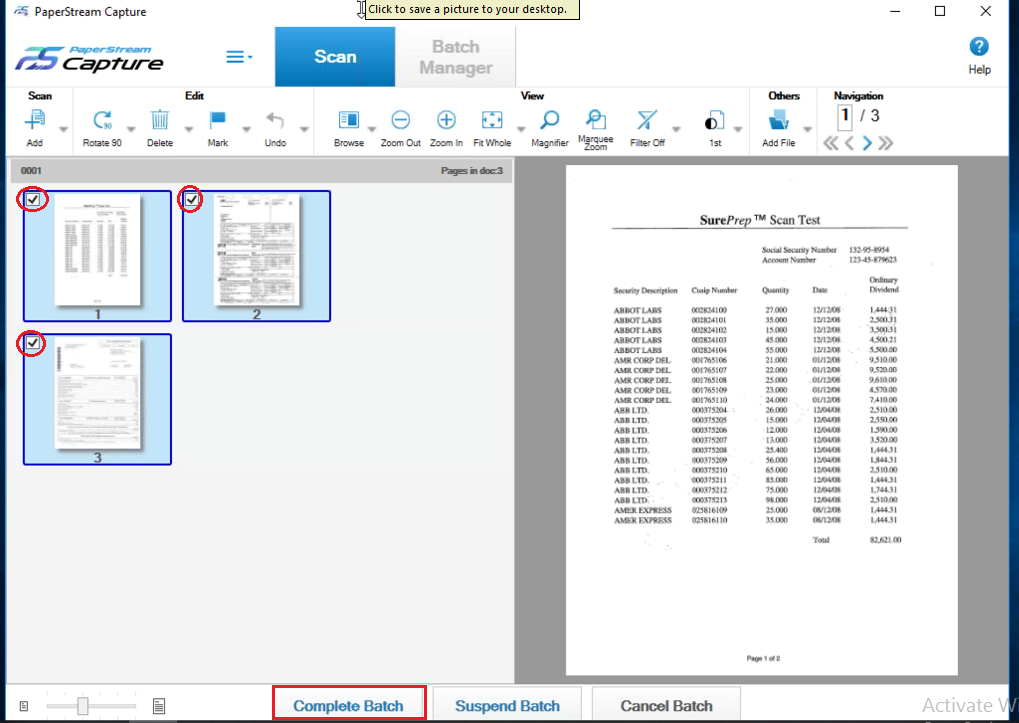
You will see samples for scanned pages. Select the checkbox on the page(s) and select
Complete Batch
.
You'll get a warning message about the batch being released. Select
Yes
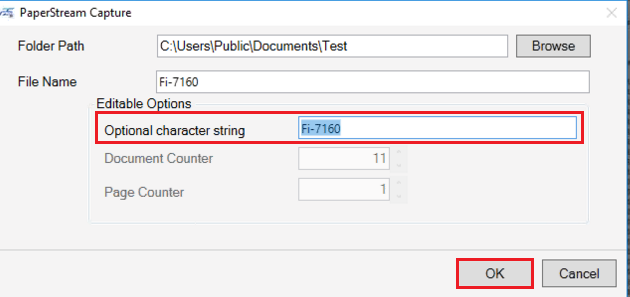
to continue and release the pages.Enter the name of the PDF file under
Optional Character string
and then select OK
.
Please go to the folder path and check the PDF file.
note
Note
: To select all pages at once select Ctrl + A
from your keyboard. Related Content
-
Fujitsu scanner setup
Format: Article
-
Import process v1.2
Format:
Article
-
Fujitsu Ricoh FI-800R, 7160/7260, 6130Z/6230Z, 6140Z/6240Z scanner set up instructions
Format:
Article

