
Forgot password
You can change your password for security reasons or reset your password if you forgot your password.
Reset your password
New Login Method
Follow these steps to reset your password via the new login method:
- SelectSign in with Thomson Reuters Account.
- Check the email address you used to sign in to your account,Change Password.
- Enter a new password, then selectChange Password.

Password Requirements for the new login method
- At least 8 characters
- At least 3 of the following:
- Lower case letters (a-z)
- Upper case letters (A-Z)
- Numbers (0-9)
- Special characters (e.g. !@#$%^&*)
Old Login Method
Follow these steps to reset your password via the new login method:.
- Select the link next toForgot your password?

- Enter theFirm ID, Username, then selectSubmit.

- You'll see a new window informing you that the password request was successful. SelectOk.

- Check your email and open theSurePrep User Password Resetemail.
- SelectReset Password.noteFollow the link within 72 hours before it expires.

- You should now see theForgot Passwordwindow. Three of your 5 secret questions are displayed. Answer the secret questions.
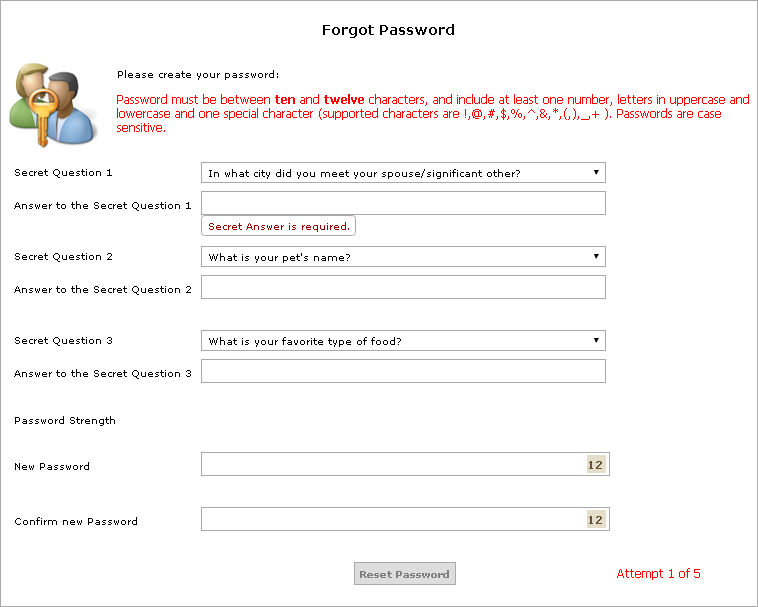
- In thePasswordfield, enter your new password.
- In theConfirm passwordfield, re-enter your new password to confirm if the password you typed matches.Your password strength will be indicated asToo Short,Poor,Good, orVery Good.The number indicated in theNew PasswordandConfirm Passwordfields indicates how many more characters you can use.
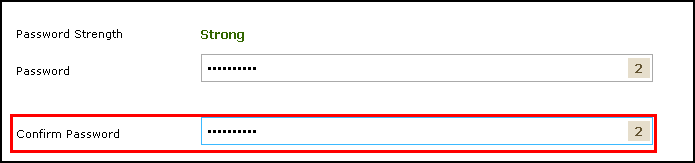
- If the confirmation doesn't match, you'll receive a warning message. In that case, try again.
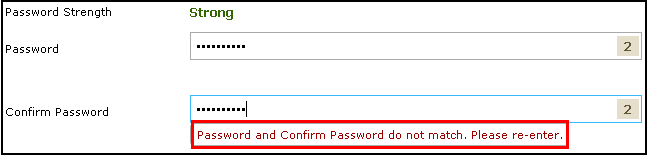
- SelectReset Password. If everything is entered correctly, your password will be changed.
- If the answers to the secret questions don't match the records, you'll receive a message indicating so. In that case, selectOK. The window will refresh and you'll be given 3 possibly different security questions so you can try again.
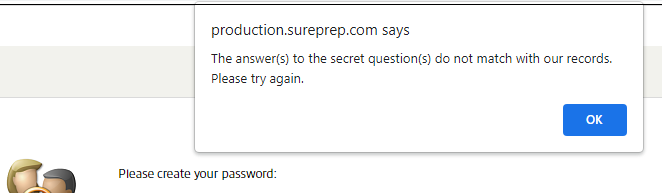
- If you get the security questions wrong 5 times, your username will be locked. In that case, you'll need to contact your firm's administrator or SurePrep Support.

Password requirements for the old login method
- A password must be between 10 and 12 characters long.
- A password must have a number, a capital letter, a lowercase letter, and a special character. (Passwords are case-sensitive.)
- A password must have one of the following special characters:!,@,#,$,%,^,&,*,(,),_, or+.
- A password can't include white space or any of the following ASCII characters:©€ ƒ ¥ v ? ? ? ? ½ a ß ? © ® ? § ? ˜ ¶ ¢ £ ¤ « ¬ µ Ã Ä Å Æ Ç Õ æ þ ÿ ™.
- A password can't contain the sign in name.
- A password can't be blank.

Account Locked
If a user enters an incorrect password five successive times for a username, that user will be locked for 30 minutes. A message will be displayed at the top of the login window informing the user that the account has been locked. If you forgot your password or if your account is locked, then you can use the password reset option to create a new password.
Account Locked
If a user enters an incorrect password 5 successive times for a username, that user will be locked for 30 minutes. A message will be displayed at the top of the sign in window informing the user that the account has been locked. If you forgot your password or if your account is locked, then you can use the password reset option to create a new password.

You can either wait 30 minutes to try again or reset your password.
Related Content
-
Reset your password
Format: Article,
3 min read
Article,
3 min read
-
Set password expiration
Format:
Article,
4 min read

