
Set password expiration
Firms have the option of enforcing a password expiration policy for their users. Password expiration policies regulate how frequently users need to replace old passwords with new ones. Firms can set timeframes for password expiration for all users logging in to FileRoom. For additional security, firms can also prevent previous passwords from being reused again. By default, the password expiration policy is turned off.
Update password settings
Follow these steps to update the password settings.
- SelectFileRoom,Admin,Account Setup, thenSecurity.
 noteOnly users with permissions to access theSecuritytab will see theSecuritytab.
 - SelectPassword Expiration.

- To enable password expiration, mark theEnable Password Expirationcheckbox.To turn off password expiration, clear the checkbox.

- In the confirmation window, selectYes.
 noteOnce enabled, all users at the firm need to reset their password after a set number of days have passed. SurePrep will monitor the ages of passwords and streamline the process of alerting users when password expiration deadlines are approaching.
 - Once you've enabled password expiration, you can customize the following:SettingDescriptionExpire Password afterThe password expiration interval controls the number of days that a valid password can be used before it must be changed by the user (60-90 days). Example: If a firm expires user passwords after 90 days, a password reset on Jan 1 will expire on March 31.Show password reset reminder ___ day(s) before expirationWhen a user’s password is close to expiration, the user is directed to reset their password. Firms can customize when the reset reminders are sent to the user before the password expires (7-15 days).
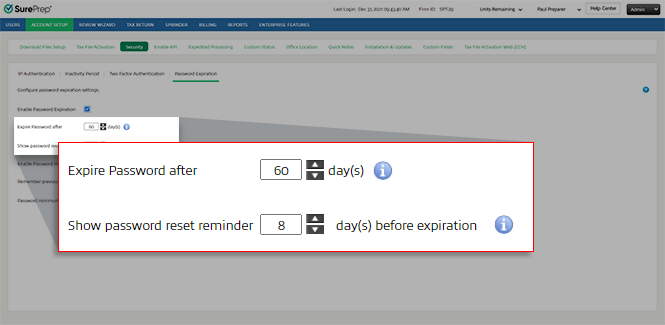 noteSelect
 to see tips about each option.
 - Firms can also prevent previous passwords from being reused again.SettingDescriptionEnable Password HistoryMark the checkbox to prevent users from reusing the same password.Remember previous ___ passwordsSelect how many previous passwords to exclude and prevent from being reused (10-15 previous passwords).noteThis option is only available if you enabled thePassword Historyoption.

- You can adjust the minimum character length for a password. Select between 10-12 characters.

Related Content
-
Forgot password
Format: Article,
5 min read
Article,
5 min read

